Planners
What it does
Section titled “What it does”Planners lists the wedding and event planning companies on Upstay Events. During the pilot, each account is opened here by hand: the company, its lead planner, and the lead’s invite link. Nothing is emailed from this page: you copy the link, or send it as a ready-made WhatsApp message, yourself.
Each company shows its Team (each person, their role and whether they have signed in) and its Events (status, dates, families and guests). The numbers at the top count Companies, Events, Guests invited and Team members.
Pausing a company signs its whole team out at once. Nothing on this page changes a hotel.
Who can use it
Section titled “Who can use it”Upstay operators who can see the Hotels area.
Where to find it
Section titled “Where to find it”Planners under Growth in the rail.
How to open a planner account
Section titled “How to open a planner account”- Click Add a planner company.
- Under The company, enter the Company name. City (optional), Phone (optional) and Email (optional) are optional.
- Under The lead planner, enter the lead’s Name and Email, and optionally Mobile (optional). The lead signs in with this email.
- Click Open the account.
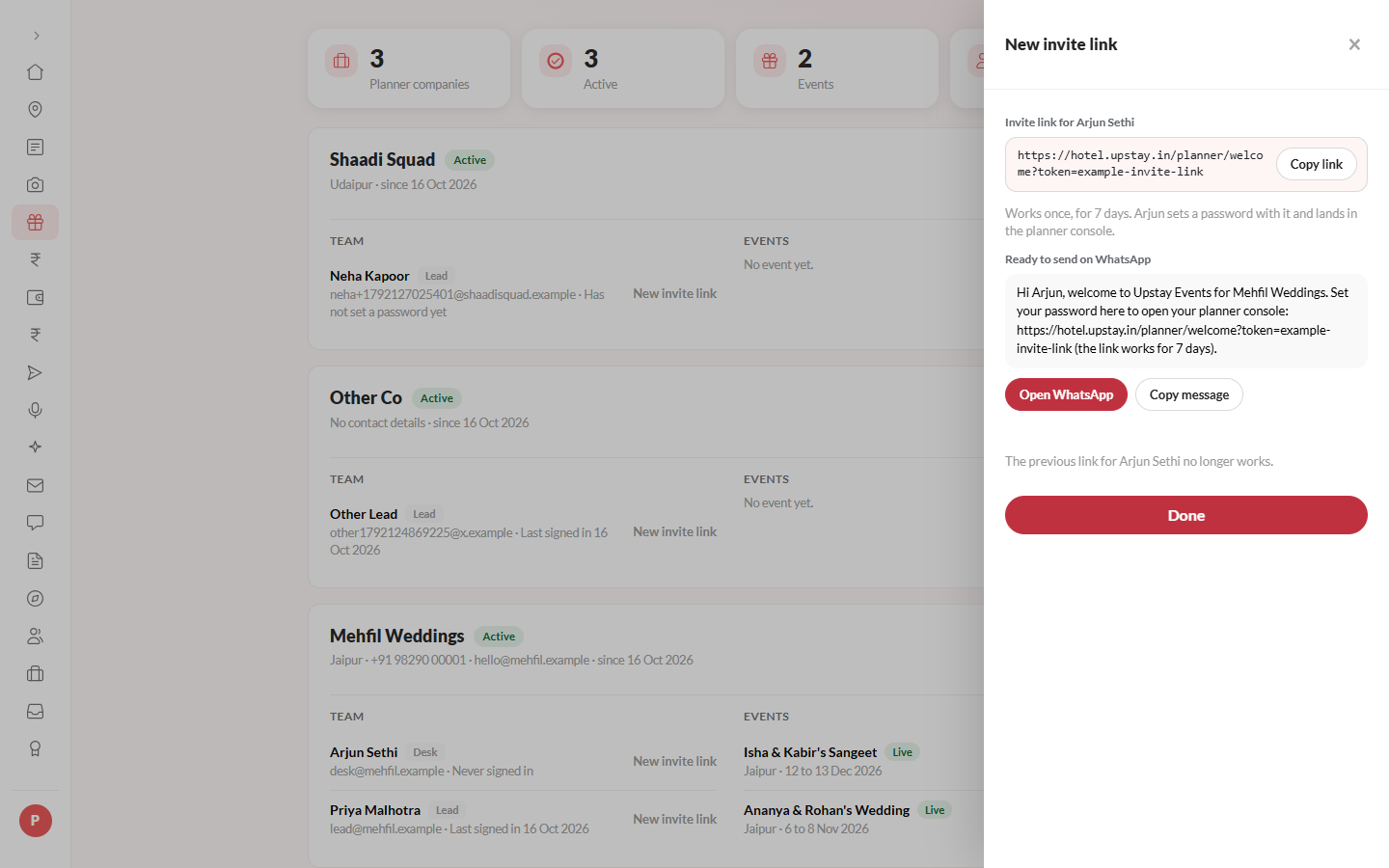
- Copy the invite link with Copy link, or click Open WhatsApp to send the ready-made message, or Copy message.
- Click Done.
How to make a new invite link
Section titled “How to make a new invite link”- Find the company and the person under Team.
- Click New invite link beside them, or pick it from their ··· menu.
- Send the new link the same way, then click Done. The previous link for that person no longer works.
How to manage a company’s team
Section titled “How to manage a company’s team”Use this when a lead planner cannot do it themselves, for example when the company’s only lead planner has left.
- Open the company and find Team.
- To add someone, click Add a team member. Enter their Name, Email and Mobile (optional), pick What they can do, and click Add to the team. Their invite link opens next: send it on WhatsApp or by email yourself.
- To change what someone can do, open the ··· menu beside their name and pick Make and the new role. It saves at once.
- In the same menu, pick Switch off (with their name) to stop someone signing in, or Switch on to let them back. A switched-off person keeps their role tag.
A company always keeps at least one active lead planner. Switching off or changing the last one shows “The company needs at least one active lead planner.”
How to pause or resume a company
Section titled “How to pause or resume a company”- Open the company and click Pause company.
- Confirm with Pause (or Keep active to stop). The company shows Paused and everyone on its team is signed out at once.
- To let them back in, click Resume company.
How hotels take part
Section titled “How hotels take part”Planners can add only hotels that take event guests. Two switches in a hotel’s Features (group Events) control this:
- Event guests: the hotel can be added to events, and it has an Events page in its console. Off = the hotel cannot be added to an event and its Events page is hidden.
- Event plan in the guest app: guests staying for an event see its schedule and the planner’s updates in their stay app. Off = the stay app shows only the hotel.
Both are on by default.
Tips & good to know
Section titled “Tips & good to know”- An invite link works once, for 7 days. The lead sets a password with it and lands in the planner console.
- After that, the lead planner usually invites the rest of their team from their own console (Settings → Team), and changes their roles and switches them off there. You can do the same from Team here. A team member can be a Lead planner, Hospitality desk, Transport, Vendor coordinator or Viewer.
- Each person’s line says Has not set a password yet, A new sign-in link has not been used yet, Last signed in a date, Never signed in, or Switched off: cannot sign in.
- A planner’s console has no hotel of its own; its access is the company’s Active or Paused state.
Troubleshooting
Section titled “Troubleshooting”- “Someone already uses that email on Upstay Events.” → Use a different email for the lead, or find the existing account.
- Open the account stays greyed out → Enter a company name and lead name of at least two letters, and a valid lead email.
- A planner says “This planner account is paused. Contact Upstay.” → The company is paused. Click Resume company if that was a mistake.
- A planner says their link has expired → Click New invite link for them and send it again.