Microsite & Rate Calendar
What it does
Section titled “What it does”Microsite is the content behind your hotel’s own booking site and its card on the Upstay marketplace: tagline, hosts, highlights, nearby landmarks, things to do, FAQs, hotel photos, and the booking modes you accept. The Rate calendar is where you set a rate, an OTA rate, a minimum stay or a closure for specific dates on top of the base tariff. It lives with the room types it prices, under Rooms and rates. What guests see and pay online comes from these two.
Who can use it
Section titled “Who can use it”Admins edit the Microsite. Managers and above use the rate calendar. Both need the Marketplace listing module.
Where to find it
Section titled “Where to find it”Back office → Microsite, with the sections Your listing, Site content, Hotel photos, Booking settings and Rate calendar. The rate calendar itself is at Back office → Rooms and rates → a room type → Rates.
How to check your listing
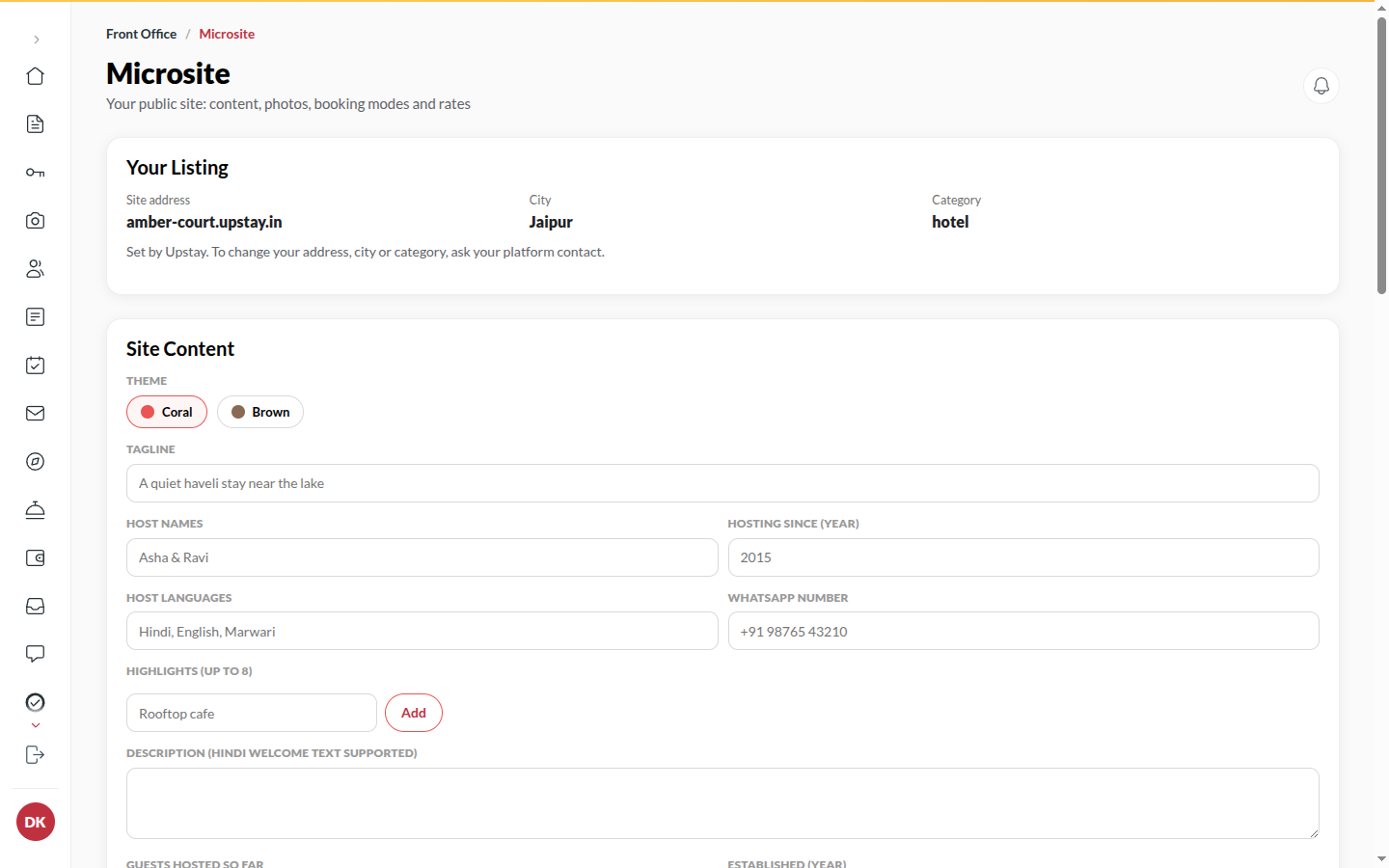
Section titled “How to check your listing”- Open Your listing. It shows the Site address, City and Category, set by Upstay.
- To change any of them, ask your platform contact.
How to fill your site content
Section titled “How to fill your site content”- Open Site content.
- Fill the Tagline, the Theme, the hosts (Host names, Hosting since (year), Host languages), the WhatsApp number, highlights, Landmarks nearby, How to reach, Things to do and FAQs.
- Click Save content. It stays off until you change something, and says Saved for a moment afterwards. Discard puts the last saved values back. The site updates at once.
How to add hotel photos
Section titled “How to add hotel photos”- Open Hotel photos, pick the Photo category and click Add photo (JPG, PNG or WebP).
- Photos act at once; there is no separate save. Room-type photos are managed under Rooms and rates.
How to choose booking modes
Section titled “How to choose booking modes”- Open Booking settings.
- Switch on the modes guests may use: Full prepaid, Partial advance (set the Advance percent (partial advance)), Pay at hotel, Request to book.
- For the prepaid modes, set Unpaid hold (minutes): after that an unpaid hold is released automatically.
- Click Save booking settings. Keep at least one mode on, or nobody can book online.
How to set a rate for specific dates
Section titled “How to set a rate for specific dates”- Open Back office → Rooms and rates, pick the room type and open Rates (or Open the rate calendar in Rooms and rates from the Microsite).
- Select one or more dates. Use Previous month / Next month to move.
- Enter the Rate (₹), an OTA rate (₹), Min nights, or switch on Closed.
- Click Apply. Clear override returns the dates to the base tariff.
- For weekends, use the Weekend tool: pick From and To, enter the Uplift % and click Set Fri–Sun rates.
How to close for bookings
Section titled “How to close for bookings”Managers and owners can stop online bookings for some nights without taking the website down, for example when the hotel is full for an event. Open Rooms (or your Today page) and press Close for bookings. Give it a name, such as “Wedding”, pick From and To (last night), then choose Whole hotel, Choose room types (tick the types to close) or Choose rooms (tick single rooms, or Select all for a type), and press Save.
- Your website stays up. A closed room type shows as not available for those dates; when the whole hotel is closed, those nights are struck through in the date picker, which says Bookings open from the first open date.
- The booking apps (OTAs) stop selling those nights.
- The front desk can still book them; it sees a warning that the dates are closed for online bookings.
- Choose rooms keeps just those rooms off online sale, for example two of ten Deluxe rooms, or room 101 kept for a VIP. The rest of the type stays bookable online. You can also open a room on the Rooms board and press Block for online booking; the dialog opens with that room ticked. At the front desk the room is marked Blocked online when you assign or move a guest, and you can still give it out.
- Every closure is listed in the same dialog. Press Remove, then Remove again to confirm, to reopen it.
Tips & good to know
Section titled “Tips & good to know”- The online price for a stay is added up night by night, so a two-night stay across a festival date charges the festival rate for that night only.
- A minimum stay applies to stays starting on that date.
- An OTA rate below your Upstay rate is flagged, never blocked; see Channel Manager.
- If someone else saves the same section while your page is open, your save is refused and the latest values are shown, so nothing is silently overwritten.
Troubleshooting
Section titled “Troubleshooting”- “This feature is not turned on for your hotel.” → The Marketplace listing module is off; contact Upstay.
- “Not part of your plan” on the rate calendar → The rate calendar is not on for your hotel; contact Upstay.
- Guests report “no online payment option” → Only offline modes are on, or online payments are not switched on for the platform.