Hotels
What it does
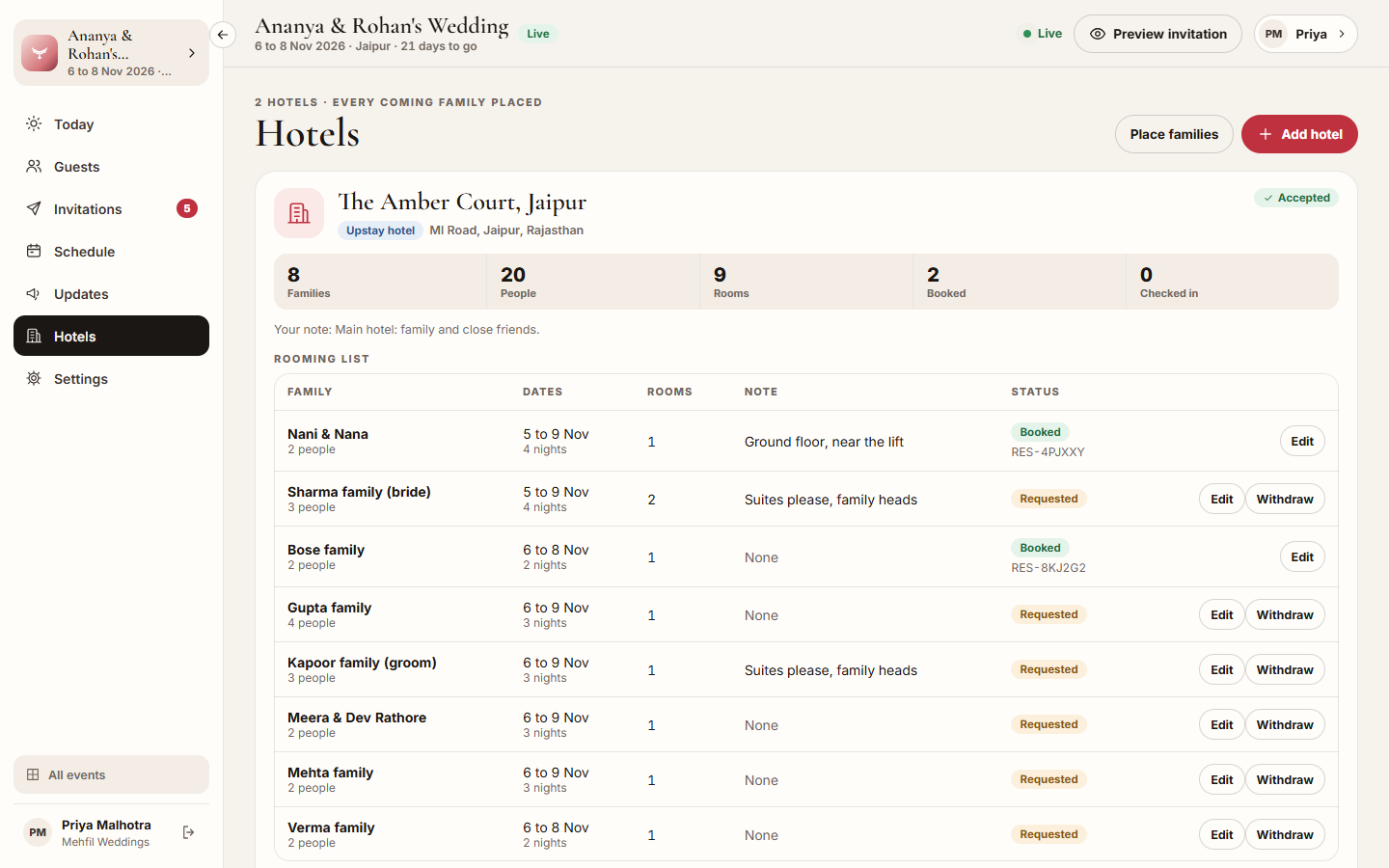
Section titled “What it does”Hotels lists the hotels this event uses, each with its rooming list: the families placed there, their dates, rooms, note and status.
- An Upstay hotel is asked to host your guests. It accepts the event from its own console, sees each family’s room request, and books the rooms there. The booking appears on your list as Booked with its booking code, and the family can then check in on their phone.
- A hotel that is Not on Upstay is your own list. You book those rooms with the hotel yourself.
Each hotel card counts Families, People, Rooms, Booked and Checked in, and says Who pays for the rooms: the hosts or the guests.
To hold a set of rooms at an agreed rate before you place families, use room blocks on Rooms.
Who can use it
Section titled “Who can use it”Lead planner and Hospitality desk add hotels, place families and choose who pays. Viewer and Transport can see the rooming lists but not change them. A Vendor coordinator does not see Hotels.
Where to find it
Section titled “Where to find it”Hotels in the event’s sidebar (under More on a phone). A number on it counts the Upstay hotels that have not accepted yet.
How to add an Upstay hotel
Section titled “How to add an Upstay hotel”- Click Add hotel.
- Keep On Upstay selected. Hotels in the event’s city that take event guests are listed.
- Search by name or city if you need to.
- Optionally write Your note, for example “main hotel, close family”. The hotel sees this note with your request.
- Click Add beside the hotel. It shows Waiting for the hotel to accept until it answers.
How to add a hotel that is not on Upstay
Section titled “How to add a hotel that is not on Upstay”- Click Add hotel and pick Not on Upstay.
- Enter the Hotel name, and optionally the Address and Phone.
- Click Add hotel.
How to place families at a hotel
Section titled “How to place families at a hotel”- Click Place families at the top, or Place families here on a hotel’s card. (On Guests, you can also tick families and click Place at hotel.)
- Pick the Hotel.
- Set Check-in and Check-out.
- Leave Rooms per family empty for one room for every two adults, or type a number.
- Optionally write a Note for the hotel, for example “adjoining rooms, ground floor”.
- Tick the families. Families coming with no hotel yet are ticked for you; others are grouped below, such as Not answered yet, no hotel and At another hotel.
- Click Place (for example Place 6 families).
How to change or withdraw a room request
Section titled “How to change or withdraw a room request”- On the hotel’s card, click Edit beside the family.
- Change the dates, rooms or Note for the hotel, and click Save.
- To take a family off the hotel’s list, click Withdraw, then Withdraw request.
How to choose who pays for the rooms
Section titled “How to choose who pays for the rooms”- Find the hotel’s card.
- Under Who pays for the rooms, click Hosts pay for the rooms or Guests pay. It saves at once.
With Hosts pay for the rooms, room and taxes go on the hosts’ bill at the hotel and guests pay only their extras. With Guests pay, each family pays for its own room, taxes and extras at the hotel. Every family already booked there is updated, and the hotel is told. New hotels start on Guests pay.
Tips & good to know
Section titled “Tips & good to know”- You can place families before the hotel accepts. The hotel is told about new room requests once it has accepted the event.
- Each family’s status reads Requested, Booked or Withdrawn; at a hotel not on Upstay it reads On your list.
- Once a family is booked, only the note can change here. Ask the hotel to change the dates or rooms.
- Moving a family to another hotel withdraws its request at the first one.
- A note from the hotel when it accepts or declines shows on the card as From the hotel.
- Remove from the event takes a hotel off the event and withdraws its room requests.
Troubleshooting
Section titled “Troubleshooting”- “No Upstay hotel found.” → Only hotels that take event guests on Upstay appear. Click Add one that is not on Upstay to keep your own list for it.
- “The hotel declined the event.” → Families cannot be placed there. Add another hotel.
- “Already booked at another hotel” → That family is booked elsewhere. Ask that hotel to cancel the booking first.
- “This family is already booked. Ask the hotel to change the dates or rooms.” → The hotel booked them; the hotel makes changes now.
- “This hotel has 2 booked families. Ask the hotel to cancel those bookings first.” (with your number) → A hotel with bookings cannot be removed until the hotel cancels them.
- “Check-out must be after check-in.” → Fix the dates.
- “Not changed” when you pick who pays → Your role cannot change hotels. Ask a lead planner.