Events
What it does
Section titled “What it does”Events is where wedding and event planners using Upstay Events send their guests to your hotel. When a planner adds your hotel to their event, a manager is told on the bell. The manager accepts or declines. Once the event is accepted:
- The planner may ask you to hold a room block: a number of rooms of one type, for set dates, at a rate you agree, until a cut-off date. A manager confirms or declines it.
- The desk sees the rooming list: each family with its dates, rooms, who sleeps where, food and access needs, travel, block and who pays, plus every change the planner makes. You book each family in one click, through the same booking the desk makes every day, and give each its room numbers.
- Guests’ requests for the hotel (an extra bed, towels, a late checkout) arrive on their own tab and on the bell.
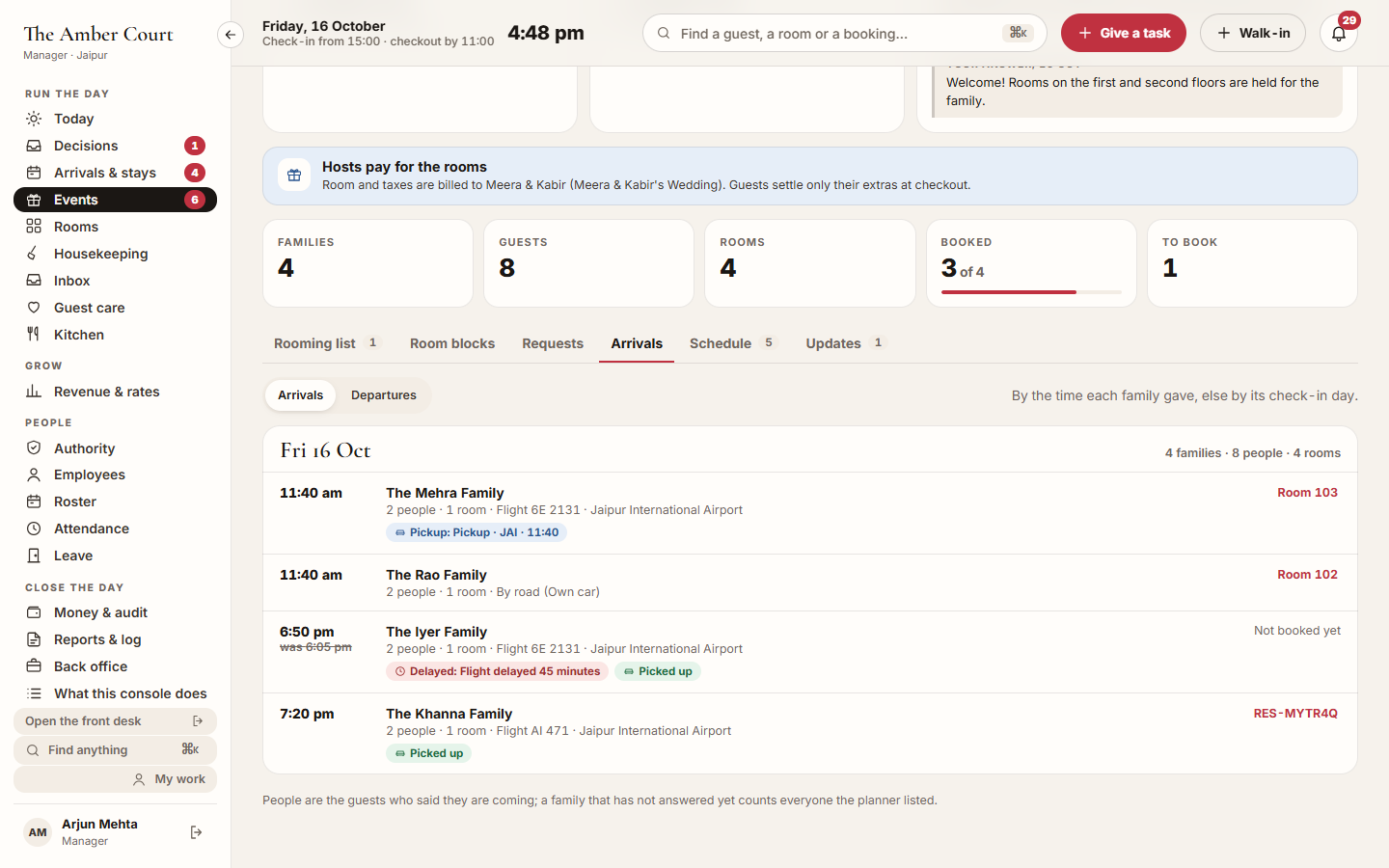
- Arrivals shows who lands when, delays, and whether their pickup is arranged.
The page has three shelves: Waiting for your answer, Upcoming, and Past (or Past and declined). Each event opens on six tabs: Rooming list, Room blocks, Requests, Arrivals, Schedule and Updates. A booking made for an event carries the event’s name on its guest file.
Who can use it
Section titled “Who can use it”- Front Desk, Manager and Admin read events, book families, give room numbers, download the rooming list and work on requests.
- Manager and Admin accept or decline an event, and confirm or decline room blocks.
- Housekeeping and Concierge do not see this page.
Where to find it
Section titled “Where to find it”- Events in the sidebar, shown while your hotel has at least one event. Managers find it under Run the day, owners under Run the hotel.
- Always in Back office → Guests → Events.
- From the bell, when a planner asks you to host an event, asks for a room block, changes the rooming list, or a guest asks for something.
How to accept or decline an event
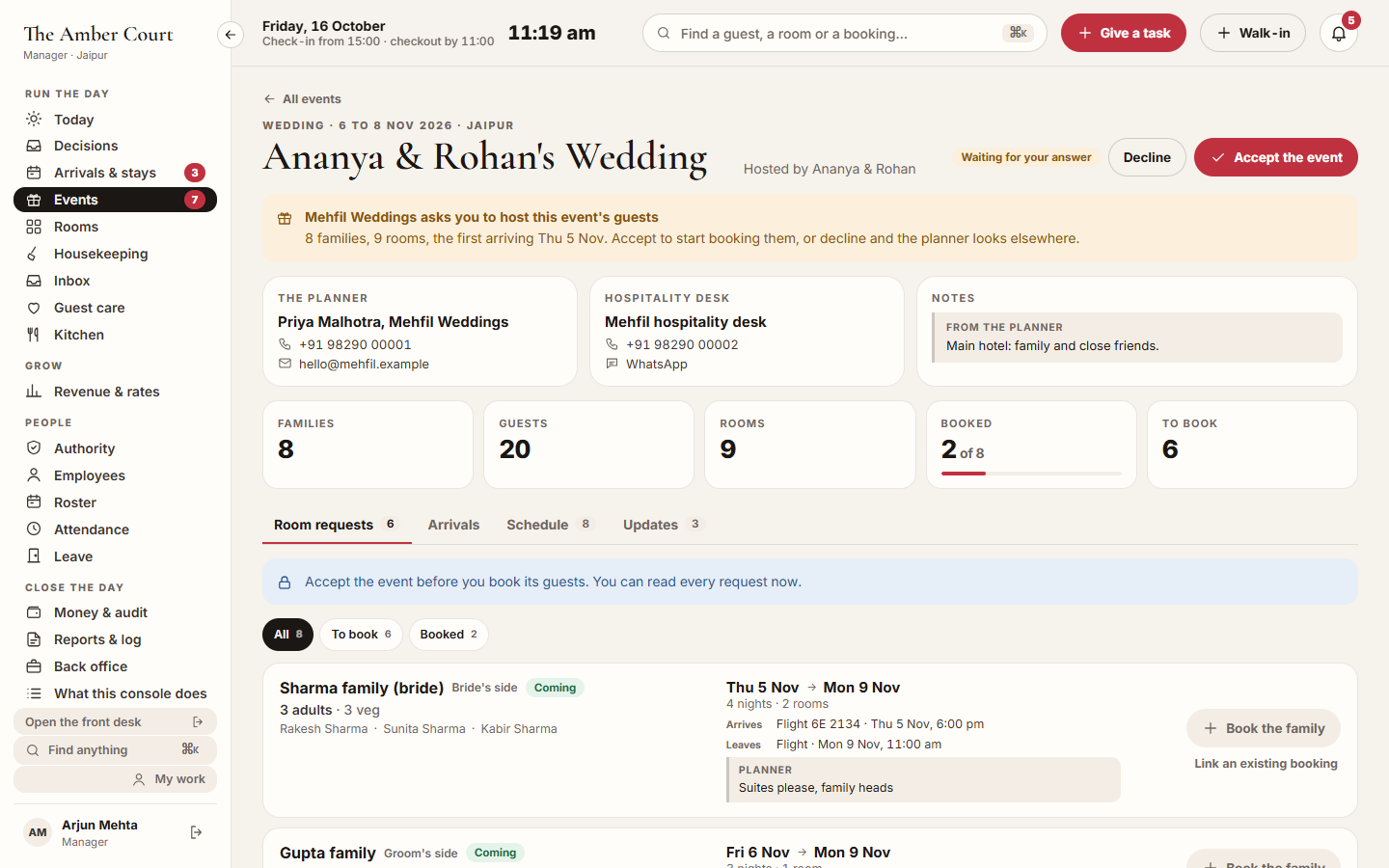
Section titled “How to accept or decline an event”- Open Events and click the event under Waiting for your answer.
- Read who is asking, how many families and rooms, and the note from the planner.
- Click Accept the event, or Decline.
- Optionally write A note for the planner (optional).
- Confirm with Accept the event or Decline the event. The planner is told.
To change your answer later, open the event’s menu (Change your answer) and pick Decline the event or Accept the event. Declining an event releases its room blocks: the dialog says how many rooms go back on sale before you confirm.
How to confirm a room block
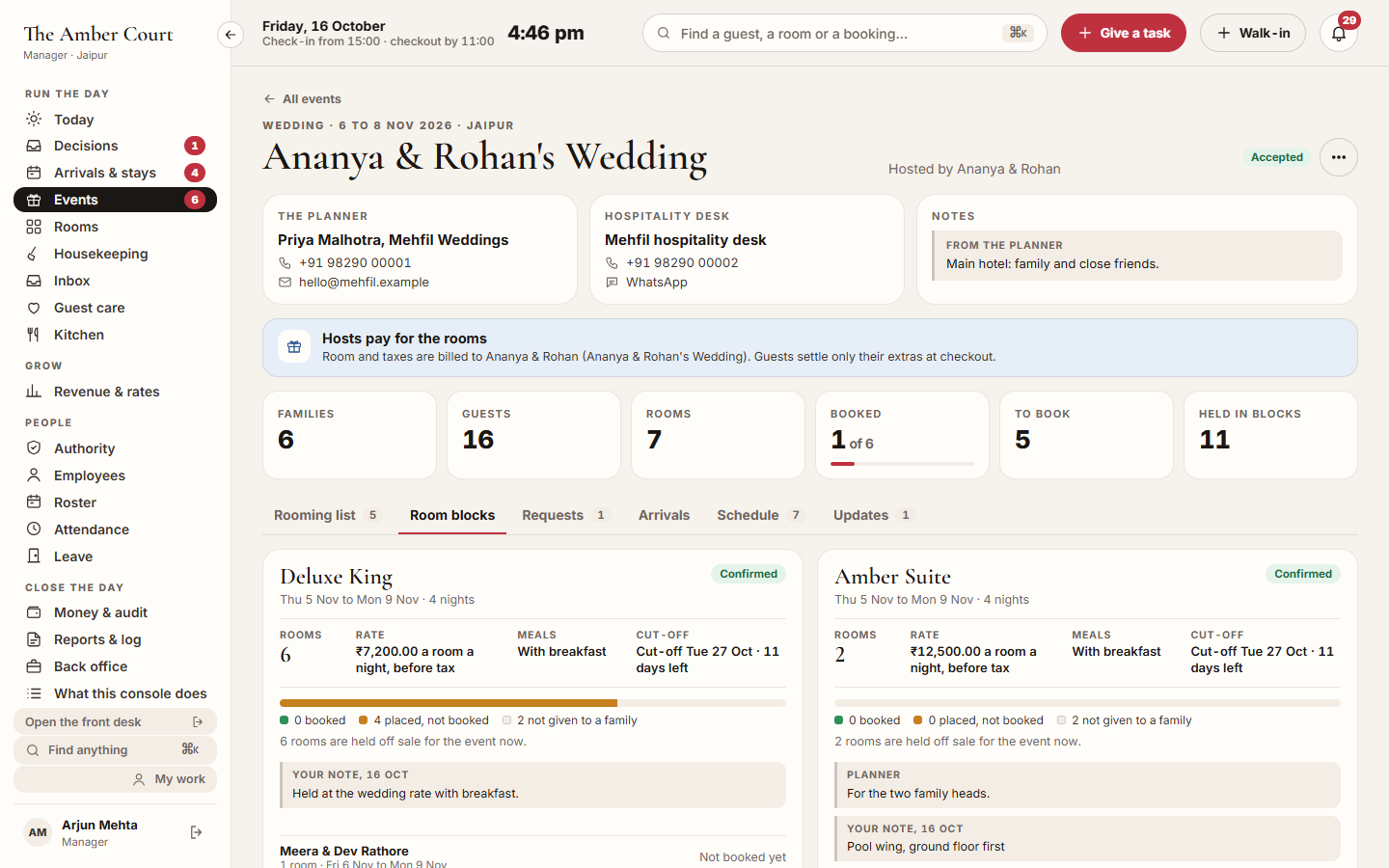
Section titled “How to confirm a room block”- Open the event. A callout such as 2 room blocks to confirm shows when blocks wait for you; click See the blocks, or open the Room blocks tab.
- Read the block: the room type, dates, Rooms, Rate, Meals and Cut-off, and the planner’s note.
- Click Confirm. Adjust Rooms, the Cut-off date or the Rate a room a night, before tax (₹) if you agreed something else, and optionally write A note for the planner (optional).
- Click Confirm the block. The rooms are held off sale for the event until the cut-off.
- To refuse, click Decline, write Why (the planner reads this), and click Decline the block.
When the planner changes a confirmed block, it reads Change to confirm with what changed, for example “6 → 8 rooms”. Until you answer, the terms you confirmed keep holding. Click Confirm the change, or Keep the confirmed terms to tell the planner no.
The meter on each block shows how many rooms are booked, placed but not booked, and not given to a family. At the cut-off, unbooked rooms go back on sale by themselves and the block shows Released.
How to follow the rooming list
Section titled “How to follow the rooming list”- Open the event’s Rooming list tab.
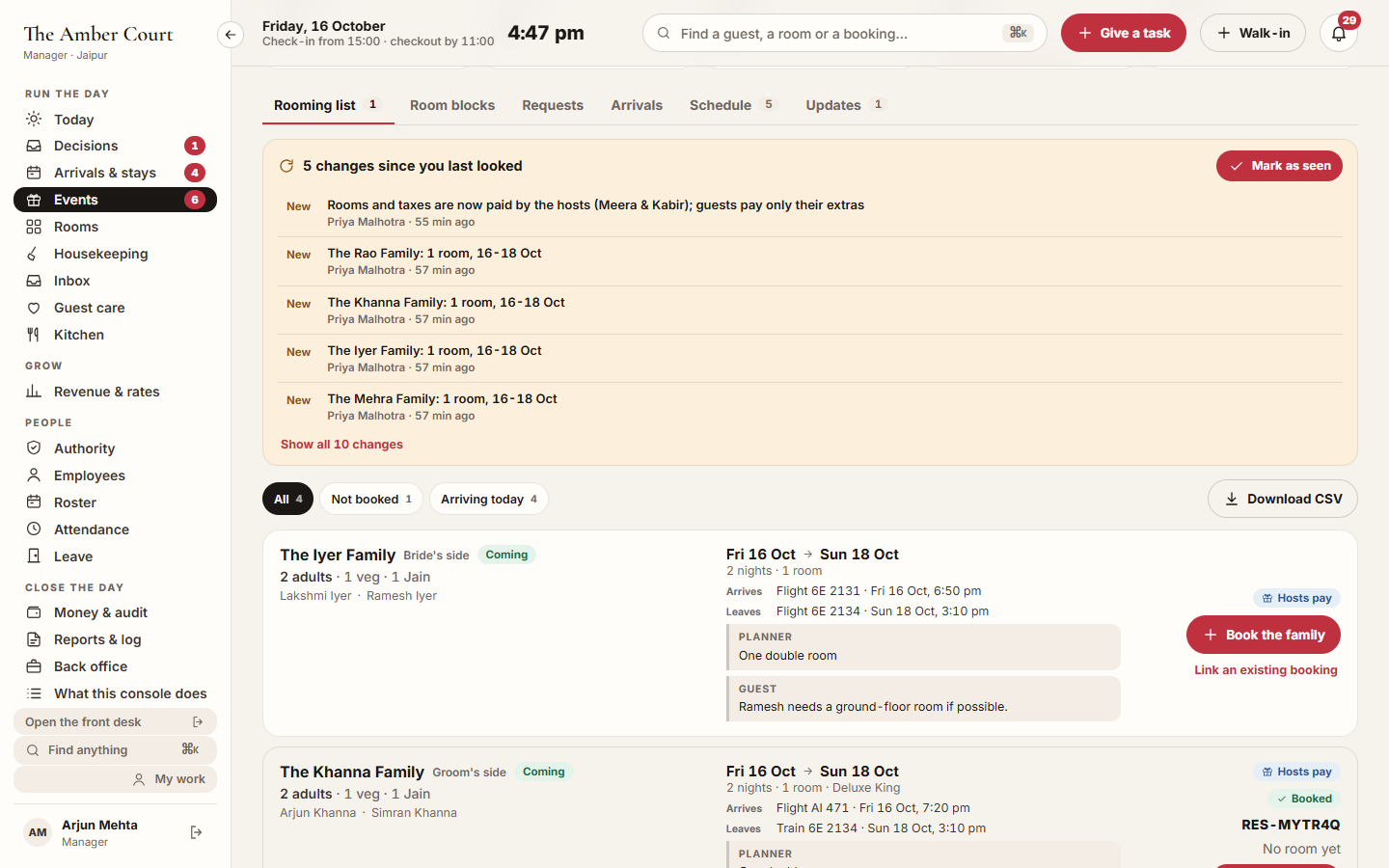
- Read the changes panel at the top, for example 5 changes since you last looked: each line says what the planner changed, such as new dates, more rooms or a family moved. A change made by your own team says Your hotel, one Upstay made by itself (such as rooms released at the cut-off) says Upstay, and a change you have not seen yet is marked New. Click Mark as seen once you have dealt with them. See every change shows the whole history.
- Use To book to see only the families still to book, Booked for the ones you have booked, Arriving today for today’s arrivals, and the Block box to see one block.
- Each family shows the people, food and access needs, the dates and rooms, its block and rate, when it Arrives and Leaves, notes from the Planner and the Guest, and Hosts pay or Guest pays.
- Click Download CSV for the list as a spreadsheet: family, guests, block, type, dates, rooms, room numbers, status, booking, paid by, food, access needs, arrival and note.
How to book a family
Section titled “How to book a family”- On the Rooming list, click Book the family beside a family.
- For a family in a confirmed block, the block’s room type is picked for you and shows The block. The rate you agreed is used: From the … block. If the planner has asked to change the block and you have not answered yet, the family is booked On the terms you confirmed, and the rooming list marks the block (as you confirmed it; a change waits). Otherwise pick the Room type; a type named in the planner’s note shows Matches the request, and you can pick a Rate plan.
- Check Rooms, Adults and Children.
- Switch on Send the confirmation to text the family their booking.
- Click Book the family. The family is booked and the planner sees it straight away.
To book every family at once, click Book all (for example Book all 6), pick the room type for the families not in a block, and click Book (for example Book 6 families). Families in a block are booked in the block’s room type at the agreed rate. To join a booking you already made, click Link an existing booking, type the Booking code and click Link the booking.
The booking already knows everyone the family said is coming, so each person’s online check-in carries their own name.
How to give a family its room numbers
Section titled “How to give a family its room numbers”- On the booked family, click Allocate room (or Change room).
- Pick a free room of the booked type. Rooms being cleaned or occupied cannot be picked yet.
- Click Give room 202 (with your room number). The planner and the family see the room number.
How to answer a guest’s request
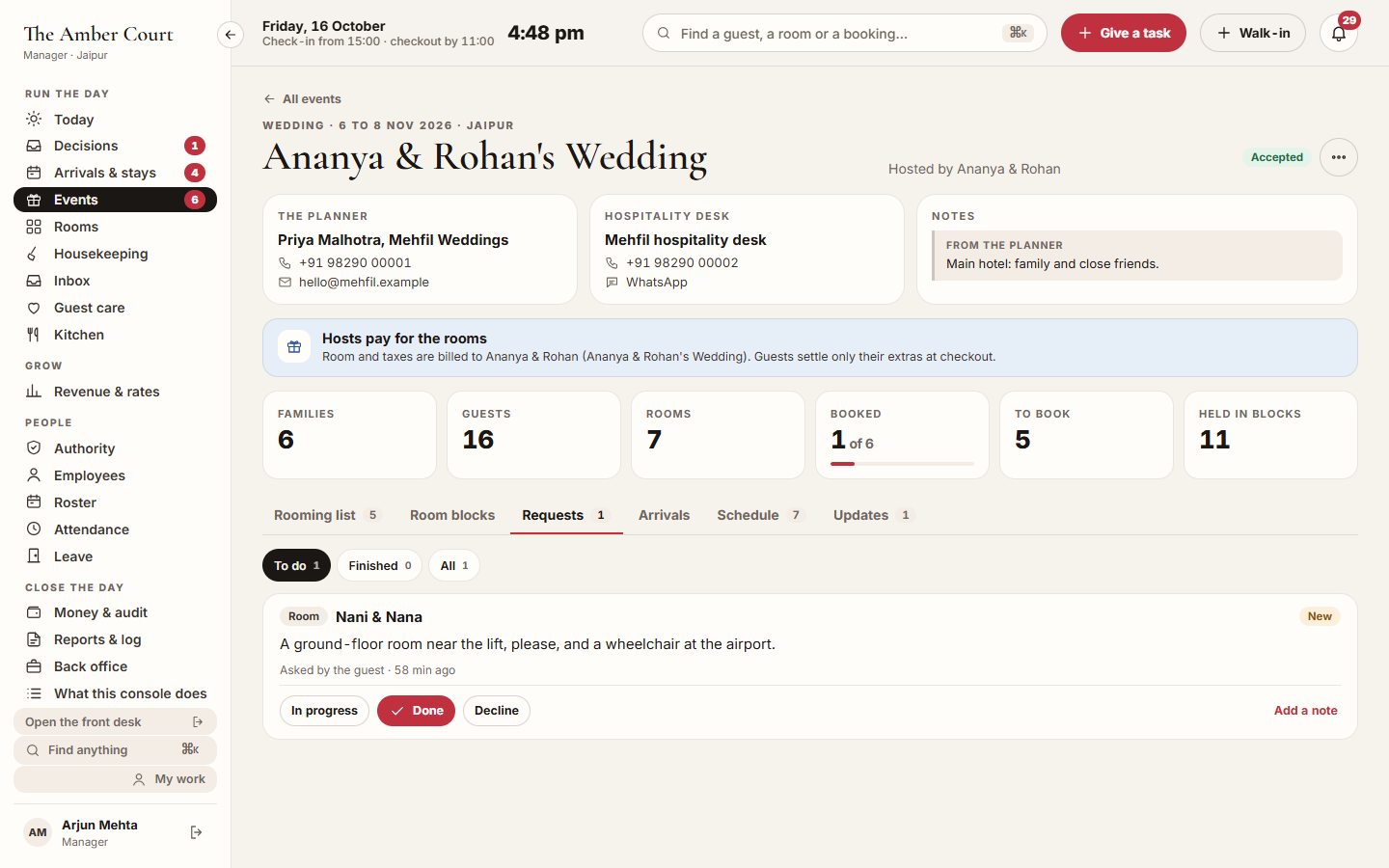
Section titled “How to answer a guest’s request”- Open the event’s Requests tab. To do shows the open requests, overdue ones first.
- Click In progress while you work on it.
- Click Add a note. Switch on Visible to the guest for a reply the guest reads, or leave it off for a note only the hotel and the planner read. Click Send the reply or Add the note.
- Click Done and optionally write A word for the guest (optional), then Mark as done. Or click Decline, write Why (the guest reads this) and click Decline the request.
- A finished request can be reopened with Reopen.
Only requests the planner’s team routes to your hotel appear here, mostly room and housekeeping requests.
How to see arrivals and the schedule
Section titled “How to see arrivals and the schedule”- Open Arrivals and pick Arrivals or Departures. Each day lists the families with the time they gave, the people and rooms, the flight or train and the airport or station, and any access needs.
- A late flight shows Delayed with the new time, and the old time under it (was …). Once the family is picked up, Delayed goes away and the old time stays.
- Each arrival shows its pickup, for example Pickup at 11:40 from JAI, Picked up, or No pickup arranged yet.
- Open Schedule for the event’s functions. A function at your hotel shows In your hotel.
- Open Updates for what the planner told the guests staying with you.
Tips & good to know
Section titled “Tips & good to know”- Who pays. A banner on the event says Hosts pay for the rooms or Guests pay for their own rooms. When the hosts pay, room and taxes go to the hosts’ account, which opens with the first booking; each guest settles only their extras at checkout. The guest file shows Room paid by the hosts.
- You can read every family before the event is accepted, but you book, and confirm blocks, only after accepting.
- A booking made here is an ordinary booking: the same availability check and bill. A price below the room type’s floor is sent to the manager first, unless the family is booked at a block’s agreed rate.
- Confirmed block rooms are held off sale everywhere, including your website and the channel manager, until the cut-off.
- The guest file of an event booking shows Part of the event and the family’s name. Click it to open the event.
- The bell rings a manager for a new event, a room block to confirm, a changed block and the cut-off; it rings the desk for rooming list changes and guests’ requests.
Troubleshooting
Section titled “Troubleshooting”- “Accept the event before you book its guests.” → A manager has to accept the event first.
- “Accept the event before you confirm its room blocks.” → Accept the event, then confirm its blocks.
- “Only 3 Deluxe rooms are free for those dates. Confirm fewer rooms.” (with your numbers) → Confirm fewer rooms, or free rooms first.
- “Families are already booked out of this block. Cancel those bookings before you decline it.” → A block with bookings cannot be declined.
- “Families are already booked on the terms you confirmed. Decline this change, or move those bookings first.” → Keep the confirmed terms, or move those bookings.
- “No room of this type is free for these nights. Free one up on the room board, or move the family in the guest file.” → Free a room on the room board, or move the family to another room type in the guest file.
- “This family is already booked.” → Someone booked them already; refresh the page.
- “No booking RES-7K2Q at this hotel.” (with your code) → Check the booking code on the guest file and try again.
- “That booking already belongs to an event family.” → That booking is linked to another family already.
- “Families are already booked here. Cancel those bookings first.” → You cannot decline an event with booked families. Cancel those bookings first.
- “A valid mobile number is required to book (10 digits, or with a country code).” → Ask the planner to add the family’s mobile number.
- “Too many people for these rooms” → Add a room or pick a bigger room type.
- “Event guests are not switched on for this hotel.” → Upstay has switched this feature off for your hotel. Ask Upstay.