Rooms Calendar
What it does
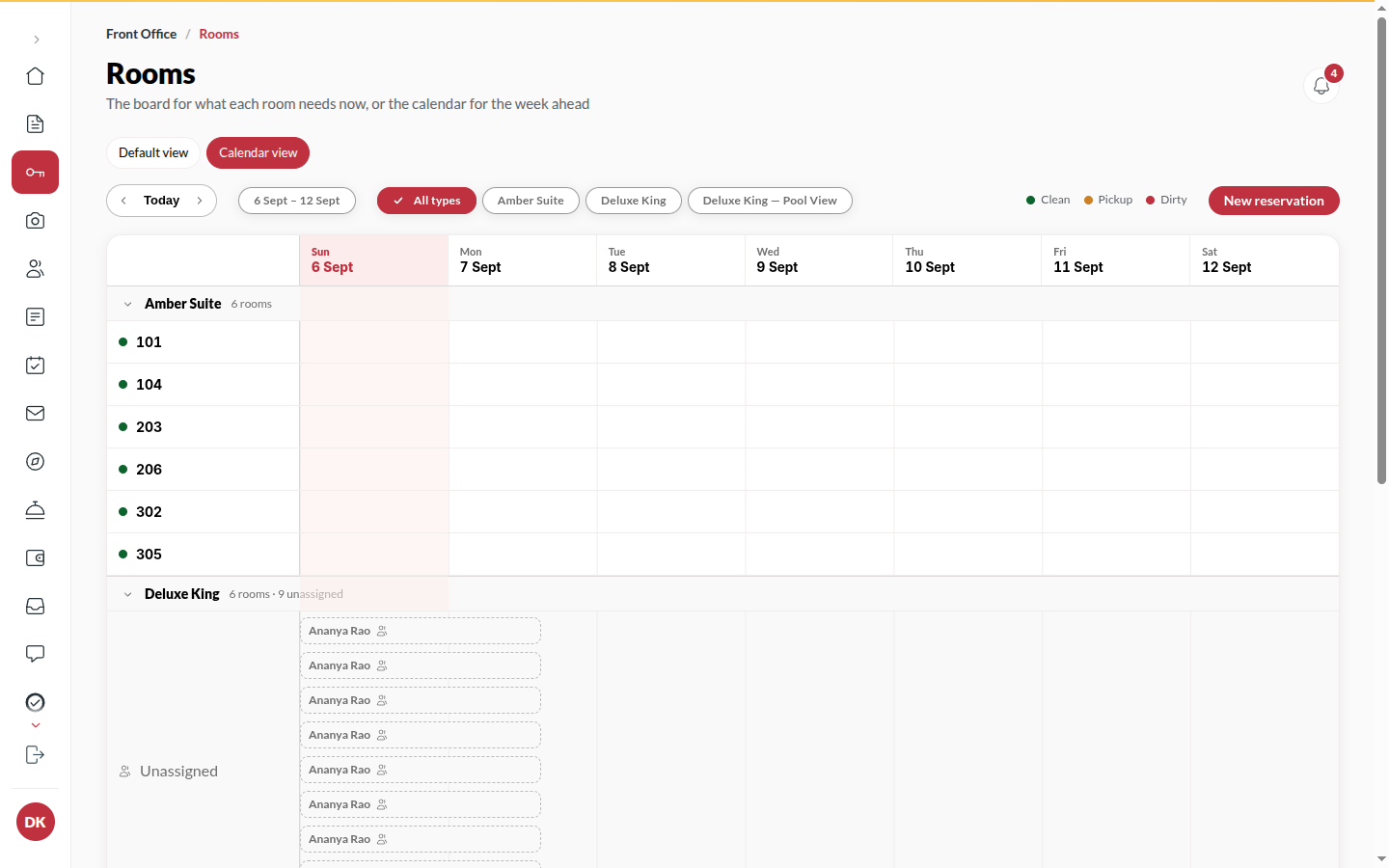
Section titled “What it does”The Week view is a room × date grid. Each stay is a bar across the nights it holds; a booking with no room yet sits in its room type’s Unassigned row. A guest past their checkout date shows a bar running to today, flagged overdue. It is the fastest way to see gaps, overlaps and who is where over the coming days.
Who can use it
Section titled “Who can use it”Front Desk, Managers and Admins, when the Rooms calendar is on for your hotel.
Where to find it
Section titled “Where to find it”Rooms → Week.
How to move around
Section titled “How to move around”- Use Previous week / Next week, or Today to come back.
- Filter to one room type with its chip, or All types. Click a type’s heading to fold it.
- On a phone the grid becomes a day list: use Previous day / Next day.
How to open or create a booking
Section titled “How to open or create a booking”- Click a stay bar to open the guest file on the right.
- Click New booking to start a booking.
How to assign an arrival
Section titled “How to assign an arrival”- Click the bar in the Unassigned row to open its guest file.
- Choose Assign room from the … menu and pick a clean room.
Tips & good to know
Section titled “Tips & good to know”- The grid updates live: another desk’s assignment appears without a reload.
- Each room’s lane shows its cleaning state (Clean, Being cleaned, Needs cleaning).
- A folded room type still shows how many of its stays are overdue.
Troubleshooting
Section titled “Troubleshooting”- “The calendar is not available.” → The Rooms calendar is switched off for your hotel, or the week could not be loaded. Ask Upstay to turn it on.