Property profile & Tariff
What it does
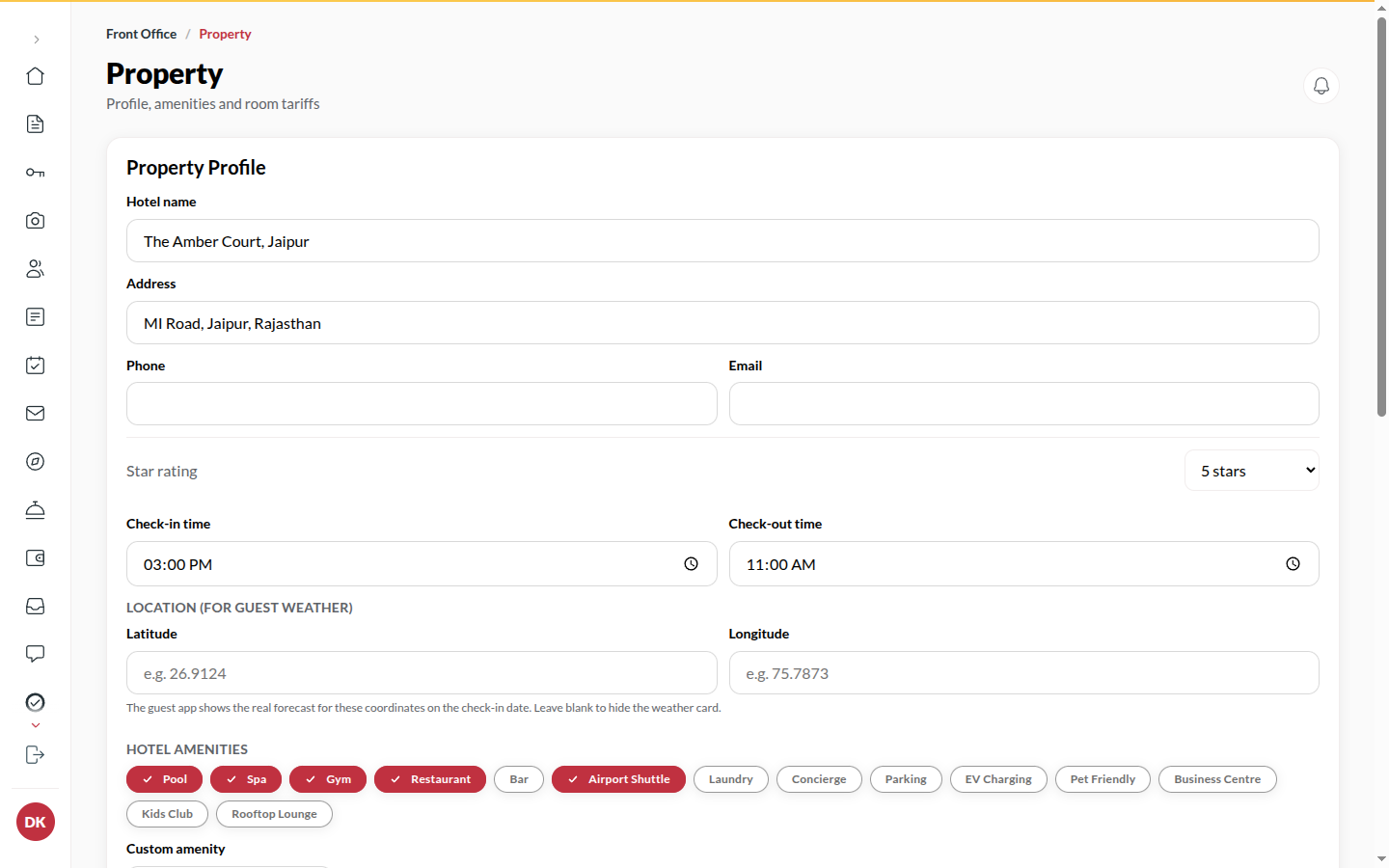
Section titled “What it does”Property profile holds what every document and message prints: the hotel’s name, address, phone, email, star rating, check-in and checkout times, the hotel amenities and a short description. Its location sets the weather card in the guest app. Room tariffs lists every room type with its rooms and nightly rate.
Who can use it
Section titled “Who can use it”Admins edit. Managers and Front Desk see the profile read-only (Only an Admin can change these details.).
Where to find it
Section titled “Where to find it”Back office → Property → under Hotel: Property profile and Room tariffs.
How to update the profile
Section titled “How to update the profile”- Open Property profile.
- Change Hotel name, Address, Phone, Email, Star rating, Check-in time, Check-out time or Description.
- Under Hotel amenities, tick the amenities you offer, or type a Custom amenity and click Add.
- Under Location, for the guest weather card, type your hotel’s name, street or area in Find the hotel on Google Maps and pick it from the list: Latitude and Longitude fill in, and the address too if it was empty. Check the numbers, then save. You can also type them by hand. Leave them blank to hide the weather card.
- Click Save property (it is off until something changes; it says Saved for two seconds, and Discard puts your last saved values back). A Manager sees these details but only an Admin can change them. Confirmations, receipts and invoices use the new details from the next send.
How to change a tariff
Section titled “How to change a tariff”- Open Room tariffs. Each room type shows its rooms and its rate per night.
- Click Rooms and rates to edit the rates there. See Rooms setup.
Tips & good to know
Section titled “Tips & good to know”- Check-in and checkout times print on confirmations, show in the console’s top bar, and decide when a stay counts as overdue.
- Your address, city and category on the public site are set by Upstay; ask your platform contact to change them.
- Each section saves on its own.
Troubleshooting
Section titled “Troubleshooting”- “Someone else changed these settings while this page was open. Your edit was not saved - the latest values are shown here. Re-apply and save again.” → Another Admin saved first. Redo your change and save.