Updates
What it does
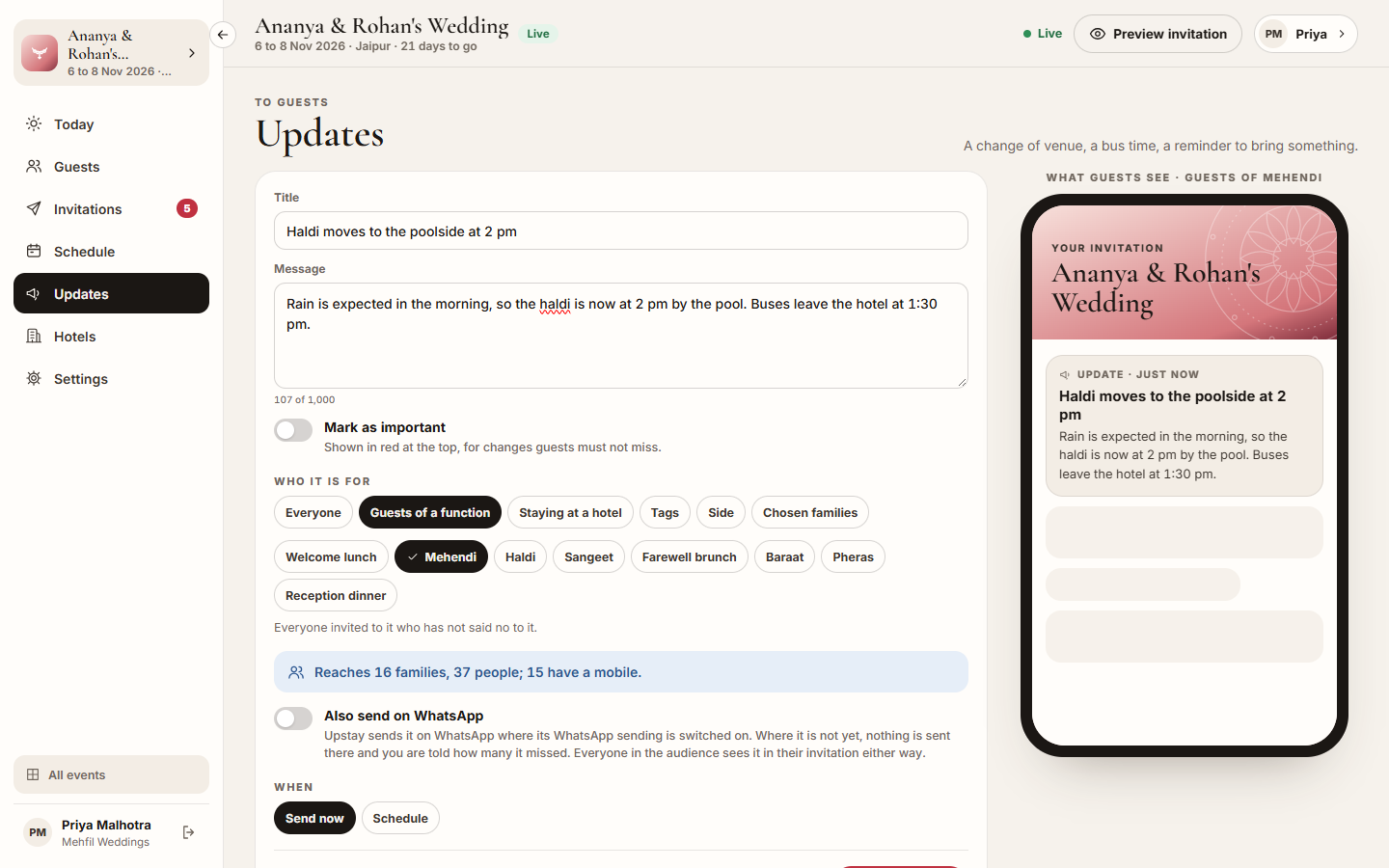
Section titled “What it does”Updates tells guests something: “The haldi moves to the poolside at 2 pm”. You choose who it is for, see how many families and people it reaches, and see how it looks on a guest’s phone before you send. Every family in the audience sees the update at the top of their invitation the moment it is sent, and during their stay in the stay app. A WhatsApp copy is an extra nudge on top.
You can send an update now or schedule it for a set time. Hotels see the updates that reach their guests, on their own Events page.
Who can use it
Section titled “Who can use it”Lead planner and Desk write and send updates. A Viewer can read Sent and scheduled.
Where to find it
Section titled “Where to find it”Updates in the event’s sidebar.
How to send an update
Section titled “How to send an update”- Enter a Title and the Message (up to 1,000 characters).
- Switch on Mark as important for a change guests must not miss: it shows in red at the top.
- Under Who it is for, pick one:
- Everyone
- Guests of a function: everyone invited to it who has not said no to it
- Staying at a hotel
- Tags
- Side
- Chosen families: search and tick them
- Read the line under it, for example “Reaches 18 families, 52 people; 16 have a mobile.”
- Switch on Also send on WhatsApp if you want a WhatsApp copy too.
- Under When, keep Send now, or pick Schedule and set the Day and Time (India).
- Click Send update (or Schedule update).
How to send the WhatsApp copies from your own phone
Section titled “How to send the WhatsApp copies from your own phone”- After you send an update with Also send on WhatsApp, Send the update from your WhatsApp opens.
- Click Open WhatsApp, press send in WhatsApp, and come back.
- Click Mark as sent. The next family appears.
- Click Done at the end, or Stop here to finish later. Everyone already sees the update in their invitation.
How to cancel a scheduled update
Section titled “How to cancel a scheduled update”- Find it under Sent and scheduled. It shows Scheduled and when it goes out.
- Click Cancel, then Cancel the update.
Tips & good to know
Section titled “Tips & good to know”- A scheduled update goes out by itself at that time. Pick a time at least a few minutes from now.
- The phone preview on the right shows exactly what guests see, and who it is for.
- Sent and scheduled lists every update with its audience, when it went out, to how many families, With WhatsApp when a copy was sent, and who sent it.
- An update reaches a hotel’s Events page when it reaches any family staying there.
Troubleshooting
Section titled “Troubleshooting”- “Make the event live before you send updates to guests.” → Make the event live in Settings → Status. Guests cannot open a draft.
- “Choose who this update is for.” → Pick an audience, and at least one function, hotel, tag, side or family.
- “Pick a time at least a few minutes from now, or send it now.” → Move the time later, or pick Send now.
- “It has already gone out.” → The scheduled time passed before you cancelled.
- “Nobody matches this yet.” → No family is in that audience. Check the tags, sides or hotels.