Your event
What it does
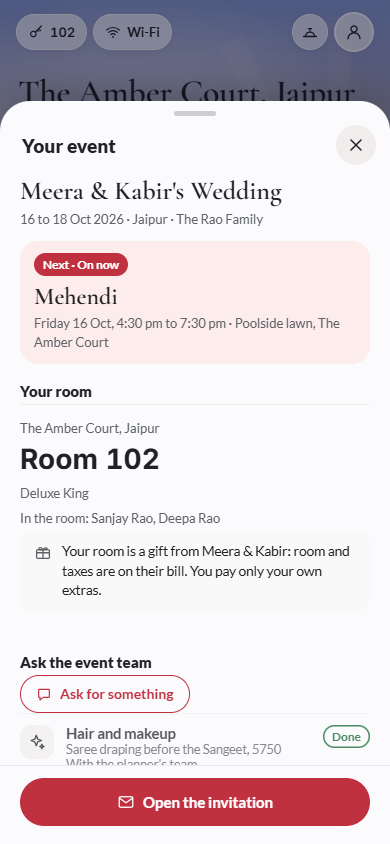
Section titled “What it does”When a wedding or event planner booked your stay, your stay app carries an event card on its home screen. It shows the event’s name and the next function you are going to, with the time and venue, and the planner’s latest update. Tap it to open Your event: the next function, Your room (the room number, type, meals and who is in it), Your pickup with your driver, Ask the event team, the whole Schedule day by day with your answer to each, the updates From the planner, and the Hospitality desk with Call and WhatsApp.
Everything the hotel offers stays where it always is in the stay app. The event card sits beside it.
Who can use it
Section titled “Who can use it”Guests whose stay was booked for an event planned on Upstay.
Where to find it
Section titled “Where to find it”The event card on your stay app’s home screen, before you arrive and during your stay. Open your stay from Open your stay on your invitation, or from the hotel’s check-in link.
How to see the event’s plan
Section titled “How to see the event’s plan”- Open your stay app.
- Tap the event card on the home screen.
- Read Your event: the next function, then the Schedule by day. Each function shows Going or Not going from your reply.
- Tap Directions under a function to find the venue.
- Tap Open the invitation at the bottom to go back to your invitation, for example to change your reply.
How to see your room and pickup
Section titled “How to see your room and pickup”- Tap the event card.
- Under Your room, read your room number, the room type and meals, and who is in the room. When the hosts are paying, it says your room is a gift from them and you pay only your own extras.
- Under Your pickup (or Shuttles), read when and where the car meets you and its status. Tap Call the driver (or the driver’s name) to ring them.
How to ask the event team for something
Section titled “How to ask the event team for something”- Tap the event card, then Ask for something under Ask the event team.
- Pick what it is about, for example Room, Housekeeping or Hair and makeup, and write What do you need?.
- Optionally add Needed on (optional) and By (optional).
- Tap Send. You see Sent. The reply shows here. Room and housekeeping requests go to this hotel; everything else goes to the planner’s team. Their reply shows under your request.
How to reach the hospitality desk
Section titled “How to reach the hospitality desk”- Tap the event card.
- Under Hospitality desk, tap Call or WhatsApp.
Tips & good to know
Section titled “Tips & good to know”- An urgent update from the planner shows as Urgent: on the card and in From the planner.
- New updates and schedule changes appear by themselves; you do not need to refresh.
- Dress codes and notes are not shown for a function you said you are not going to.
- To change your reply, use Open the invitation. The stay app shows your answers but does not change them.
- Your entry pass, and adding or changing your travel, are on the invitation: tap Open the invitation.
Troubleshooting
Section titled “Troubleshooting”- There is no event card → Your stay was not booked for an event, or the hotel has not switched the event plan on.
- “Loading your event…” stays on screen → Check your internet connection and open the sheet again.
- A function shows the wrong answer → Open the invitation and change your reply. The stay app picks up the change.