Applications
What it does
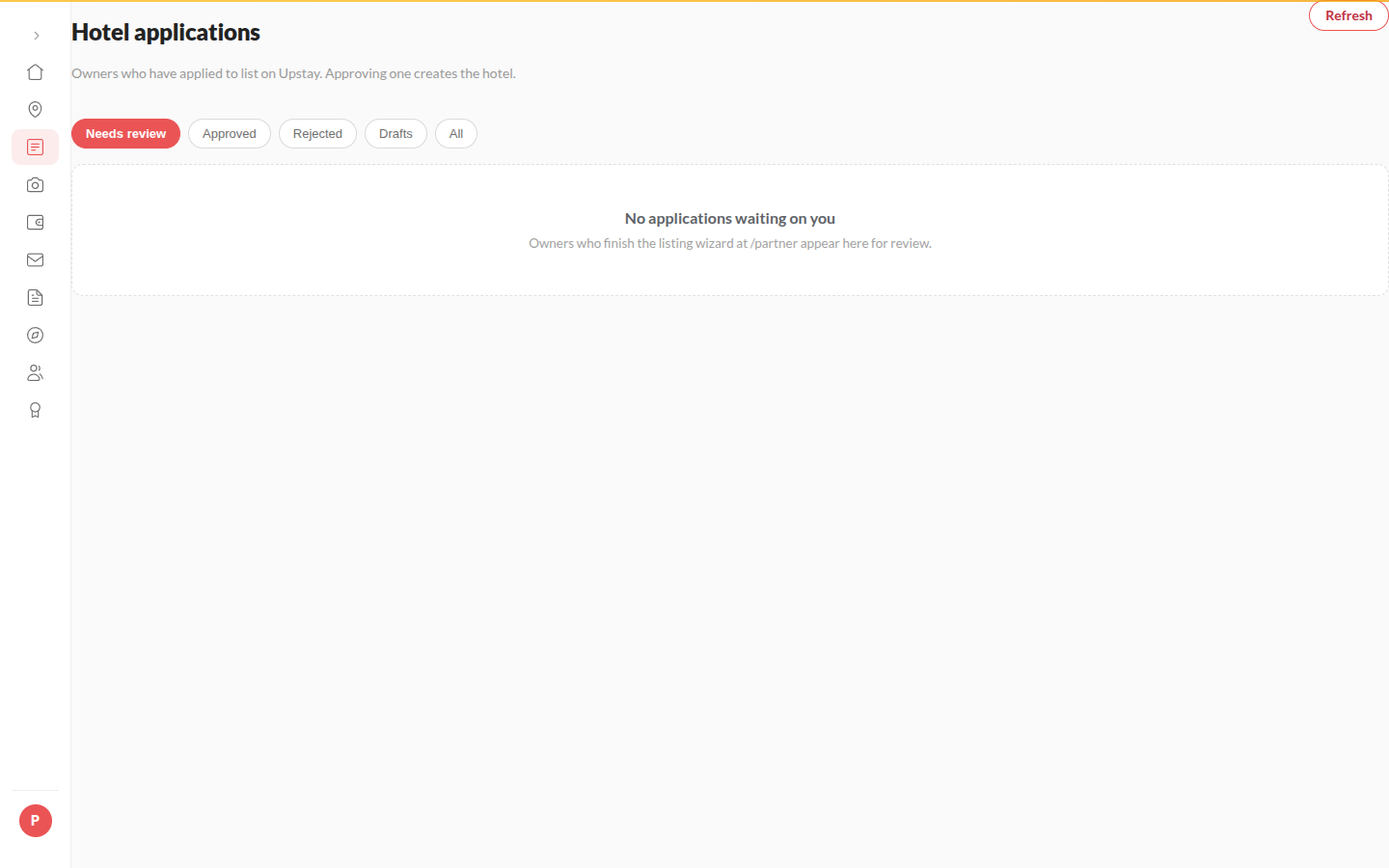
Section titled “What it does”Applications is a board of every hotel that wants to list on Upstay, in five lanes: Drafts, Submitted, In review, Approved and Rejected, oldest first in each lane. Nothing here is a hotel yet: approving one creates the hotel, its room types and rooms, and gives the owner a console login. Every card has a ··· menu, and you can drag a card to another lane.
Who can use it
Section titled “Who can use it”Upstay operators who can see the Hotels area.
Where to find it
Section titled “Where to find it”Applications under Hotels in the rail. Its badge counts the applications waiting. Use Search hotel, owner, city or PAN to find one, and Refresh to read the board again. Under the lanes, Review speed and Intake show the oldest waiting application, the median time to a decision and the applications this month.
How to move an application
Section titled “How to move an application”- Drag the card to the lane you want, or open its ··· menu.
- Pick the move. The menu offers only what is possible from the card’s lane:
- Move to Submitted (submit for them) on a draft.
- Mark visit scheduled (to In review) on a submitted one.
- Move back to Submitted on one in review.
- Approve and create the hotel and Reject with a reason on submitted and in-review ones.
- Moves that are not allowed are refused on the card, in words.
The menu also has Open, Open partner account, Open the hotel (once approved) and Delete (until approved).
How to review and approve
Section titled “How to review and approve”- Click the card, or Open in its menu. Read each section, open the documents and check Upstay’s checks (a warning is a reason to look twice, not a refusal).
- In the Decide bar, click Approve and create the hotel.
- Read what will happen (Hotel created, Commission, Owner gets) and click Approve and create the hotel again.
- The hotel appears under All hotels, not listed yet, and the owner is emailed.
How to reject with a reason
Section titled “How to reject with a reason”- Choose Reject with a reason (in the menu, or in the Decide bar).
- Write Reason (required, the hotel reads this), at least 10 characters. The hotel reads it on its application, fixes exactly that, and sends it again.
- Click Send rejection.
How to submit a draft for the owner
Section titled “How to submit a draft for the owner”- Choose Move to Submitted (submit for them), or Submit for them on the open draft.
- Write Why are you submitting it for them (required, kept in the audit trail).
- Tick Submit anyway, even if some sections are unfinished only if you mean to.
- Click Submit for review.
How to delete an application
Section titled “How to delete an application”- Choose Delete in the menu, or Delete draft / Delete application on the open application.
- Write Why (required, kept in the audit trail) and confirm.
- The application goes with its rooms, photos and documents. The owner keeps their account and can start a new listing. This cannot be undone.
Tips & good to know
Section titled “Tips & good to know”- On an open application in review, Back to submitted returns it to Submitted; on a submitted one, Mark visit scheduled moves it to In review.
- The owner is told automatically when an application is submitted, moved to review, rejected (with your reason, word for word) and approved. Submitted, rejected and approved also go on WhatsApp and SMS when those are switched on under Channels.
- Upstay’s operations mailbox gets an email for every new application the owner submits. Submitting on the owner’s behalf does not send it.
- You can change the wording of these messages under Templates (the ones starting “Hotel application” and “Hotel approved”).
Troubleshooting
Section titled “Troubleshooting”- “An approved application is a hotel now; it does not move.” → Open the hotel under All hotels instead.
- “A rejected application moves when the owner sends it again.” → Wait for the owner to resubmit.
- “Only the owner can take an application back to a draft.” → Reject it with a reason instead.
- “A draft goes to Submitted first.” → Submit it for them, then move it on.