Waitlist & Turnaways
What it does
Section titled “What it does”When a room type is full, the desk can put the guest on the Waitlist with their dates and contact, and call them back if a cancellation frees a room. Turnaways records demand that did not convert and why, so Managers see what the hotel is missing.
Who can use it
Section titled “Who can use it”Front Desk, Managers and Admins.
Where to find it
Section titled “Where to find it”Bookings → the Waitlist and Turnaways views, after All.
How to add a guest to the waitlist
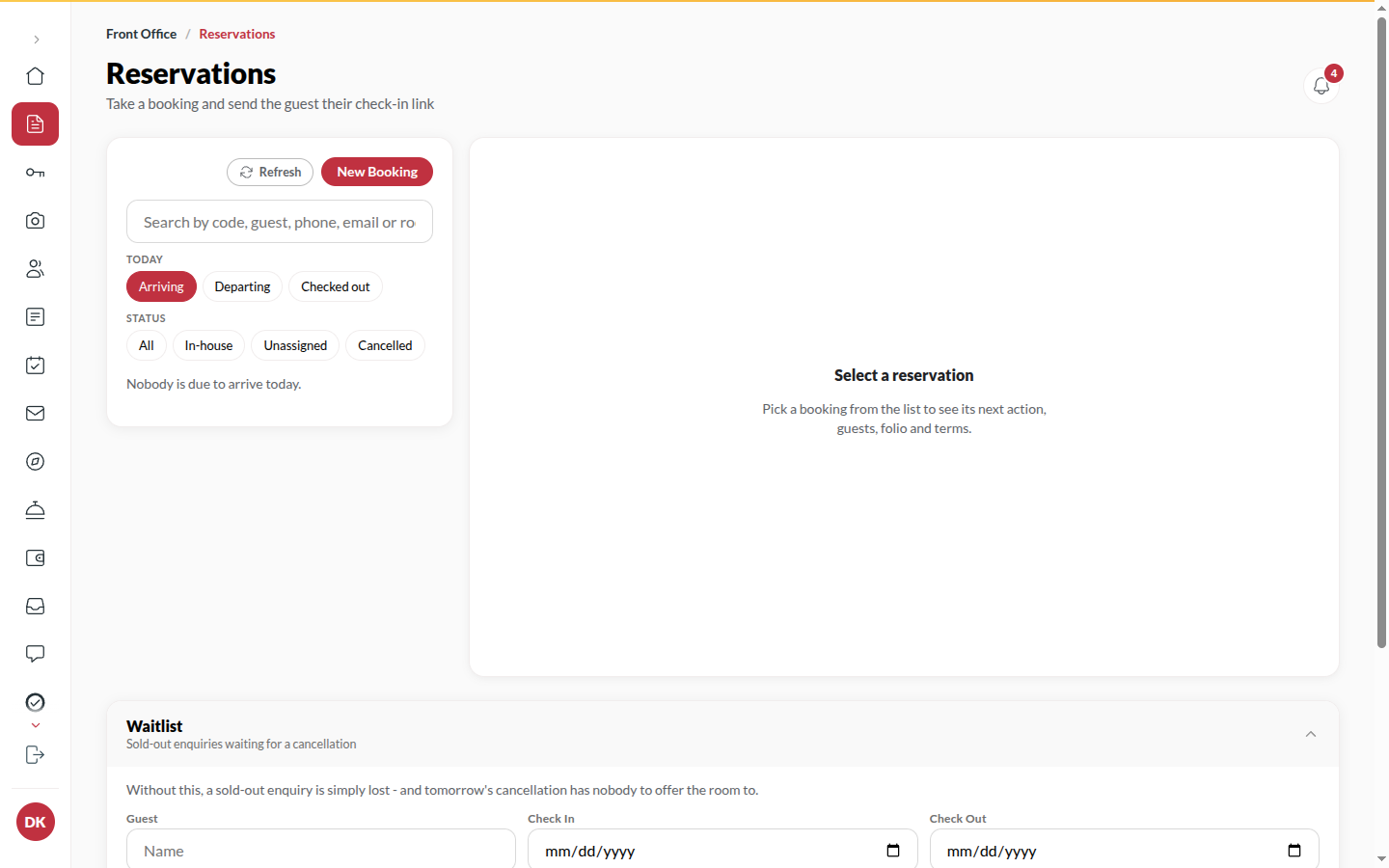
Section titled “How to add a guest to the waitlist”- In Bookings, open Waitlist.
- Enter the guest’s Guest name and Mobile, the Room type (or Any), and the Check in and Check out dates.
- Click Add to waitlist. The entry stays until you drop it.
How to act when a room frees up
Section titled “How to act when a room frees up”- An entry whose room type has become free shows Room free - call them.
- Call the guest. If they still want it, take the booking with New booking.
- Click Drop to take the entry off the list.
How to record a turnaway
Section titled “How to record a turnaway”- In Bookings, open Turnaways.
- Choose the Reason: Sold out, Rate too high, Room type unavailable or Other, and the dates.
- Click Record turnaway. Lost in the last 30 days lists what was recorded.
Tips & good to know
Section titled “Tips & good to know”- The Manager’s Turnaways figure counts these; recording them is what makes the number honest.
- A waitlist entry never holds a room. It is a promise to call, not a booking.
- Guests waiting at the desk for a room that is not ready are on the Room queue under Today’s desk boards, not on the waitlist.
Troubleshooting
Section titled “Troubleshooting”- The room type is fully booked when you book the guest → Someone else took the room first; keep the entry.