Requests
What it does
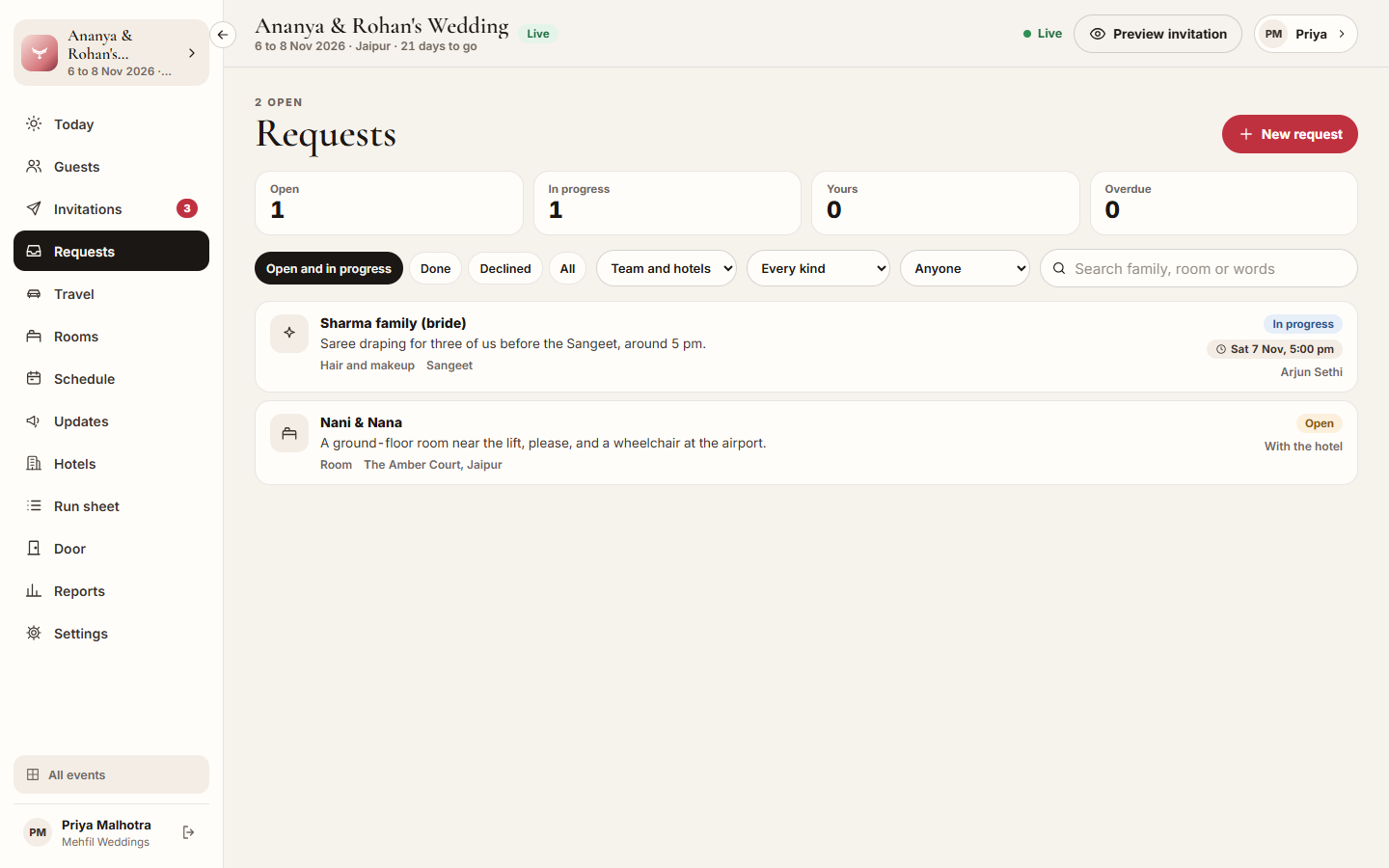
Section titled “What it does”Requests collects what families ask for on their invitation or in their stay app, and what your team adds for them. Each request has a kind (Room, Housekeeping, Food, Travel, Hair and makeup, Outfits, Medical or Something else), the family and person, an optional function and due time, who on your team has it, and a status: Open, In progress, Done or Declined.
Room and housekeeping requests from a family staying at an Upstay hotel go to that hotel, which works on them in its own console. Everything else stays with your team. You can move a request between your team and the hotel.
The tiles at the top count Open, In progress, Yours and Overdue. Tap one to filter the list.
Who can use it
Section titled “Who can use it”- Lead planner and Hospitality desk work on every request.
- Transport sees and works on travel requests only. The page is called Travel requests for them.
- Viewer sees the requests but cannot change them.
- Vendor coordinator does not see Requests.
Where to find it
Section titled “Where to find it”Requests in the event’s sidebar. Today also shows the open, overdue and your own requests.
How to work on a request
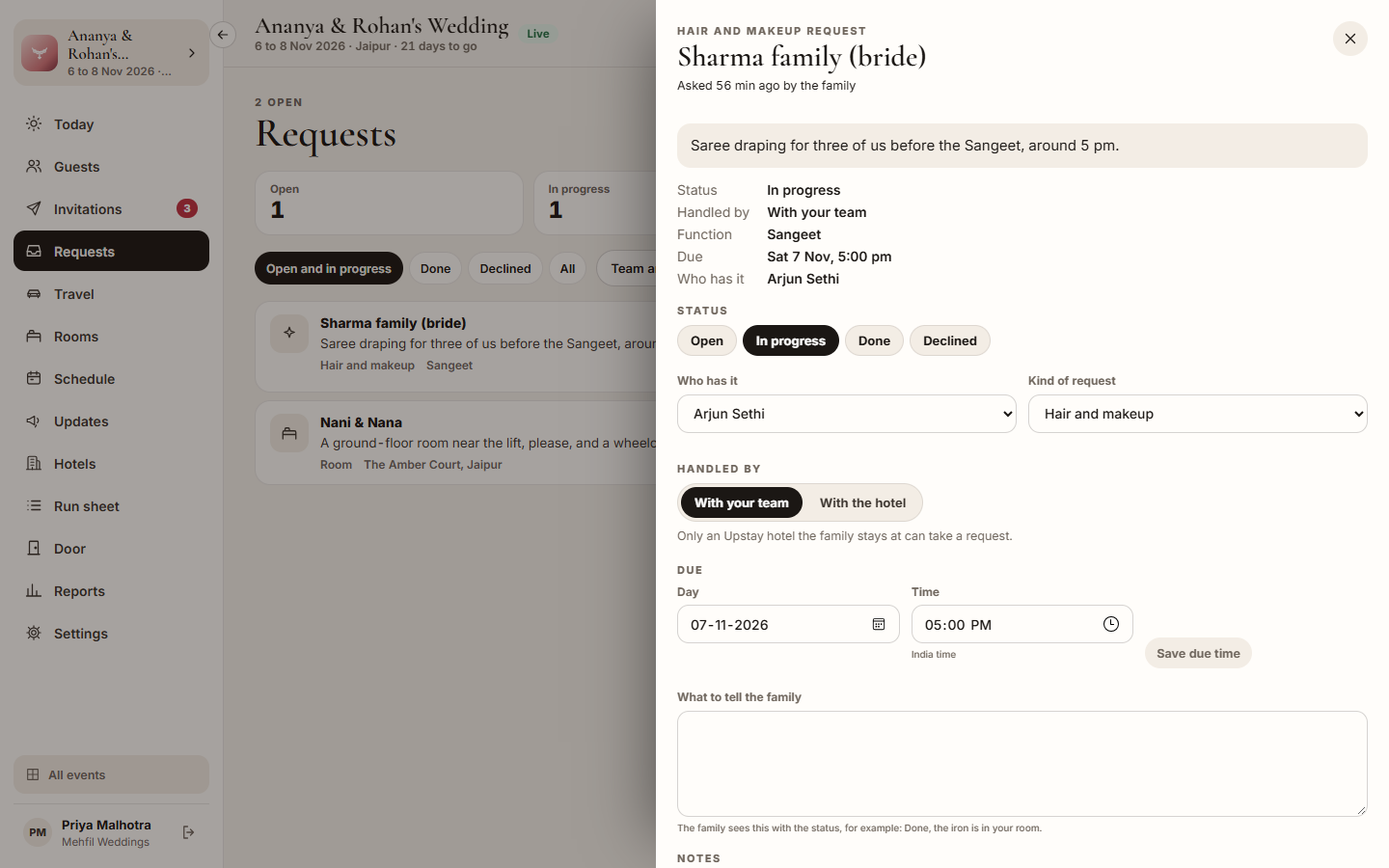
Section titled “How to work on a request”- Click a request in the list.
- Under Who has it, pick the person on your team who is handling it.
- Under Status, click In progress while you work on it.
- To pass a room or housekeeping request to the hotel, click With the hotel under Handled by. Click With your team to take it back.
- Optionally set a Due day and time and click Save due time.
- When it is done, type a line under What to tell the family (for example “Done, the iron is in your room.”), click Save what the family is told, then click Done. Click Declined if it cannot be done.
How to reply to the family or leave a team note
Section titled “How to reply to the family or leave a team note”- Open the request and scroll to Notes.
- For a reply the family reads on their invitation, switch on Visible to the guest, type your reply and click Send reply.
- For a note only your team and the hotel see, leave the switch off, type the note and click Add note.
How to add a request yourself
Section titled “How to add a request yourself”- Click New request.
- Optionally pick the Family and For whom, or leave it for the whole event.
- Pick the Kind of request and type What is needed.
- Optionally pick For a function, a Due day and Due time, and Give it to someone.
- Under Who handles it, keep Decide for me, or pick Your team or The hotel.
- Click Add request.
Tips & good to know
Section titled “Tips & good to know”- Use the filters: Open and in progress, Done, Declined or All; Handled by; Kind of request; Who has it; and the search box for a family, room or words.
- A request past its due time shows Overdue in red.
- The family sees the status, your replies and what they are told. They never see team notes or who has the request.
- Status changes apply in one tap, with no question asked. Click Open to reopen a request.
Troubleshooting
Section titled “Troubleshooting”- “Only a hotel on Upstay can take this request. Place the family at one first, or keep it with the team.” → The family is not staying at an Upstay hotel, or the request is not for a family. Keep it with your team.
- “Your role works only on travel requests.” → Transport team members can change only travel requests.
- “Give it to someone on your team.” → That person is not on your active team.
- “Type the time as hours and minutes, for example 18:30.” → Fix the due time.
- “No request matches these filters.” → Clear a filter or pick All.