Host links
What it does
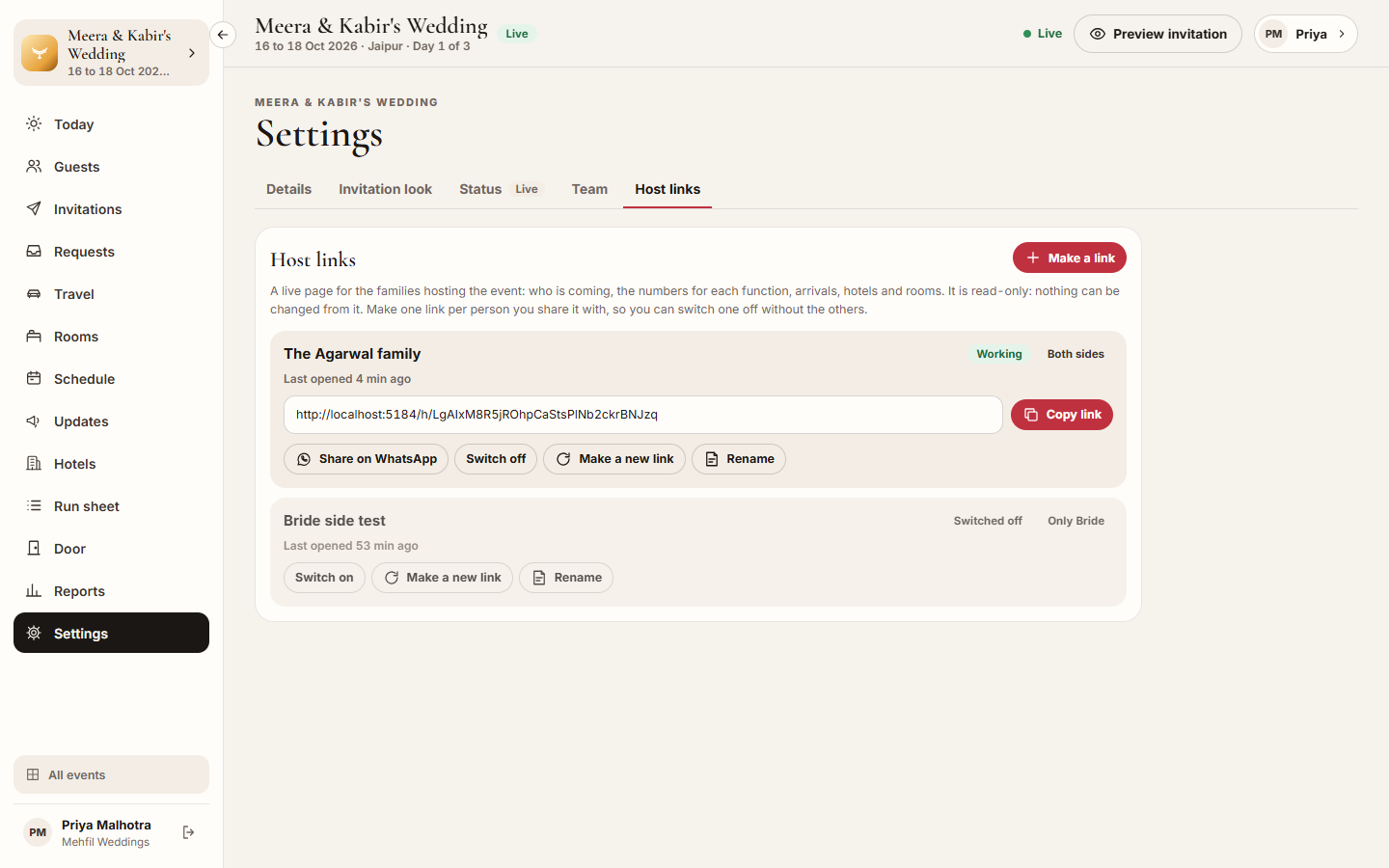
Section titled “What it does”A host link opens a live page for the families hosting the event: who is coming, the numbers for each function, arrivals, hotels and rooms. It is read-only: nothing can be changed from it. The hosts see the guest list without calling you for the numbers.
Make one link per person you share it with, so you can switch one off without the others. A link can show Both sides or only one side, for example only the bride’s family; a one-side link counts only that side.
Who can use it
Section titled “Who can use it”- Lead planner makes, renames, renews and switches off host links.
- Hospitality desk sees the links and can copy and share them.
- Transport, Vendor coordinator and Viewer do not see host links.
Where to find it
Section titled “Where to find it”Inside an event: Settings → Host links.
How to make a host link
Section titled “How to make a host link”- Click Make a link.
- Under Who it is for, write who gets it, for example “Bride’s parents”. Only your team sees this.
- Under What they see, pick Both sides or Only one side.
- Click Make the link.
- Click Copy, or Share on WhatsApp to send it with a short message. Anyone with the link sees the page, so send it only to them.
How to switch a link off or make a new one
Section titled “How to switch a link off or make a new one”- Find the link. Each one shows Working or Switched off, the side it shows, and when it was Last opened.
- Click Switch off to stop it working. Click Switch on to let it work again.
- Click Make a new link, then Make a new link again, to replace it. The old link stops working at once, on every phone it was opened on. Send them the new one. A new link for a switched-off link stays switched off: pick Switch it on to share it, or Keep it off.
- Click Rename to change Who it is for.
Tips & good to know
Section titled “Tips & good to know”- The page updates by itself while it is open, so the hosts always see the latest numbers.
- Last opened tells you whether the hosts have looked at it.
- A host link opens only once the event is live. While the event is a draft each link says “Families can open this link once the event is live.” Make it live under Settings → Status.
- On a one-side link, updates written only for the other side stay hidden.
Troubleshooting
Section titled “Troubleshooting”- The host says “This link is not valid. Ask the planner for a new one.” → The link was switched off or replaced, or the event is still a draft. Switch it on, send the new link, or make the event live.
- Make the link stays greyed out → Write who it is for first.
- You do not see Host links → Only a lead planner and the hospitality desk see this tab.