Employees
What it does
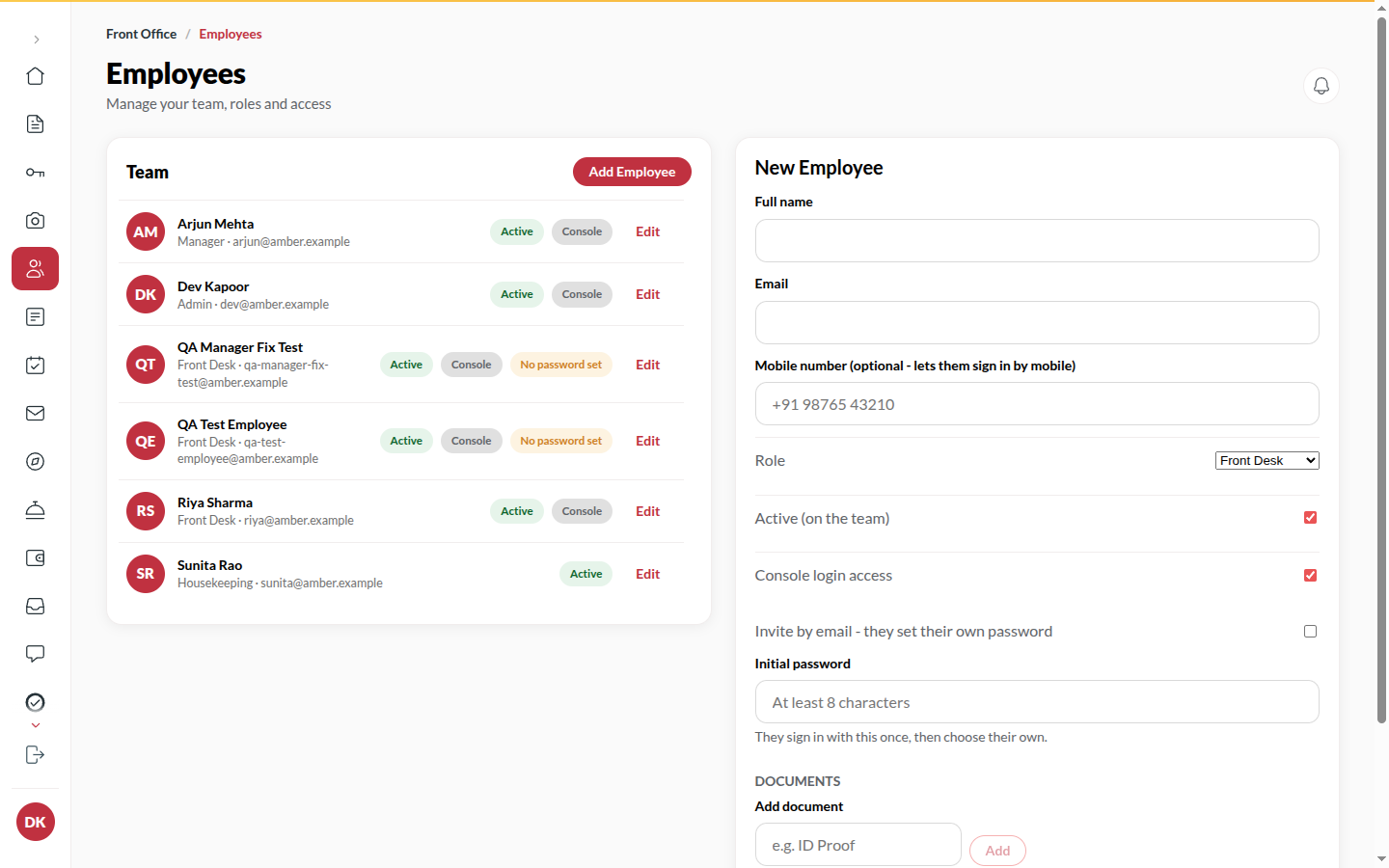
Section titled “What it does”Employees is the staff directory. Each person has a role: Front desk, Manager, Admin, Housekeeping and Concierge can sign in to the console; F&B service is on the team list without a login. You invite people by email so they choose their own password, or set an initial one. You can send a new invite or reset link, sign someone out of every device, deactivate them with a reason, and keep a document (ID proof) on file.
Who can use it
Section titled “Who can use it”Managers and above. A Manager manages roles up to Manager; only an Admin can change an Admin.
Where to find it
Section titled “Where to find it”Back office → Employees.
How to add a colleague
Section titled “How to add a colleague”- Click Add employee.
- Enter Full name, Email, Mobile number and the Role.
- Leave Console login access on for anyone who signs in. Then either tick Invite by email, they set their own password (the link works once, for 7 days) or set an Initial password of at least 8 characters.
- Click Add to team.
What the person’s panel shows
Section titled “What the person’s panel shows”Click a row. The panel lists Role, Email, Mobile, Sign in with, Console access, Status and Last sign-in (“Never signed in” until they first sign in). For someone with no password it says whether the invite link is still good (“It works once and runs out on 14 Oct”) or has run out.
How to send an invite or reset link
Section titled “How to send an invite or reset link”- Find the employee and click Send an invite link (no password set yet) or Send a reset link.
- Click Send link. The link is emailed to them, never shown on screen. A reset link works once, for 30 minutes.
How to sign someone out everywhere
Section titled “How to sign someone out everywhere”- Find the employee and click Sign out everywhere.
- Confirm. Every device they are signed in on is signed out at once; they can sign in again with their password.
How to deactivate someone
Section titled “How to deactivate someone”- Find the employee and click Deactivate.
- Pick a reason: Left the hotel, On leave, Changed role, Security concern or Other.
- Click Deactivate. They can no longer sign in; their history stays. Reactivate brings them back.
How to keep a document on file
Section titled “How to keep a document on file”- Click Edit details on the employee, then Add document under Documents.
- Give it a label (e.g. ID proof) and upload the file.
How to add an accountant (owner)
Section titled “How to add an accountant (owner)”- Click Add employee and choose the Role Accountant.
- Give them an email or mobile and a password (or an email invite), like any colleague, and click Add to team.
- They sign in to a Finance-only console: Finance home, Night audit (to follow), Reports, Payments, Receivables and Tax and accounts. They do no front-office work.
Only the owner can add or change an accountant, and only if your hotel has Accountant login. If it is turned off, the accountant cannot sign in.
Booking alerts for owners and managers
Section titled “Booking alerts for owners and managers”Every owner and manager gets an email, and a WhatsApp once Upstay has it set up, for each new booking or booking request, change, cancellation, no-show, check-in, check-out and payment (received, failed or needing a refund). Front desk, housekeeping and concierge staff do not get them. To stop them for one person, open Employees, edit that person and untick Booking alerts by email and WhatsApp. Upstay can also switch them off for the whole hotel. They are never sent by SMS.
Someone who works at more than one of your hotels
Section titled “Someone who works at more than one of your hotels”Add them on Employees with the email or mobile they already sign in with. Upstay links them to their existing login and says Linked to their existing Upstay login. Choose their role for this hotel; it can differ from their role at your other hotel, and their password stays theirs. You cannot change their sign-in email, mobile or password from your hotel; they change those from their own account (or with Forgot password on the sign-in screen). Deactivating them here does not affect their other hotels.
Tips & good to know
Section titled “Tips & good to know”- Email and mobile are unique across the hotel; a person cannot hold two logins.
- A new console login needs an invite or an initial password. Add to team stays off until one is set.
- Changing someone’s role takes effect on their next request, not their next sign-in.
Troubleshooting
Section titled “Troubleshooting”- “An employee with that email already exists” / “Another employee already uses that mobile number” → Reuse or correct the existing record.
- “A console login needs an initial password or an email invite” → Pick one.
- “This role cannot log into the console, so no password or invite applies” → F&B service has no login; turn the password and invite off.
- “Choose an initial password or an email invite, not both” → Pick only one.
- “This role cannot log into the console - no password or invite applies” → F&B service has no login; choose another role if they need one.