Channel manager (OTAs)
What it does
Section titled “What it does”Once connected, every booking made on an OTA appears in Bookings by itself with a channel chip (Goibibo, Booking.com…) and a bell notification; every desk, walk-in or web booking - and every cancellation, check-out or no-show - takes the room off every OTA within about a minute. You keep one OTA rate per room type beside your Upstay rate, so Upstay stays the cheapest place to book.
Who can use it
Section titled “Who can use it”Admins map rooms and set OTA prices; Managers set per-night OTA rates on the Rate Calendar; Front Desk handles the bookings. Available once Upstay has connected your hotel and switched the feature on.
Where to find it
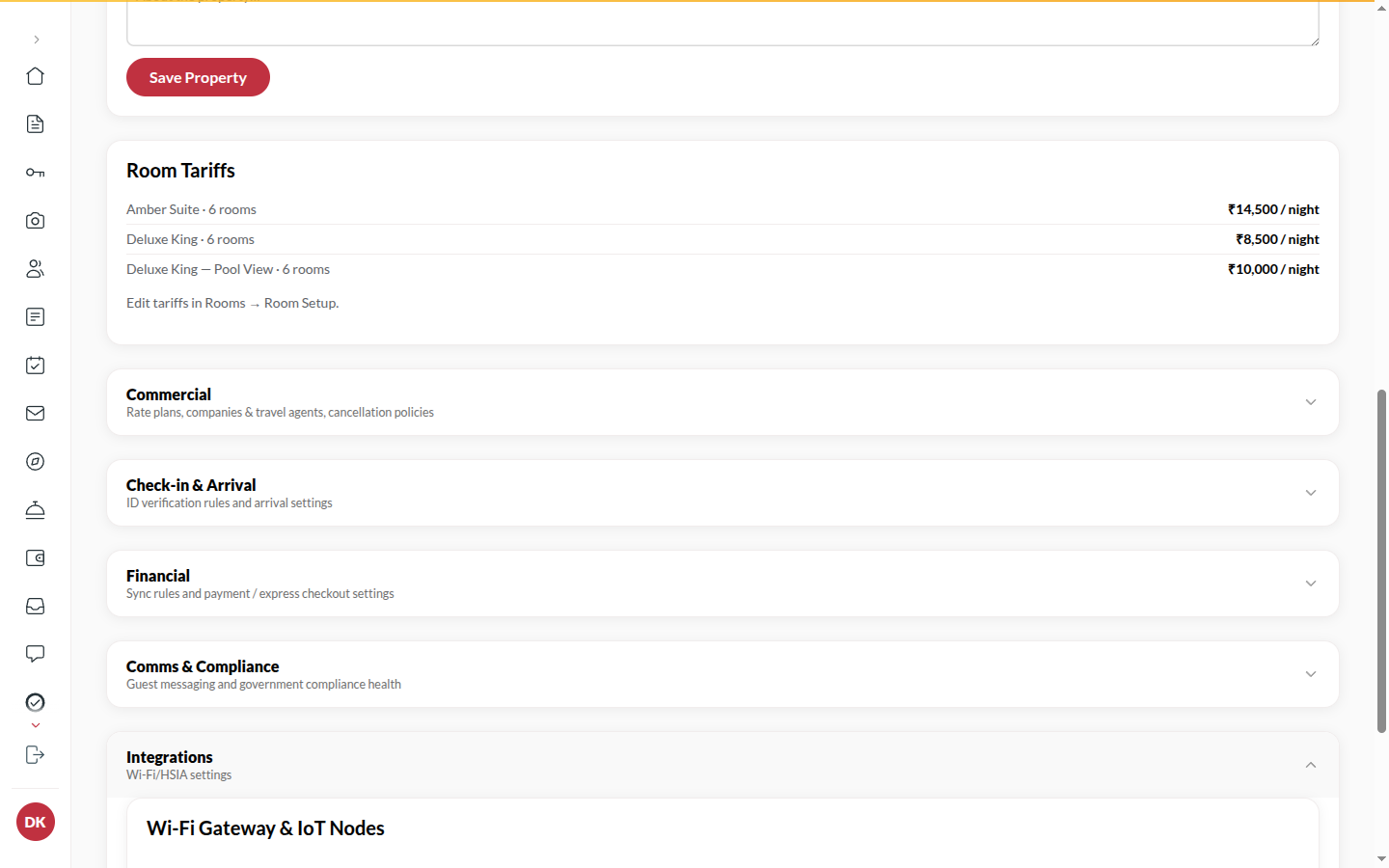
Section titled “Where to find it”Back office → Property → Channel manager (under Integrations; it appears only once connected). Per-night OTA prices are on Back office → Rooms and rates → Rates.
How to map your room types (once)
Section titled “How to map your room types (once)”- In Channel manager, click Fetch channel rooms (later Refresh channel rooms). It fills with the room categories the channel manager holds for your hotel.
- For each Upstay room type, pick its Channel room. Matching names are pre-filled - check them: a wrong pairing sells one room type at another’s price. Two room types cannot share a channel room.
- Click Save channel manager. Only mapped room types are pushed; an unmapped one is invisible to the OTAs.
How to set OTA prices
Section titled “How to set OTA prices”- In the same section, enter an OTA base rate per room type: the OTA price on any night with no override. Blank follows your Upstay rate.
- Enter a Meal supplement per person (₹/night), added once per meal a rate plan includes (a breakfast plan for two adds it twice).
- Click Save channel manager. Upstay works out every OTA rate plan (single/double/triple × room-only/breakfast/half board) from these: OTA rate + extra adults × extra-adult charge + meals × supplement.
How to set an OTA price for specific nights
Section titled “How to set an OTA price for specific nights”- Open Back office → Rooms and rates, pick the room type and open Rates. Every night shows the Upstay price and the OTA price under it.
- Select a night (or several), enter OTA rate (₹) and click Apply. Blank follows the OTA base rate.
- An OTA price marked Below the Upstay rate is a warning, not a block.
- Closed nights go out as 0 rooms; Min nights goes out as a minimum-stay restriction.
How to handle an OTA booking at the desk
Section titled “How to handle an OTA booking at the desk”- The booking is already in Bookings. Open its guest file. The detail shows
RES-XXXX · Goibibo #111222333(the OTA’s own id the guest quotes) and the OTA total the guest paid. - A prepaid booking shows Collected by Goibibo and a ₹0.00 balance - collect nothing but extras. A pay-at-hotel booking shows the full balance as usual.
- Guest contact details are often masked by the OTA; capture the real phone at check-in with Edit guest details.
- Mark a no-show as always - for Booking.com, MakeMyTrip and Goibibo, Upstay reports it to the channel too.
Tips & good to know
Section titled “Tips & good to know”- A date or party change made on the OTA updates the reservation in place; a room-type change cancels and re-files; an OTA cancellation clears the stay charges (refunds are the OTA’s).
- If the guest has already checked in, an OTA change is not applied - you get a needs attention notification and settle it in person.
- Cancelling or amending an OTA booking from the desk does not reach the OTA: do it on the OTA’s extranet; Upstay picks the result up within the hour.
- Every hour Upstay re-checks the channel manager’s own booking list and files anything it missed.
- Re-fetch channel rooms after the channel manager adds a category for you; existing mappings are kept.
Troubleshooting
Section titled “Troubleshooting”- “channel room “x” is not mapped” → An OTA sold a category no room type is mapped to; map it and the hourly re-check files the booking.
- “no rooms left” → The OTA sold a night you had no room for; the booking was not filed - resolve with the guest on the extranet.
- “stay is already checked in” → Apply the OTA’s change by hand.
- “Could not report … as a no-show” → The channel refused; mark it on the extranet.
- An OTA shows a wrong rate → Ask Upstay to Resync now; they can also read the sync log for the provider’s own message.