Your invitation
What it does
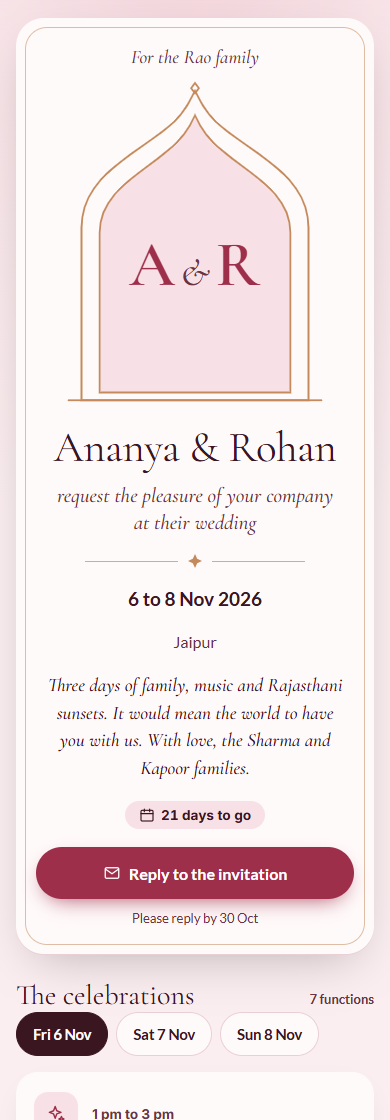
Section titled “What it does”When a family invites you to a wedding or an event planned on Upstay, you get a WhatsApp message with your own invitation link. It opens your invitation: the hosts, the dates, the city, a note from the family, and the plan for each day.
You reply for everyone in your family: who is coming, to which functions, food and any access needs, and how you travel. You can change your reply any time. Once you have replied, the invitation becomes your event home: your plan, updates from the planner, and who to call.
When you are coming, your event home also carries:
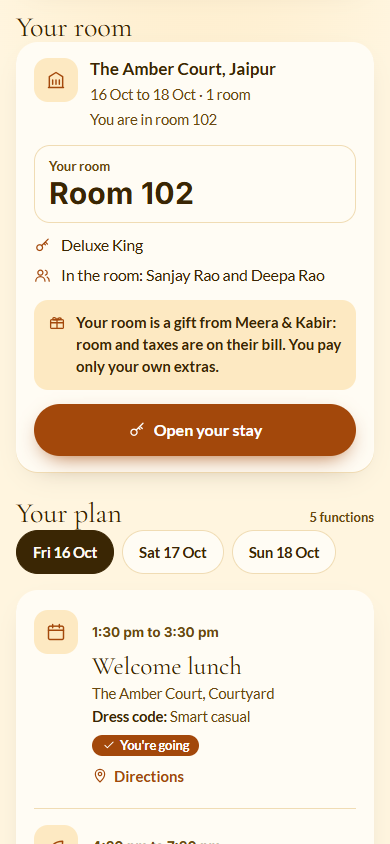
- Your room: the hotel, your dates, the room type and meals, who is in the room, and your room number once the hotel gives it. When the hosts are paying, it says so. Open your stay takes you to the hotel’s stay app, where you check in on your phone.
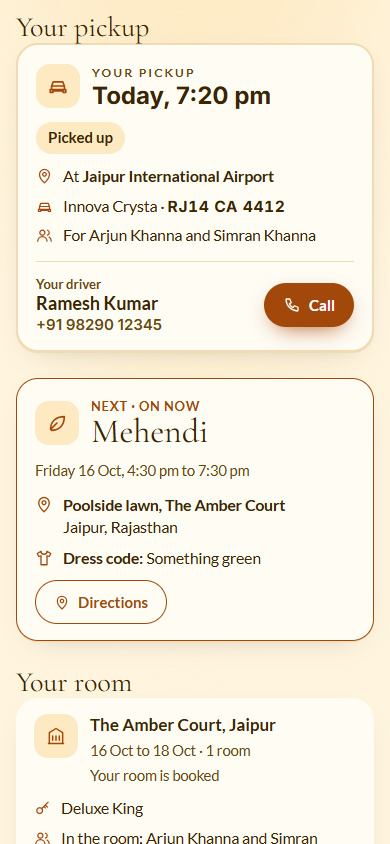
- Your pickup: the car meeting you, when and where, the vehicle and number plate, and your driver’s name with a Call button. Shuttles to the functions show here too.
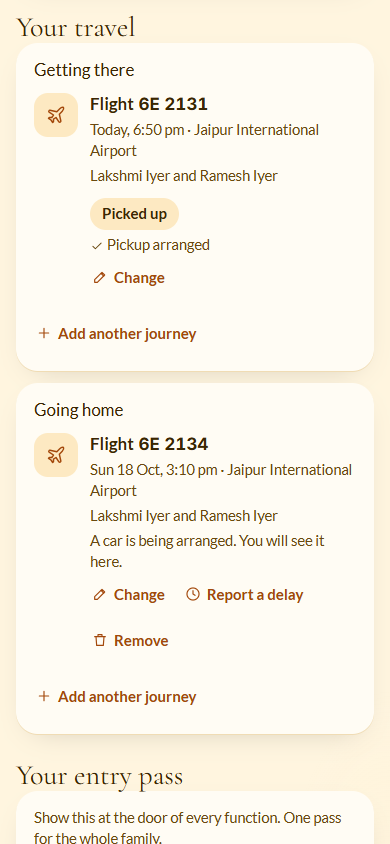
- Your travel: your journeys Getting there and Going home, which you can add, change, or report a delay on.
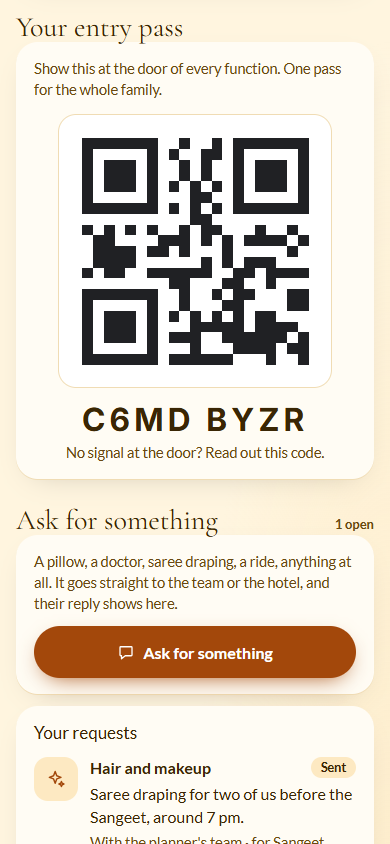
- Your entry pass: one QR code for your whole family, to show at the door of every function.
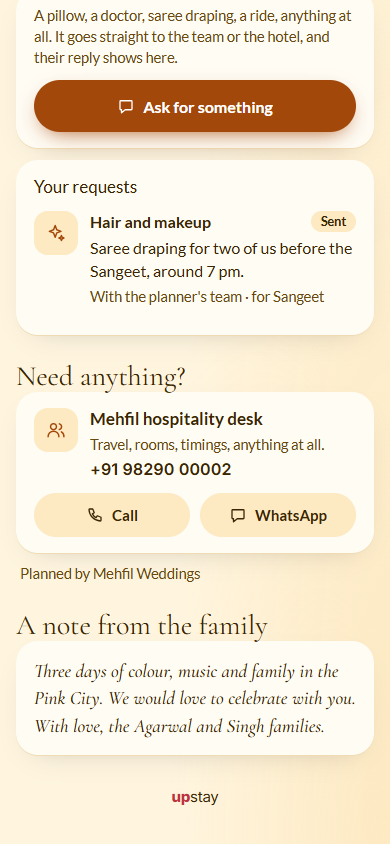
- Ask for something: a pillow, a doctor, saree draping, a ride, anything at all, with the reply shown here.
The Jump to links at the top take you to Entry pass, Your room, Travel and Ask.
Who can use it
Section titled “Who can use it”Guests invited by a family. One link answers for everyone in your family.
Where to find it
Section titled “Where to find it”The invitation link in your WhatsApp message. After you open it once, it opens on that phone without the link, and from your home screen if you added it there.
How to reply
Section titled “How to reply”- Open your invitation link. Click Reply to the invitation.
- Who is coming? For each person, pick Coming or Not coming. Tick Child for a child. Click Add a person if the invitation has room for more. If nobody can come, click None of us can come.
- Which functions? For each function, pick Yes, Maybe or No for each person. Yes to all of them (or Everyone, all functions for a family) answers every function at once.
- Food and needs: pick Vegetarian, Non-vegetarian, Jain or Vegan for each person. Optionally add Allergies or a note for the kitchen and Any access needs?.
- Your travel: under Getting there and Going home, pick Flight, Train, By road or Already local. Optionally add the flight, train or car number, the Day and the Time.
- Anything else?: optionally write Your note for the family or the planner, and check your Mobile number and Email.
- Check your reply: read it over, then click Send my reply.
On a phone this is one question per screen; tap Continue to move on. On a larger screen it is one page.
How to change your reply
Section titled “How to change your reply”- Open your invitation.
- Click Change my reply under your answer.
- Change anything and click Send my reply again.
How to see your room
Section titled “How to see your room”- Open your invitation and tap Your room at the top, or scroll to Your room.
- Read the hotel, your dates and rooms, and what the hotel is doing, for example Your room is booked. Once the hotel gives you a room, its number shows large, for example Room 102.
- Below it: the room type, the meals (for example Breakfast included), and who is In the room.
- When the hosts are paying, the card says your room is a gift from them: room and taxes are on their bill, and you pay only your own extras.
- When your room is booked, tap Open your stay to check in on your phone before you arrive.
How to find your pickup and driver
Section titled “How to find your pickup and driver”- Look under Your pickup near the top. It shows the time, where to meet (for example Meet at the airport’s meet point), the vehicle and number plate, and who it is for.
- The status changes as your driver moves: Arranged, Your driver is on the way, Your driver has arrived, Picked up.
- Tap Call to ring your driver. Until a car is given, the card says the driver’s name and number appear here once a car is given.
- Shuttles to the functions show under Shuttles to your functions, with when and where they leave.
How to add or change your travel
Section titled “How to add or change your travel”- Scroll to Your travel. It has Getting there and Going home.
- Tap Add your journey (or Change on a journey).
- Pick Getting there or Going home, and How: Flight, Train or By road.
- Add the number, the airport or station, the day and the time, and who is travelling.
- Leave Please send a car to pick us up ticked if you want a pickup.
- Tap Save. You see Your travel is saved.
Once your pickup is arranged, only the number and the time can change. Message the desk for anything else.
How to report a delay
Section titled “How to report a delay”- Under Your travel, tap Report a delay on the journey.
- Enter the Day, the New time and, optionally, What happened (optional).
- Tap Send the new time. The team and your driver see it straight away.
How to ask for something
Section titled “How to ask for something”- Scroll to Ask for something and tap Ask for something.
- Pick what it is about: Room, Housekeeping, Food, Travel, Hair and makeup, Outfits, Medical or Something else.
- Write What do you need?.
- Optionally add Needed on (optional), By (optional), For a function (optional) and For whom (optional).
- Tap Send. You see Sent. You will see the reply here.
Your requests are listed under Your requests, with who has it (the hotel or the planner’s team) and the status: Sent, Being handled, Done or Not possible. Replies from the hotel or the team show under each request. Room and housekeeping requests go to your hotel when it is on Upstay; everything else goes to the planner’s team.
How to use your entry pass
Section titled “How to use your entry pass”- Scroll to Your entry pass, or tap Entry pass at the top.
- Show the QR code at the door of every function. One pass covers your whole family.
- No signal at the door? Read out the code under the QR.
How to keep the plan on your phone
Section titled “How to keep the plan on your phone”- After you reply, find Keep the plan on your phone.
- Click Add to Home Screen. On an iPhone, tap Share, then Add to Home Screen.
Tips & good to know
Section titled “Tips & good to know”- Updates from the planner show at the top of your event home. An urgent one is marked Urgent.
- Need anything? gives the hospitality desk’s number, with Call and WhatsApp.
- Each function shows its time, venue and dress code, and a Directions link when the planner added a place.
- You see only the functions you are invited to.
- If you leave the reply halfway, for example to find a flight number, your answers are kept when you come back on the same phone.
- People the family listed cannot be removed from the reply. Mark them Not coming instead.
- The travel you give in your reply becomes your journeys under Your travel.
- Families who are not coming see Your stay instead of Your room, if the planner placed them at a hotel.
Troubleshooting
Section titled “Troubleshooting”- “This invitation link is not valid. Ask the family or the planner for a new one.” → The link was replaced or mistyped. Ask the family or the planner for a new link.
- “Your invitation lives here” → Open the invitation link from your WhatsApp message once; it opens here every time after that.
- “This event is over, so replies are closed.” → The event has ended. Your invitation still opens, but replies, travel and requests are closed.
- “Your pickup for this journey is already arranged, so only the flight or train number and the time can change. Please message the desk for anything else.” → Call or message the hospitality desk.
- “This journey is already done, so it cannot be delayed.” → You have already been picked up for that journey.
- “Everyone the family invited stays on the list. Mark them as not coming instead.” → Pick Not coming for that person.
- “This invitation is for 4 people.” (with your number) → You added more people than the invitation has room for. Remove someone.
- Continue is greyed out → Read the line above it, for example Add a name for everyone who is coming.