Room Board
What it does
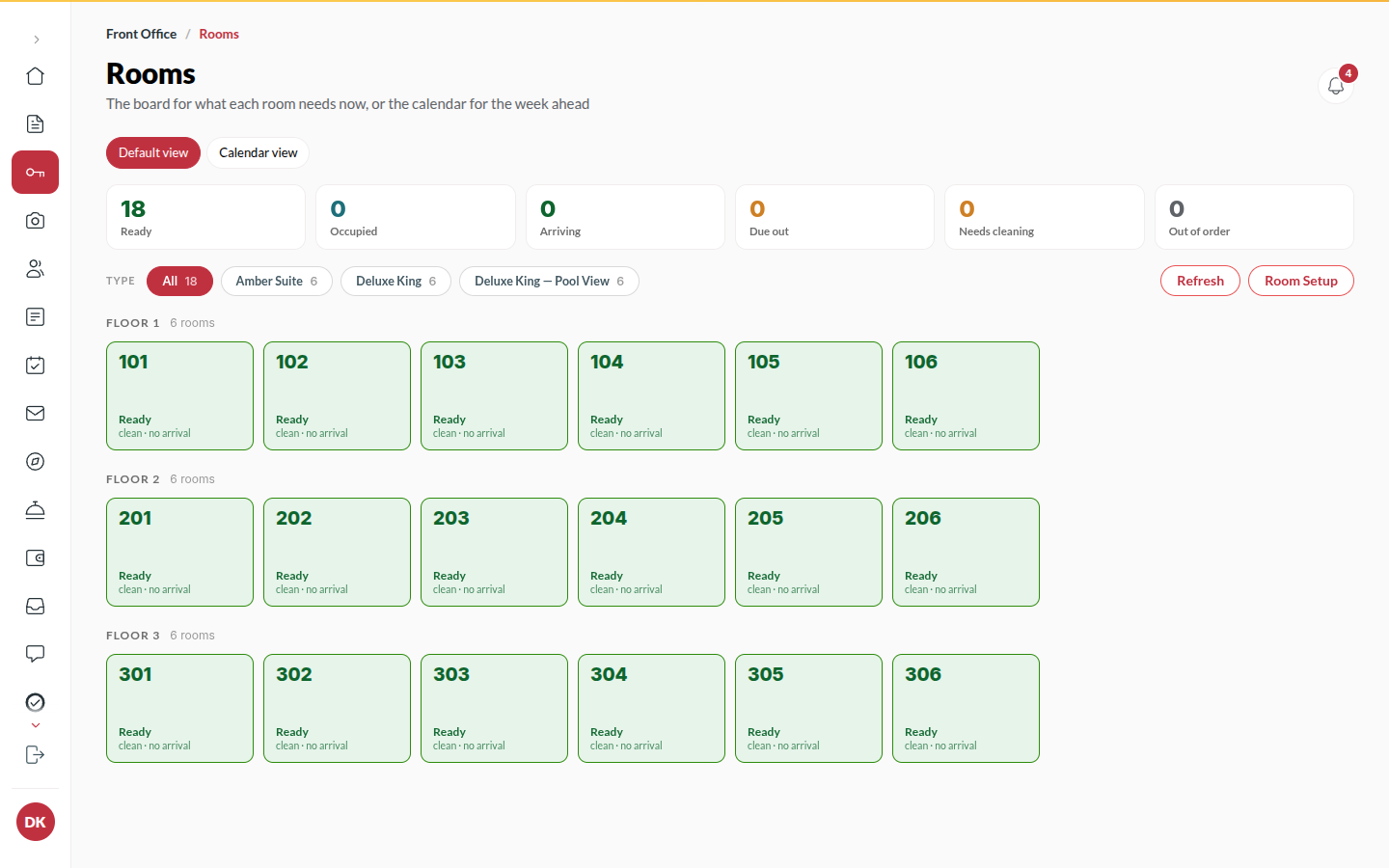
Section titled “What it does”Rooms shows every room as a tile, grouped by floor. A tile shows the room’s state (Ready, Held, Occupied, Leaving, Needs cleaning, Being cleaned, Out of order), who is in it or arriving, and flags a stay past its checkout date. Click a tile to open the room panel, where you check in, check out, move a guest, change the room’s condition or report a fault. The board changes on its own as bookings, check-ins and housekeeping happen.
Who can use it
Section titled “Who can use it”Front Desk, Managers and Admins.
Where to find it
Section titled “Where to find it”Rooms in the rail. Switch between Floors and Week at the top. Room setup opens Rooms and rates.
How to read the board
Section titled “How to read the board”- Use Show to filter by state, and Type to filter by room type. All clears it.
- Click a count on Today’s Rooms right now to land here already filtered.
- Click a tile to open the room panel. Its tabs are Now, Timeline (every stay in this room) and Housekeeping (open cards).
How to give a ready room to a waiting arrival
Section titled “How to give a ready room to a waiting arrival”- Click a Ready room.
- Under Give this room to, pick the arriving guest and click Assign.
- To check them in straight away, click Check in.
How to move a guest to another room
Section titled “How to move a guest to another room”- Open the room panel (or the guest file) and choose Move to another room (Change room before arrival).
- Pick a room. Only clean rooms can be chosen; one that is not clean yet is greyed out. Other room types are listed below.
- For a different type, choose the rate: Keep their rate, Upgrade at no charge, Charge the difference or Lower the bill. Nights already slept keep their rate.
- Under Why?, pick a reason such as Something in the room is broken, Noise, Guest asked or Upgrade.
- If the old room needs repair, tick Put room … out of order for repair. Otherwise it goes on the Housekeeping board.
- Click Move to the new room.
How to change a room’s condition
Section titled “How to change a room’s condition”- Click the room.
- Under Set condition, choose Ready, Needs cleaning, Being cleaned or Out of order. Or use Start cleaning, Request cleaning or Mark clean.
- Occupied is set by check-in and cleared by check-out, never by hand.
How to report a fault
Section titled “How to report a fault”- Click the room and click Report fault.
- Click Report fault again to confirm. The room comes off the floor and a repair card lands on the Housekeeping board.
- To say what is wrong, open the room’s Housekeeping tab instead, click Out of order, type why (for example “AC repair”) and click Set out of order. The reason shows under the room’s name.
- Managers can also pick the last night the room is off sale. The room then comes off rooms available for those nights in occupancy and the reports. Leave it empty if you do not know yet.
- When it is fixed, click Back in service.
Tips & good to know
Section titled “Tips & good to know”- Only a clean room can take a guest. Clean the room first.
- Checking a guest out always files a cleaning card: a room never goes straight back to Ready.
- Out of order rooms are not sold online and are not counted as available.
- The room panel does not keep a copy of the bill. Open the full stay goes to the guest file for payments, IDs and messages.
Troubleshooting
Section titled “Troubleshooting”- “A guest is in Room 101. Check them out first.” → You tried to change a room that is occupied.
- “Room 101 is assigned to RES-XXXX. Move that stay to another room first.” → The room is pinned to an upcoming arrival; move that booking.
- A room stays “Being cleaned” → Housekeeping has not closed the card. Open Housekeeping and finish it.