Door
What it does
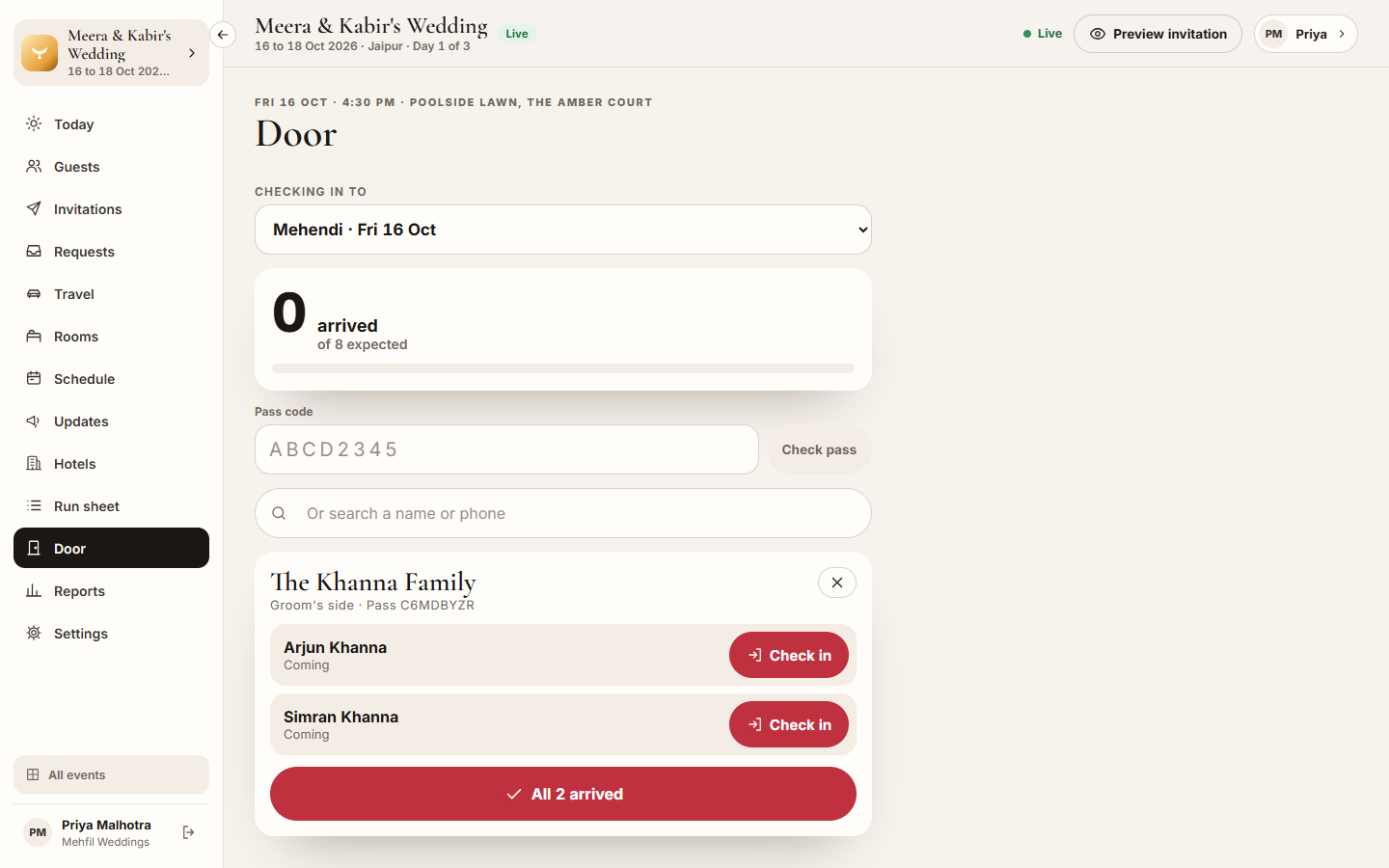
Section titled “What it does”Every family has an entry pass on their invitation: a QR code with an 8-character code under it, one pass for the whole family. At the door of a function, the Door page finds the family from that pass, or from their name or phone, and you check each person in.
The counter shows how many have arrived of those expected (everyone who said yes or maybe). Several phones can work the same door: a family checked in on one phone shows as in on the others.
Who can use it
Section titled “Who can use it”- Lead planner and Hospitality desk check people in.
- Viewer can look up a family and see who has arrived, but cannot check anyone in.
- Transport and Vendor coordinator do not see the Door.
Where to find it
Section titled “Where to find it”Door in the event’s sidebar.
How to check a family in
Section titled “How to check a family in”- Pick the function under Checking in to. The function on now, or the next one, is picked for you.
- Find the family:
- Click Scan a pass and point the camera at the QR code on their invitation, or
- type the code under the QR in Pass code and click Check pass, or
- type a name or phone number in Or search a name or phone and click the family.
- Click Check in beside each person who has arrived, or All 2 arrived (with the family’s number) to check in everyone at once.
- Close the family with the X and find the next one.
To undo a check-in, click In · Undo beside the person.
Tips & good to know
Section titled “Tips & good to know”- Scan a pass shows only on phones and browsers that can read QR codes, for example Chrome on Android. Everywhere else, type the code.
- The code ignores spaces and dashes, and uses no 0, O, 1, I or L, so it is easy to read out.
- A family with no phone at the door can be found by name.
- The Report counts these check-ins as Turned up for each function.
Troubleshooting
Section titled “Troubleshooting”- “No family with this pass” → Check the letters, or search by name.
- “Not invited to …” (with the function’s name) → Their pass is real, but this function is not on their invitation. Ask the lead planner before letting them in.
- “The camera did not open. Allow the camera for this site, or type the code.” → Allow the camera in your browser, or type the code.
- “This browser cannot use the camera here. Type the code instead.” → Type the code.
- “No functions yet.” → Add the functions on the Schedule first. The door checks guests in to one function at a time.