Rooms
What it does
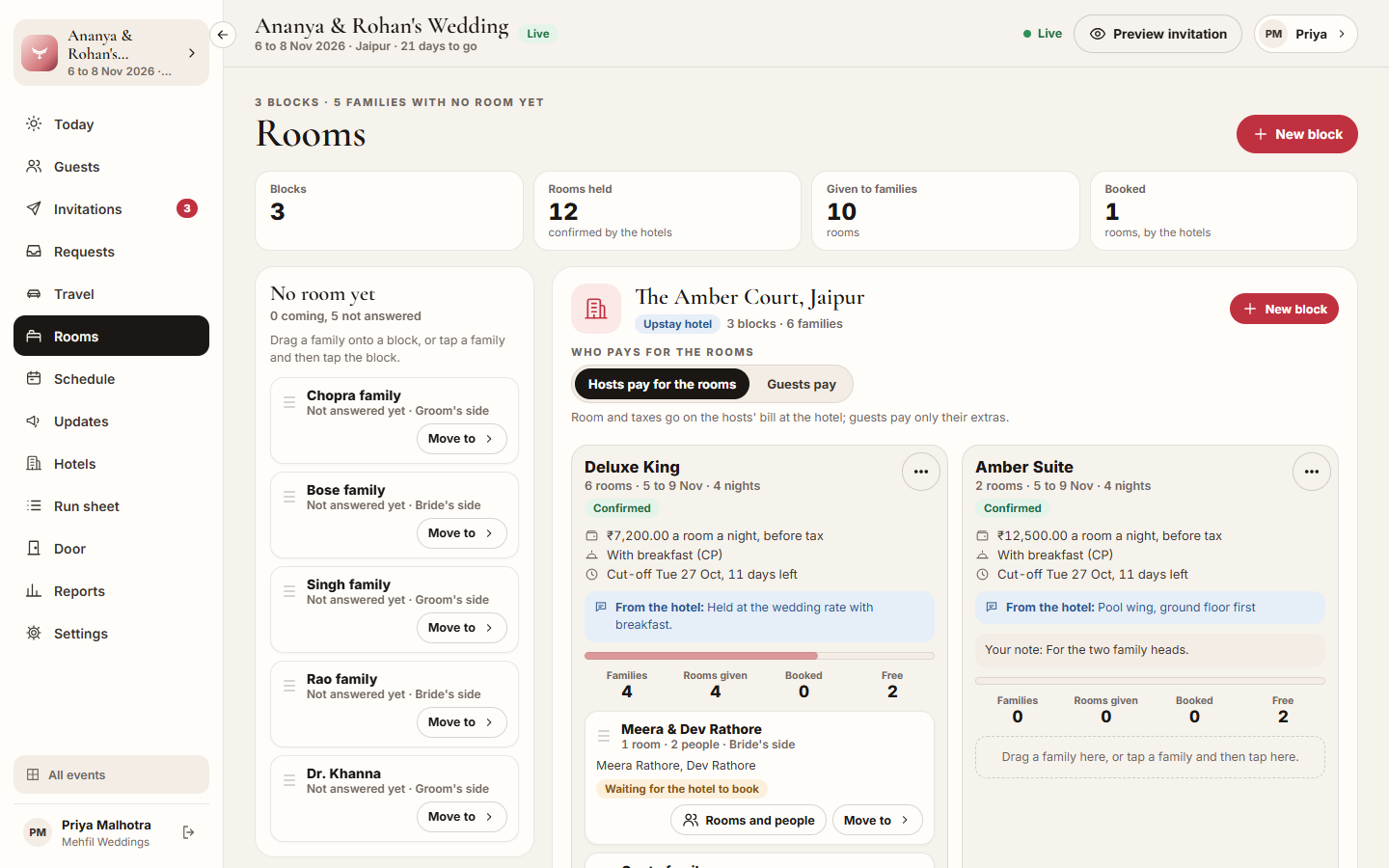
Section titled “What it does”Rooms is where you hold rooms for your guests and give each family its room. It has three parts:
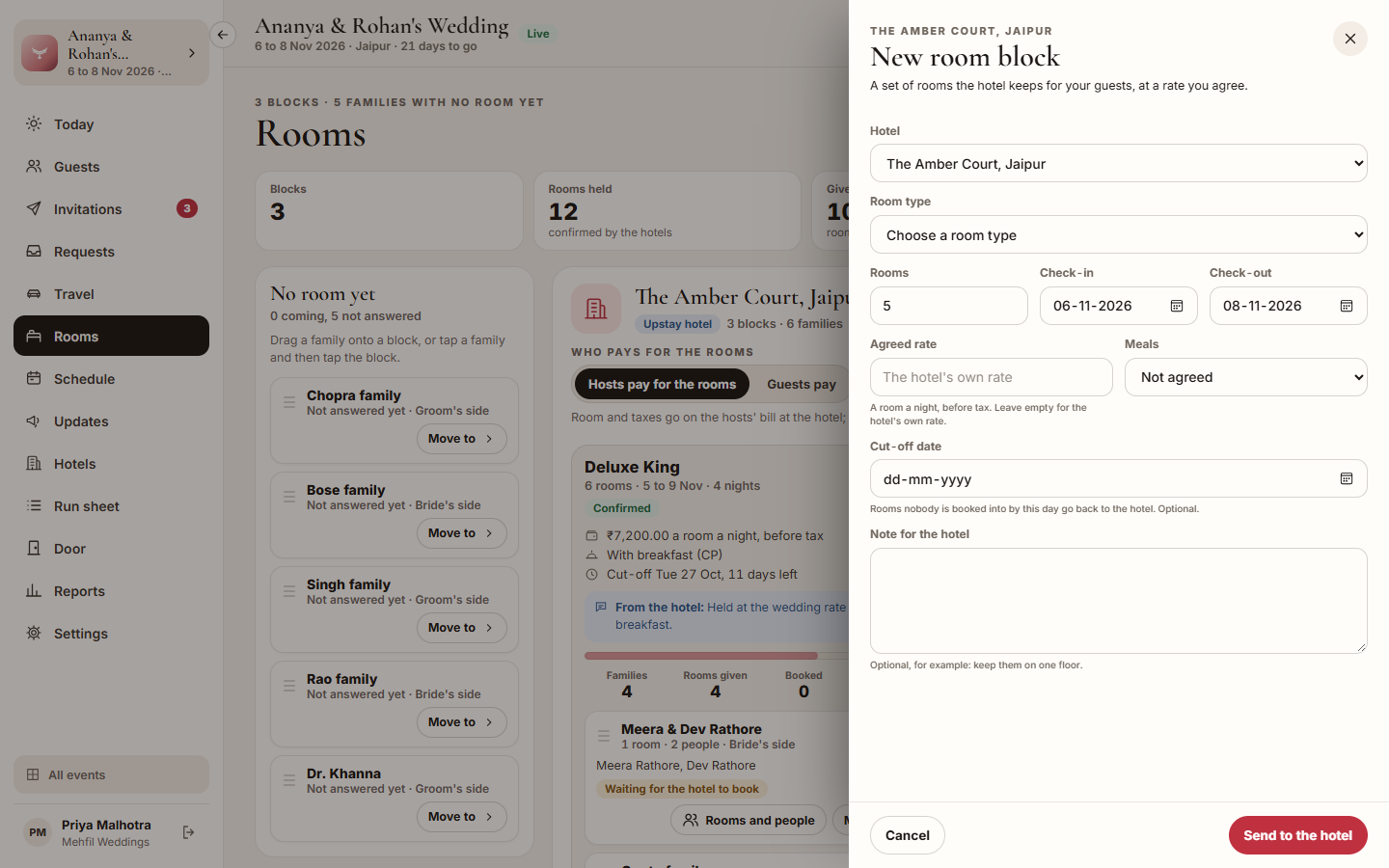
- Room blocks. A block is a set of rooms the hotel keeps for your guests at a rate you agree: one room type, how many rooms, the dates, the rate, the meals and a cut-off date. At an Upstay hotel you send the block and the hotel confirms it from its own console. At a hotel not on Upstay, the block is simply your own record.
- Families. On the left, No room yet lists every family that has no room. Drag a family onto a block, or tap the family and then tap the block. The family takes the block’s dates, and the hotel sees it on its rooming list straight away.
- Who pays for the rooms. For each hotel, choose Hosts pay for the rooms or Guests pay.
The numbers at the top count Blocks, Rooms held (confirmed by the hotels), Given to families and Booked (by the hotels).
Who can use it
Section titled “Who can use it”- Lead planner and Hospitality desk make blocks, move families and choose who pays.
- Viewer sees everything but cannot change it.
- Transport and Vendor coordinator do not see Rooms.
Where to find it
Section titled “Where to find it”Rooms in the event’s sidebar. Add the event’s hotels on Hotels first; until then Rooms shows Add a hotel first with a Go to Hotels link.
How to propose a room block
Section titled “How to propose a room block”- Click New block at the top, or New block on a hotel’s card.
- Pick the Hotel.
- Pick the Room type. At an Upstay hotel you choose from the hotel’s own room types; for a hotel not on Upstay, type it as the hotel calls it.
- Enter Rooms, Check-in and Check-out.
- Enter the Agreed rate, a room a night, before tax. Leave it empty for the hotel’s own rate.
- Pick Meals: Room only (EP), With breakfast (CP), Breakfast and one meal (MAP) or All meals (AP).
- Optionally set a Cut-off date and a Note for the hotel.
- Click Send to the hotel (or Add block for a hotel not on Upstay).
The block shows Waiting for the hotel until the hotel answers, then Confirmed or Declined. A block at a hotel not on Upstay is Confirmed at once.
How to give a family a room
Section titled “How to give a family a room”- Find the family under No room yet.
- Drag the family onto a block. On a phone or with a keyboard, tap the family (the bar reads Moving … Now tap where they go.), then tap Put … here on the block.
- Or click Move to on the family and pick a block from the list. Each block shows how many rooms are free.
The family now has the block’s dates and appears on the hotel’s rooming list as Waiting for the hotel to book. When the hotel books it, the card reads Booked, then Booked · Room and the room number once the hotel gives one.
To take a family out of a block, use Move to and pick the hotel out of the block. To take it out of the rooms altogether, pick Take out of the rooms… and confirm with Take out: the room request is withdrawn and the hotel no longer sees it.
How to say who sleeps where
Section titled “How to say who sleeps where”- On the family’s card, click Rooms and people (it reads Who sleeps here once the family is booked).
- Change Rooms if needed. Once the family is booked, ask the hotel to change the number of rooms.
- Under Sleeping in these rooms, tick the people in these rooms.
- Click Save. The hotel sees the names on its rooming list.
How to change or withdraw a block
Section titled “How to change or withdraw a block”- Click the … on the block, then Change the block.
- Change what you need and click Save (or Save and send to the hotel for a block the hotel has confirmed).
- To give the rooms back, click … → Withdraw the block, then Withdraw block. Families in it stay at the hotel, without a block.
Changing the rooms, dates, room type, rate, meals or cut-off of a confirmed block sends it back to the hotel to confirm again. The block reads Change waiting for the hotel until the hotel answers. Changing only your note does not need the hotel.
How to choose who pays for the rooms
Section titled “How to choose who pays for the rooms”- Find the hotel’s card (on Rooms or on Hotels).
- Under Who pays for the rooms, click Hosts pay for the rooms or Guests pay. It saves at once.
- Hosts pay for the rooms: room and taxes go on the hosts’ bill at the hotel; guests pay only their extras.
- Guests pay: each family pays for its own room, taxes and extras at the hotel.
Every family already booked at that hotel is updated, and the hotel is told.
Tips & good to know
Section titled “Tips & good to know”- The cut-off. Rooms nobody is booked into by the cut-off date go back to the hotel. The block shows how many days are left, and Rooms given back once it has passed. Today lists blocks whose cut-off is within 7 days.
- A family placed at a hotel Without a block keeps its own dates and the hotel’s own rate.
- Putting a family who was waiting at another hotel into a block withdraws the request at the other hotel.
- A booked family cannot be moved here. Ask the hotel to change the booking.
- Not answered yet families also wait under No room yet, so you can hold rooms for them early.
Troubleshooting
Section titled “Troubleshooting”- “Only 2 rooms are free in this block.” (with your number) → The block is full. Ask the hotel for more rooms with Change the block, or use another block.
- ”… was not moved: Said they are not coming.” → That family answered No. Nothing was changed.
- ”… was not moved: Already booked at another hotel” → Ask that hotel to cancel the booking first.
- “The hotel declined this block. Propose another one.” → Read the hotel’s note on the block, then change it and send it again, or propose another block.
- “This hotel declined the event.” → Pick another hotel.
- “The hotel has only 4 Deluxe rooms.” (with your numbers) → Ask for fewer rooms of that type.
- “Families are already booked out of this block. Ask the hotel to change those bookings first.” → Dates and room type are fixed once anyone is booked from the block.
- “Families are already booked out of this block. Ask the hotel to cancel those bookings first.” → A block with bookings cannot be withdrawn.
- “The cut-off date has to be on or before check-in.” → Pick an earlier cut-off.
- “This family is booked. Ask the hotel to cancel the booking first.” → A booked family cannot be taken out of the rooms from here.