Dashboard
What it does
Section titled “What it does”Today is the first screen after you sign in. Each role gets its own dashboard. The Front Desk sees who is arriving, in house and leaving, what is waiting on them, the rooms by state, the money taken today and the shift handover. A Manager sees operations; an Admin (Owner) sees business health. Housekeeping sees its cleaning queue; Concierge sees guest requests and dining in flight. Everything updates by itself.
Who can use it
Section titled “Who can use it”Everyone. Decisions is for Managers and Admins. They can also look at a lower role’s dashboard, for example to cover a shift.
Where to find it
Section titled “Where to find it”Today in the rail (Housekeeping and Concierge see it as Dashboard).
How to read the Front Desk dashboard
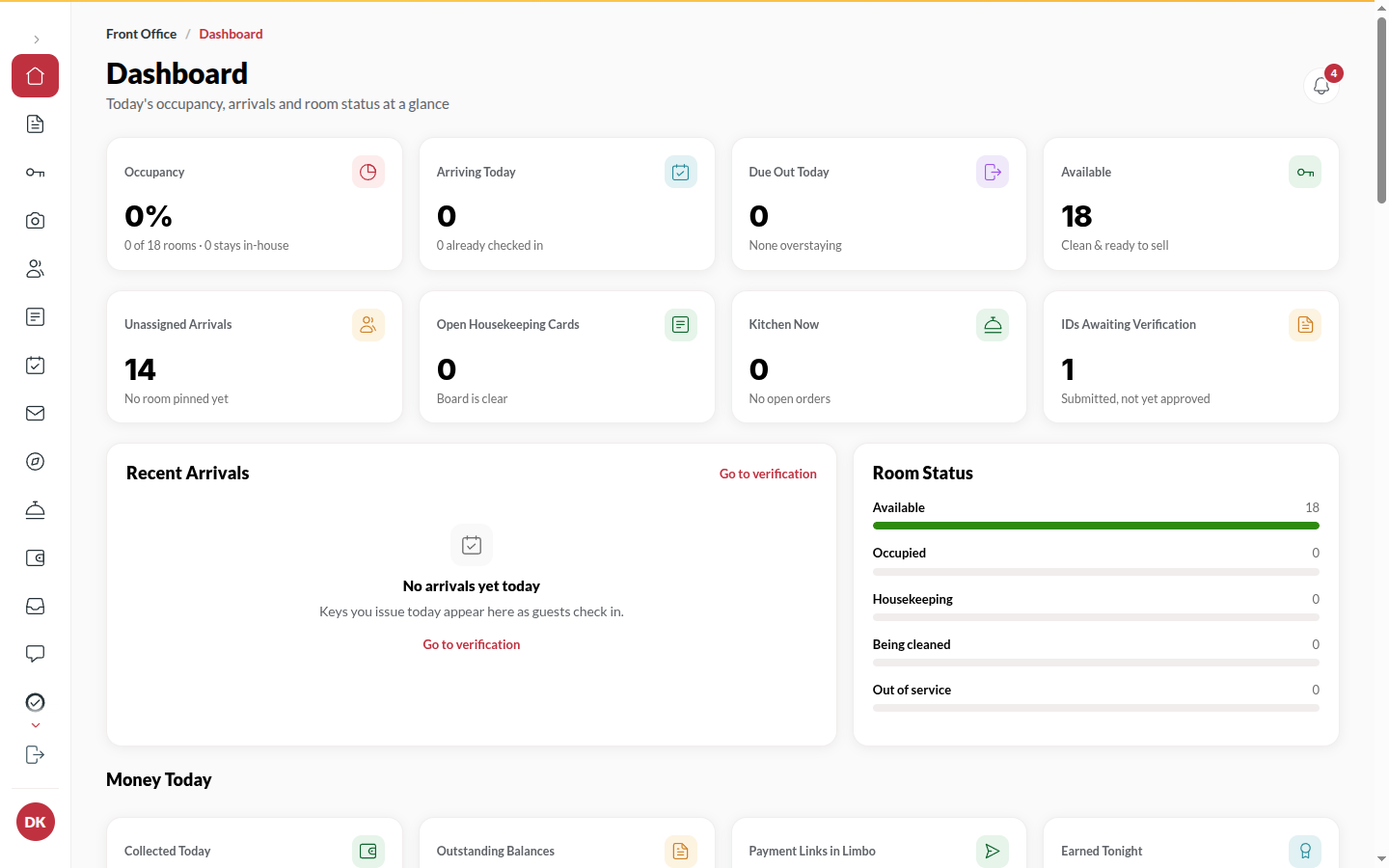
Section titled “How to read the Front Desk dashboard”- Start with the tiles: Occupancy, Arriving today, Due out today, Available and To collect today.
- Work the three columns Arriving, In house and Leaving. Click a guest to open their guest file.
- Check Unassigned arrivals, IDs awaiting verification, Open housekeeping cards and Kitchen now for work waiting on someone.
- Rooms right now counts rooms that are Ready to sell, Occupied, Need cleaning, Being cleaned and Out of order. Click a count to open Rooms filtered to it.
- Under Desk boards, open Traces, Room queue, Open folios, Outbox, Sent messages or Feedback.
How to use the quick actions
Section titled “How to use the quick actions”- At the top of the dashboard, click New booking, Quick check-in, Walk-in ID or Find reservation.
- Each one opens the place to do it. Only the actions your hotel has show.
How to check a guest in with Quick check-in
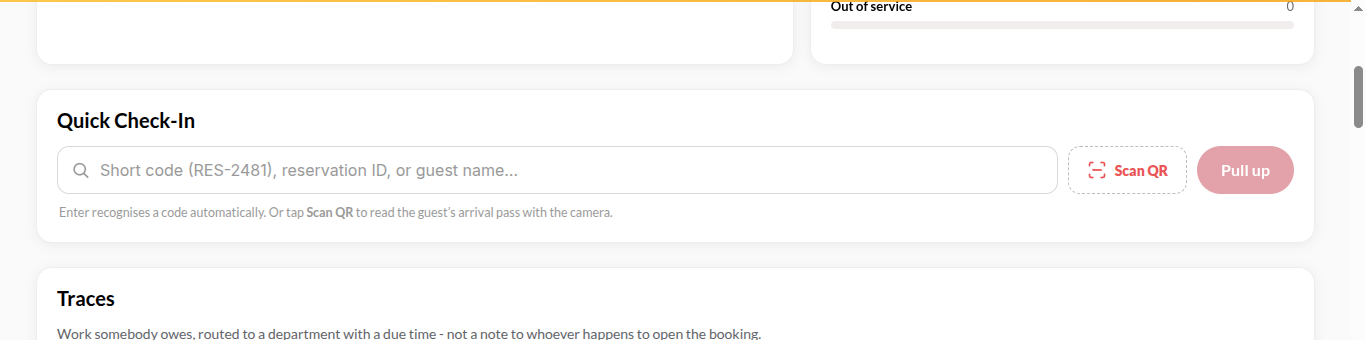
Section titled “How to check a guest in with Quick check-in”- Click Quick check-in, or open Check in from search.
- Type the Short code, reservation ID, or guest name… and click Pull up, or click Scan QR and hold the guest’s Arrival Pass to the camera.
- Check the guest and room shown, then choose Quick steps or Guided check-in (ID, room, payment, key).
- If the guest’s ID still needs review, finish it first: the key needs a verified ID.
How to work Decisions (Managers and Admins)
Section titled “How to work Decisions (Managers and Admins)”- Open Decisions in the rail. It lists what crossed a limit (an Approvals item, such as a discount, a void or a booking below the floor price) and what went wrong (an Alerts item), grouped by Now, a time before check-in, and Today. Narrow it with All, Approvals, Alerts, Money, Guests, Rooms, Revenue or People.
- Click an item to read why it is there and what saying yes costs.
- For an approval, click the yes button to approve it or the no button to decline it. The person who asked is told, and your name is kept with the answer. For an alert, click its fix button to go and fix it.
- Hand to someone passes it to another Manager or Admin.
- Keyboard: J and K move between items, A approves (or fixes), D declines.
- Change the limits sets how far the desk and Managers may go before an approval is needed.
The desk sees Sent to the manager when it asks for something above its limit.
How to look at another role’s dashboard
Section titled “How to look at another role’s dashboard”- As a Manager or Admin, use Viewing at the top of Today.
- Pick Manager, Front desk, Housekeeping or Concierge.
- Click My dashboard to come back.
How to send a queued guest message from the Outbox
Section titled “How to send a queued guest message from the Outbox”- Under Desk boards, open Outbox.
- Click Copy message (or Copy link only) and send it to the guest on WhatsApp from your own phone.
- Click Mark as sent so the desk knows it went.
Tips & good to know
Section titled “Tips & good to know”- Every tile and count is a link. Click the number, not just the title.
- Money today shows today’s takings as Cash, Card, UPI and Online & channels. If your hotel uses the cash drawer, it also links to Open the drawer → or Close the shift →. See Cash drawer.
- Shift handover holds notes one shift leaves the next. See Shift handover.
- The Housekeeping and Concierge dashboards are for reading the queue. Starting a clean or approving a request is done by the desk or a Manager.
- When there is nothing to do, the dashboard says Nothing is waiting on you. Enjoy the quiet.
Troubleshooting
Section titled “Troubleshooting”- “No reservation matches that.” → The code was mistyped or the pass belongs to another hotel. Search the guest by name in Bookings instead.
- The ID step will not let you continue → Review the IDs in the guest file’s ID tab first, then come back.