Preview invitation
What it does
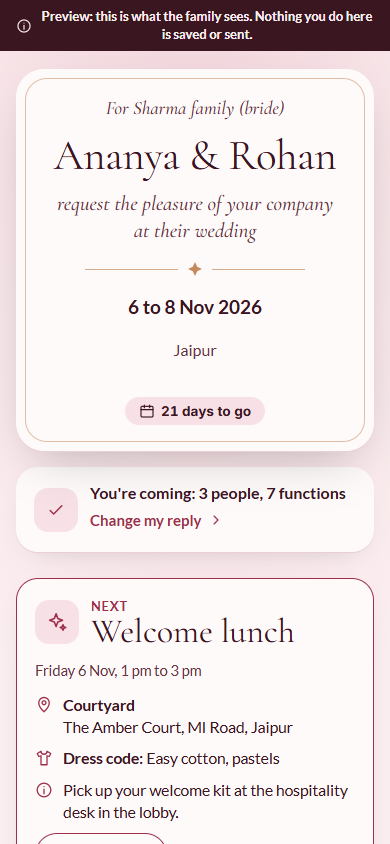
Section titled “What it does”Preview invitation opens the invitation in a new tab, exactly as a family sees it: the cover, the hosts, the dates, the note, the plan for each day and the reply. It works while the event is still a Draft.
A preview never counts as the family opening their invitation, and it cannot send an answer. You can walk through the reply, but Send my reply stays switched off with a note that families send their answers from their own link.
Who can use it
Section titled “Who can use it”Everyone on the planning team: Lead planner, Desk and Viewer.
Where to find it
Section titled “Where to find it”- Preview invitation at the top of every event page (on a computer).
- One family’s own invitation: open the family’s row on Guests → Preview their invitation.
How to preview the invitation
Section titled “How to preview the invitation”- Add at least one family on Guests.
- Click Preview invitation at the top of the page.
- Read the invitation in the new tab. A line at the top says it is a preview.
How to preview one family’s invitation
Section titled “How to preview one family’s invitation”- Open Guests and click the family’s row.
- Click Preview their invitation. You see the functions that family is invited to, by their tags.
Tips & good to know
Section titled “Tips & good to know”- The general preview shows the invitation of the first family you added. Use Preview their invitation to check a family whose tags limit what they see.
- Nothing you do in a preview is saved or sent.
- A preview link is short-lived. Open a new preview from the console when it expires.
Troubleshooting
Section titled “Troubleshooting”- The button is greyed out and says “Add a family first” → Add a family on Guests, then preview.
- “Could not open the preview” → Your browser may have blocked the new tab. Allow pop-ups for the console and try again.
- “This preview has expired. Open a new preview from the planner console.” → Click Preview invitation again.