Guests
What it does
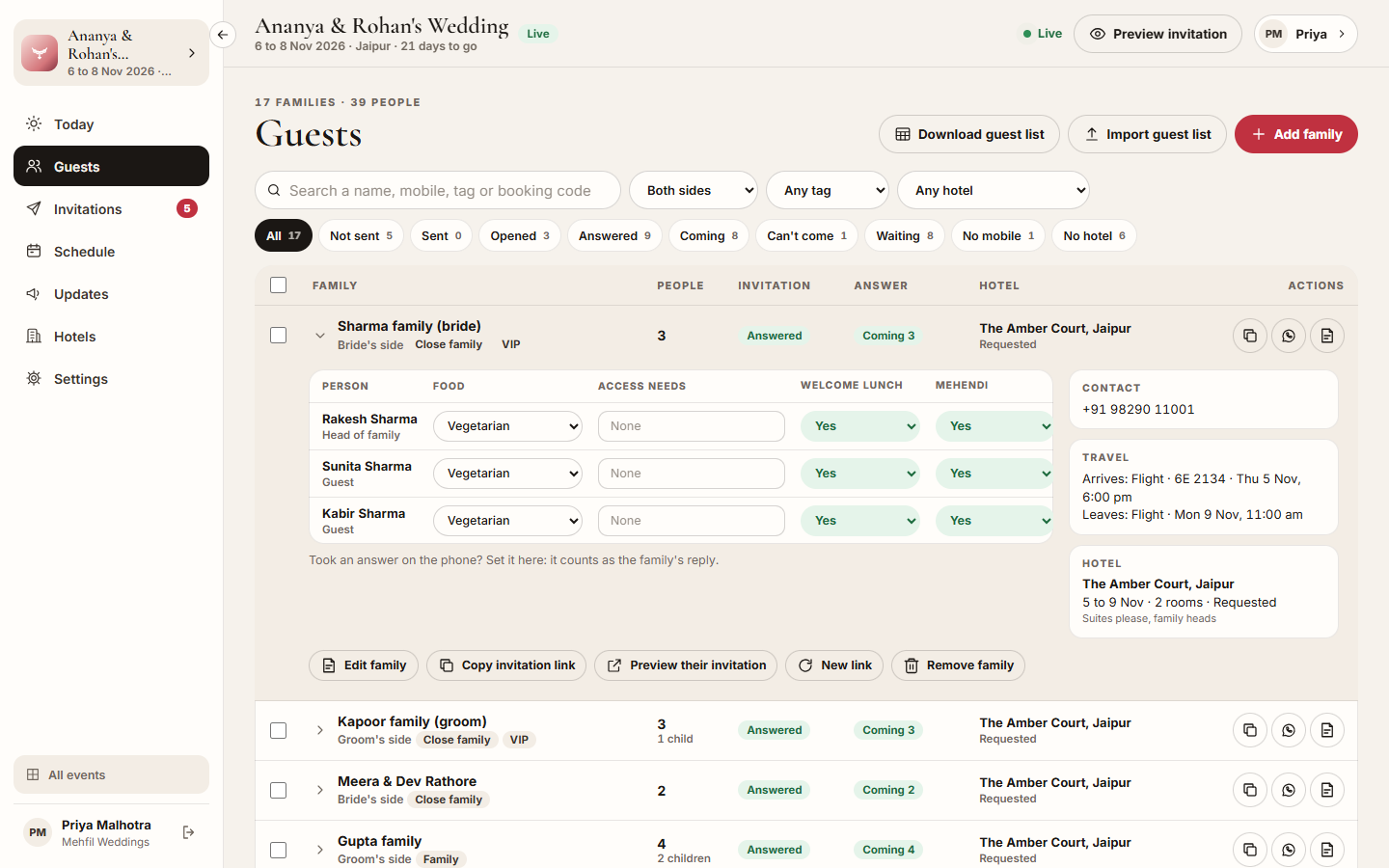
Section titled “What it does”Guests is the guest list, one row per family. A family is one invitation: one link that answers for everyone in it. Each row shows the family’s people, where its invitation stands (Not sent, Sent, Opened, Answered), its answer (Coming, Can’t come, Waiting) and its hotel.
Open a row to see each person’s answer to each function, their food and access needs, the family’s contact, travel and hotel, and any note from the family. You can set an answer yourself when a family tells you on the phone.
Tags (like Close family or VIP) decide who is invited to which function. A side (Bride’s side, Groom’s side, or your own) lets you filter and send updates to one side.
Who can use it
Section titled “Who can use it”Lead planner and Desk add and change families. A Viewer can read the list, copy invitation links and download the list.
Where to find it
Section titled “Where to find it”Guests in the event’s sidebar.
How to add a family
Section titled “How to add a family”- Click Add family.
- Enter the Family name, for example “Sharma family”. This is how the invitation addresses them.
- Enter the Mobile: the invitation goes to this WhatsApp. Email is optional.
- Optionally enter a Side, the Seats (the most people they may bring) and Tags.
- Under People in this family, type each person’s name. The first person is the head of the family. Click Child for a child, and Add a person for more.
- Optionally write Your note: only your team sees it.
- Click Add family.
How to import your guest list
Section titled “How to import your guest list”- Click Import guest list.
- In your sheet, select the cells including the heading row, copy them, and paste them into Paste from Excel or Google Sheets. Or choose a .csv file under Or choose a .csv file.
- Check What each column is. Columns are matched from your headings: Family, Name, Mobile, Email, Side, Tags, Child, Seats. Change any that are wrong, or pick Leave out.
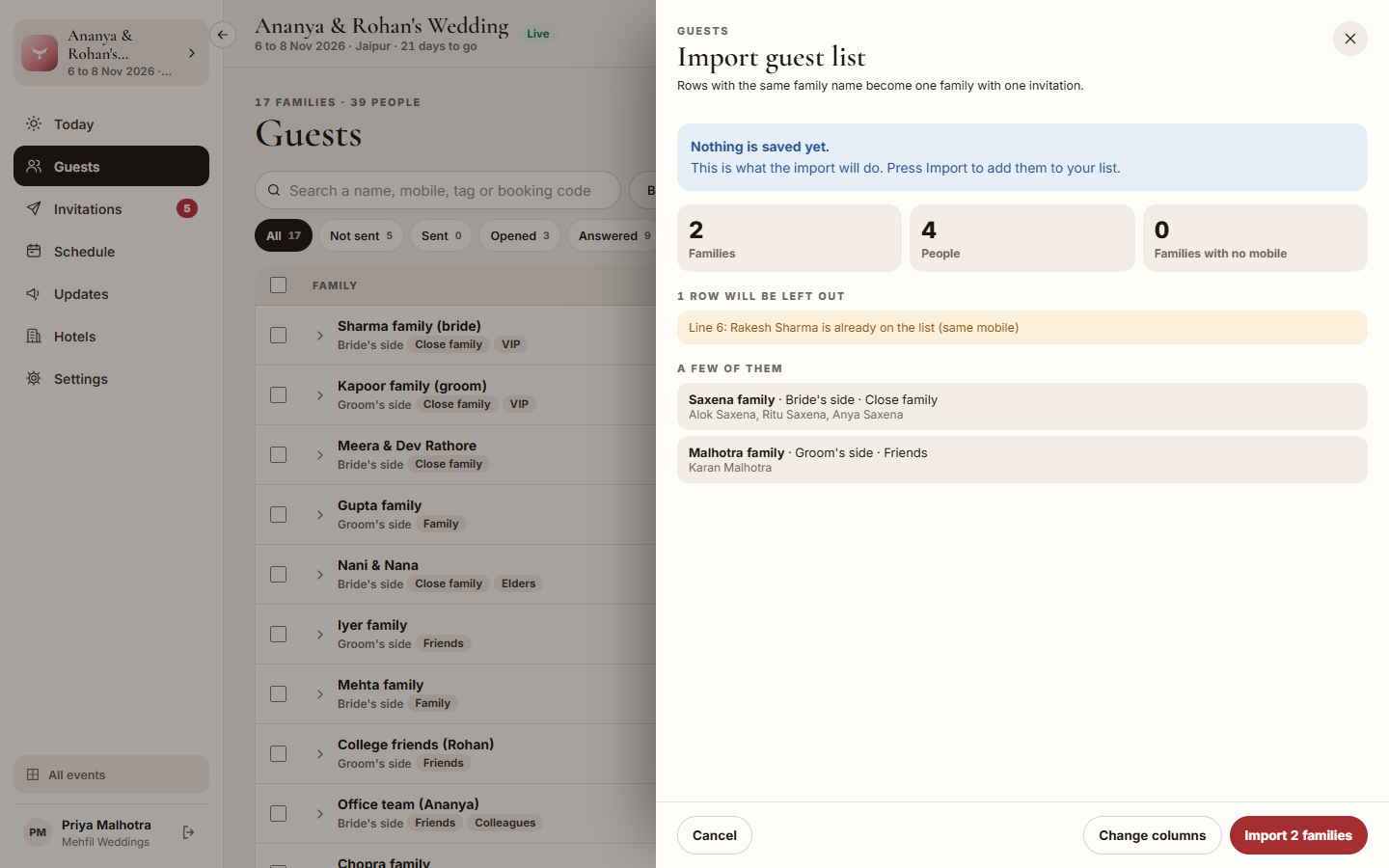
- Click Check the list. Nothing is saved yet: you see how many families and people it will add, how many families have no mobile, and which rows will be left out and why.
- Click Import (for example Import 14 families), or Change columns to go back.
How to tag families or set their side
Section titled “How to tag families or set their side”- Tick the families on the list (or tick the box in the heading to choose all shown).
- In the bar that appears, click Add tag, Remove tag or Set side.
- Type or pick the tag or side, and confirm.
How to record an answer taken on the phone
Section titled “How to record an answer taken on the phone”- Click the family’s row to open it.
- In the table, pick Yes, Maybe or No for each person and function. It counts as the family’s reply.
- Set Food and type Access needs for each person if they told you.
How to download the guest list
Section titled “How to download the guest list”- Click Download guest list.
- Open the file in Excel or Google Sheets. It has every person, their answer to each function, food, access needs, hotel and travel.
Tips & good to know
Section titled “Tips & good to know”- Search finds a name, a mobile number, a tag or a booking code. Filter by Side, Tag or Hotel, and use the chips (Not sent, Coming, No mobile, No hotel and more) to narrow the list.
- Rows with the same family name in an import become one family with one invitation.
- An Excel file has to be pasted, or saved as CSV first: in Excel, File, Save a copy, CSV; in Google Sheets, File, Download, CSV. One import takes up to 2,000 rows and a file up to 2 MB.
- Copy invitation link copies a family’s own link. New link makes a fresh one and the old link stops working at once: use it when a link was forwarded or lost.
- A family with a hotel booking cannot be removed. Ask the hotel to cancel the booking first.
- From the choice bar you can also Send invitation, Send reminder and Place at hotel for the chosen families.
Troubleshooting
Section titled “Troubleshooting”- “You listed 5 people for 4 seats” (with your numbers) → Raise Seats, or remove a person.
- “This family has a hotel booking. Ask the hotel to cancel it first.” → The hotel has booked them. Ask the hotel to cancel that booking before you remove the family.
- “A family needs at least one person. Remove the family instead.” → Use Remove family if they are no longer invited.
- “Pick the column that holds each guest’s name.” → Set one column to Name (or Family) in What each column is.
- “One import takes up to 2,000 rows. Split the sheet and import it in parts.” → Import the sheet in smaller parts.
- A row is left out: “is already on the list (same mobile)” → That person is already on your list with the same mobile number.