Financial settings
What it does
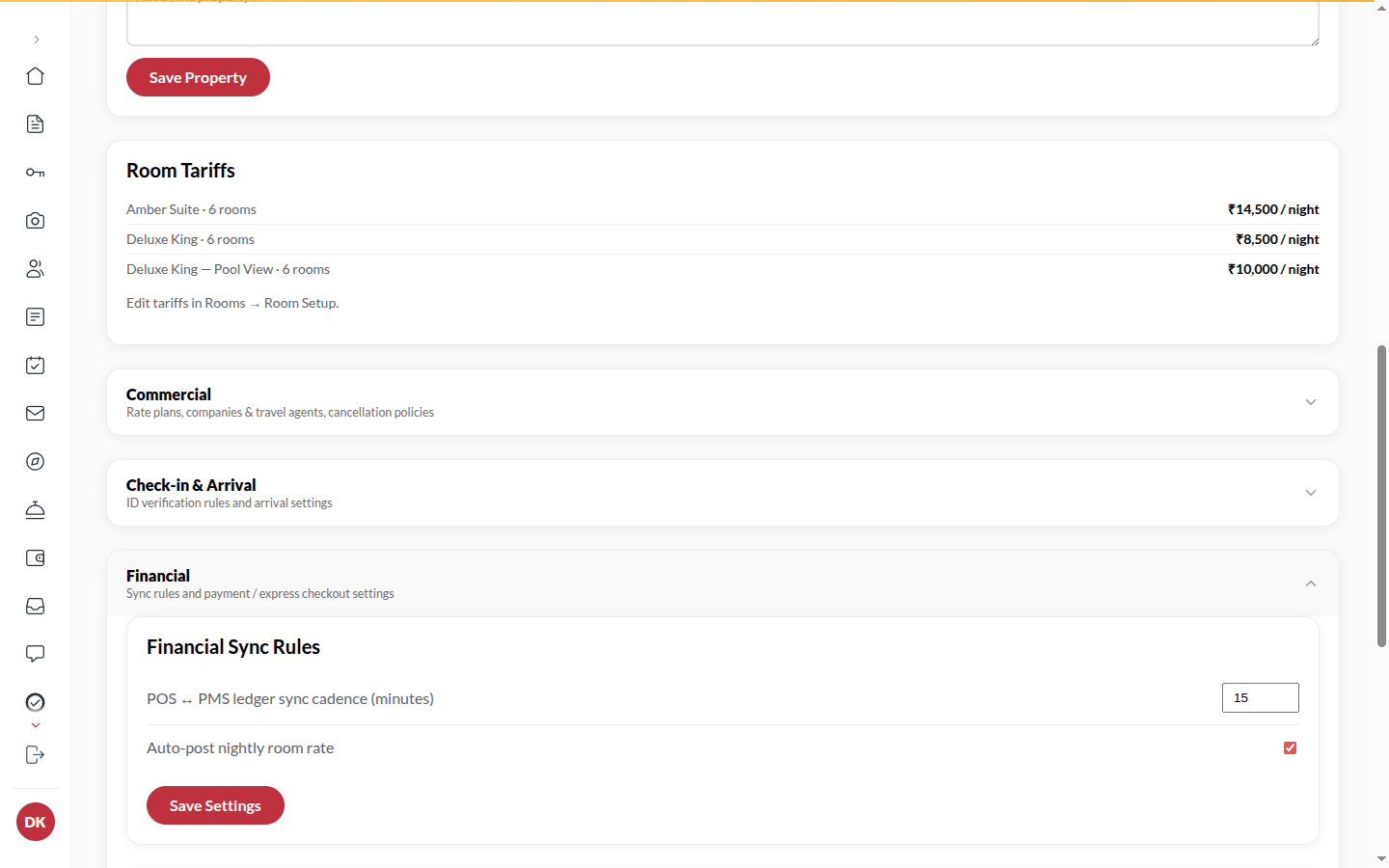
Section titled “What it does”Financial sync rules control when room charges land on a guest’s bill: Auto-post nightly room rate posts one night’s charge each business day, so the bill grows as the stay does. Payments and express checkout decide which methods the desk can record (cash is always on) and what checkout does to the room. Tax (GST) holds the GST bands by nightly rate and the tax labels printed on the bill.
Who can use it
Section titled “Who can use it”Admins.
Where to find it
Section titled “Where to find it”Back office → Property → under Financial: Financial sync rules, Payments and express checkout and Tax (GST).
How to turn on nightly posting
Section titled “How to turn on nightly posting”- Open Financial sync rules.
- Turn on Auto-post nightly room rate.
- Click Save settings. From the next night audit, every checked-in stay gets that night’s room charge posted automatically.
How to choose payment methods
Section titled “How to choose payment methods”- Open Payments and express checkout.
- Turn UPI enabled and Cards enabled on or off.
- Leave Checkout marks the room Dirty and revokes keys on so a room goes to housekeeping at checkout.
- Click Save settings. Take payment offers only the methods that are on.
How to set GST bands
Section titled “How to set GST bands”- Open Tax (GST).
- For each band, enter Nightly rate up to (₹) and GST (%). Click Add a rate band for another (up to six); remove one with its remove button.
- Set the Central tax label on the bill and State tax label on the bill if your bill should use other words.
- Click Save tax rules.
Tips & good to know
Section titled “Tips & good to know”- Nightly posting is what makes Finance’s revenue accurate day by day; without it, room revenue lands at checkout.
- Turning a method off does not touch payments already recorded with it.
- A payment link is offered from Take payment whatever these switches say: the guest chooses how to pay on the payment page.
- Tax settings stay available even when Finance is not on for your hotel.
Troubleshooting
Section titled “Troubleshooting”- The desk cannot pick “Card” → Cards enabled is off.
- Room charges appear only at checkout → Auto-post nightly room rate is off.