Verification
What it does
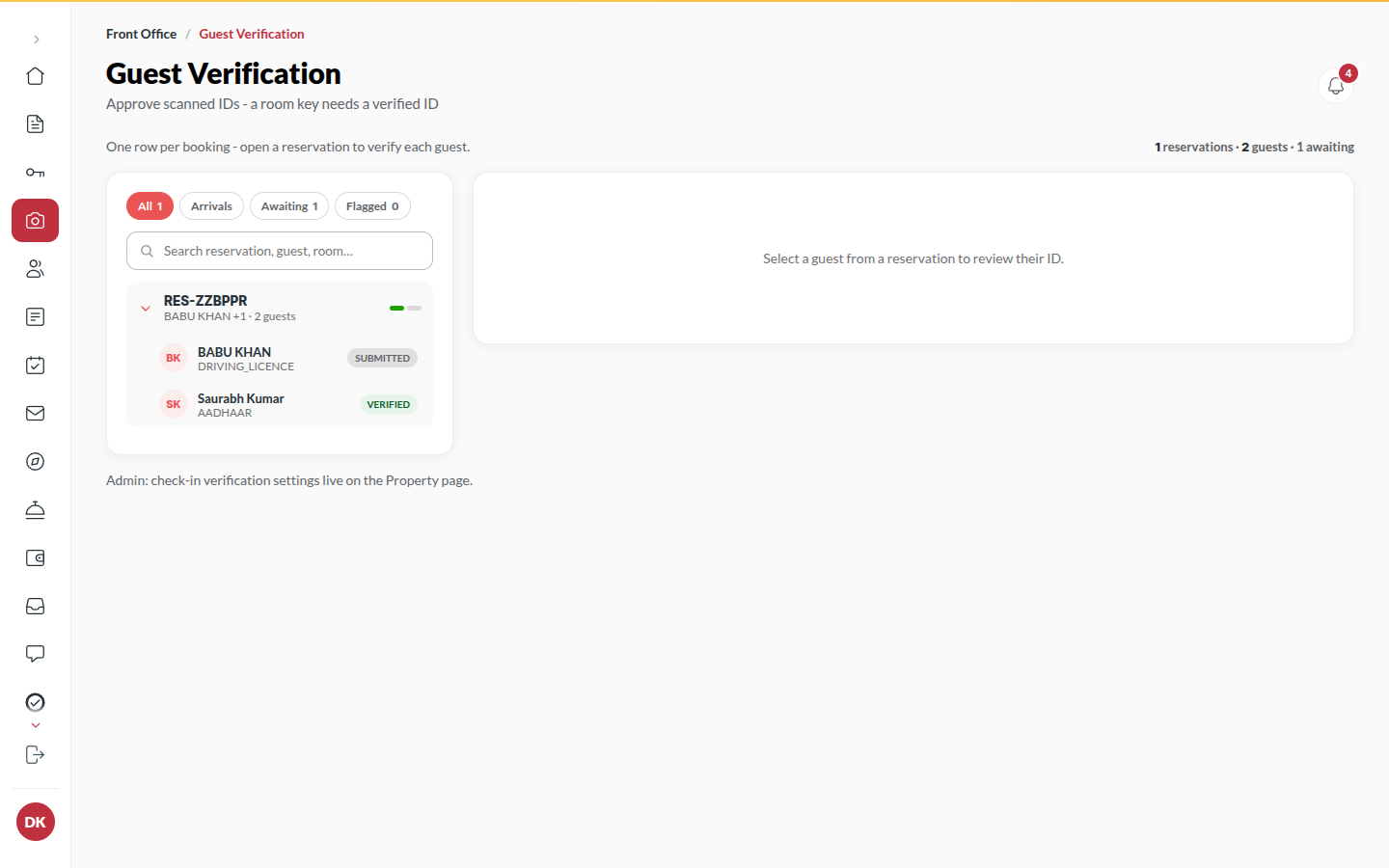
Section titled “What it does”When a guest completes web check-in, each person on the booking gets a registration card: their document photos, selfie, signature and typed details. Verification is the queue, one row per booking, where the desk looks at those cards and approves or rejects them. A room key can only be issued when every guest on the booking has a verified ID.
Who can use it
Section titled “Who can use it”Front Desk, Managers and Admins. The Activity list of who opened which document is for Managers.
Where to find it
Section titled “Where to find it”Back office → Verification, or IDs awaiting verification on Today. The same cards show in each guest file’s ID tab.
How to review a booking’s IDs
Section titled “How to review a booking’s IDs”- Open Verification. Use All, Arrivals, Awaiting or Flagged, or Search booking, guest or room.
- Click a booking. Each guest on it is listed under Guests on this booking.
- Open a guest’s Front, Back, Photo and Signature. Use Zoom in, Zoom out and Rotate; a PDF opens with Open the PDF. Opening a document is written to the activity log against your name.
- Compare the Details with the document. Face match shows how close the photo is to the document.
How to approve an ID
Section titled “How to approve an ID”- With the guest open, click Verify.
- Click Next guest to move on. When everyone is verified, the booking can be checked in.
How to send an ID back
Section titled “How to send an ID back”- With the guest open, click Send back.
- Pick what is wrong: Photo too blurry to read, Name doesn’t match the booking, Document expired, Back of the document missing, or Other with a note.
- Click Send back. The photos and typed details are cleared, so the guest must retake the document; they cannot send the same file again.
How to reuse details from an earlier stay
Section titled “How to reuse details from an earlier stay”- If the guest stayed before, a note says Seen before. or Same name on an earlier stay. with the earlier booking codes.
- Click Reuse details to copy the address and nationality details from that stay. The ID number and photos are never copied.
How to capture an ID at the desk
Section titled “How to capture an ID at the desk”- Click Capture ID at the desk (or Capture at the desk on one guest).
- Choose the Booking, enter the Guest name (as on the document) and the Document type.
- Take a Photo of the document and type the details.
- Click Save and submit for verification. It joins the queue like an online one.
How to reveal a full ID number
Section titled “How to reveal a full ID number”- Open a verified guest. Only the last four digits show.
- Click Reveal & log. The full number shows, and the reveal is written to the activity log against your name. Hide covers it again.
Tips & good to know
Section titled “Tips & good to know”- A guest can clear and refill their own card even after approval. It drops back to the queue and must be verified again.
- Flagged cards are ones the automatic checks were unsure about (face match, read quality). They need a human look, nothing else.
- A card the guest never submitted cannot be verified or sent back. Capture it at the desk instead.
- Foreign guests use Passport; their card also carries the visa details Form C needs.
Troubleshooting
Section titled “Troubleshooting”- “This ID is verified - reject it first to change details.” → Details on a verified card are locked. Reject, let the guest correct, approve again.
- “A verified ID cannot be deleted - reject it first.” → Same rule for deleting a capture.
- “No full number on file for this card” → The document’s number was read pre-masked (Aadhaar) or never typed; the full number is not available to reveal.
- “A card that was never filed cannot be decided” → The guest has not submitted it yet. Capture it at the desk instead.