Folio & payments
What it does
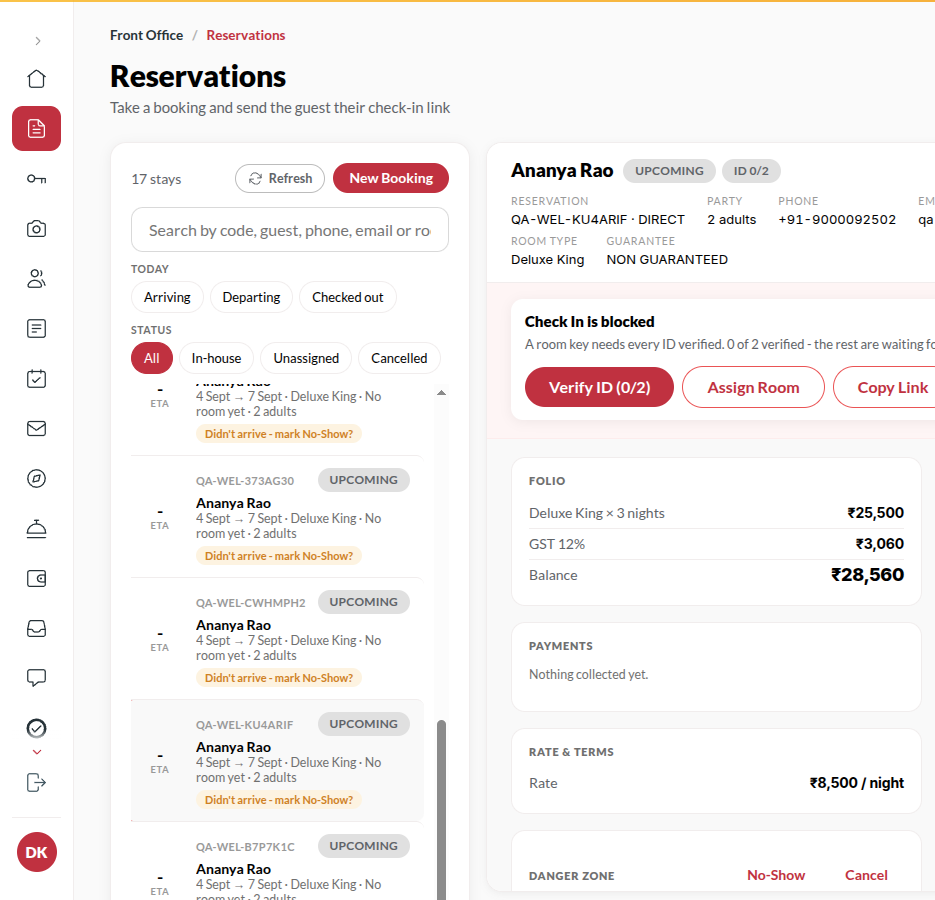
Section titled “What it does”Every booking has a bill: the room charge and GST, in-room dining, upsells, fees, nightly charges and any adjustment the desk posts, against the payments received. From the guest file’s Bill tab the desk takes payment (cash, card, UPI at the desk or a payment link), adds charges and discounts with a reason, voids or corrects a line, and emails or prints the bill. A Manager can void a desk payment recorded by mistake or refund the guest. Every payment shows the id it can be traced by. Nothing on a bill is ever deleted.
Who can use it
Section titled “Who can use it”Front Desk, Managers and Admins. Voiding a payment and refunding are for Managers and above.
Where to find it
Section titled “Where to find it”Open a booking’s guest file → Bill (it shows the balance, e.g. Bill · ₹4,200.00). Open folios under Today’s desk boards lists in-house guests who still owe.
How to take a payment
Section titled “How to take a payment”- In the Bill tab, click Take payment.
- Enter the amount: up to the balance. A part-payment is fine.
- Pick the method: Cash, Card, UPI or Payment link.
- For card or UPI, enter the Card approval code or UPI reference (UTR). It is optional now; you can add it later.
- Click Record payment. The balance drops and the guest sees it on their bill. Taken before check-in, it stays on the bill as an advance.
How to add a payment reference later
Section titled “How to add a payment reference later”- On a desk payment that shows not entered, click Add it.
- Enter the reference and click Save.
How to add a charge or a discount
Section titled “How to add a charge or a discount”- Click Add a charge: enter What it is, the Charge amount, pick a reason (Damage, Late checkout, Minibar, Miscellaneous) and click Add to the bill.
- Or click Discount: choose a percent or a flat Amount, pick a reason (Loyalty, Service recovery, Complimentary, Corporate rate, Price match, Goodwill, Other) and click Apply discount. It comes off the whole bill.
How to void or correct a line
Section titled “How to void or correct a line”- Open the line on the bill.
- Click Void (added by mistake), pick a reason (Added by mistake, Wrong room, Duplicate charge, Guest disputed it, Other) and click Void it. The line stays, struck through, and its amount (and GST for a room night) comes off.
- Or click Correct the amount, enter the Correct amount, pick a reason and click Save the correction.
- A room-service line is changed in Services; a line on a company invoice is corrected on the invoice.
- On a discount line the void button reads Remove the discount.
- If the change is above the limit your hotel has set for the desk, nothing changes yet. You see Sent to the manager and the line shows Waiting for the manager. A Manager approves or declines it under Decisions. A Manager or Admin voids or corrects without asking.
How to add a nightly charge
Section titled “How to add a nightly charge”- Under Nightly charges, enter what it is (e.g. Parking) and the amount a night.
- Click Add. The night audit posts it for every night the guest is in house. Remove stops it; nights already posted stay.
How to void a payment or refund the guest (Managers)
Section titled “How to void a payment or refund the guest (Managers)”- Open the payment on the bill.
- Void (recorded by mistake) is for money that never changed hands. Pick a reason and click Void the payment.
- Refund gives money back: choose the payment, the Refund amount and who Handed back by, pick a reason (Overpaid, Service cancelled, Goodwill, Other) and click Record refund. An online payment goes back to how the guest paid; it can take a few days to reach them.
How to email or print the bill
Section titled “How to email or print the bill”- Click Email the bill to send it to the guest’s email (it needs an email on the booking).
- Click Print to print it.
Tips & good to know
Section titled “Tips & good to know”- Room charges post one night at a time at the night audit, so an early departure is billed for nights stayed.
- A pending payment link shows on the bill before it is paid, so you do not take cash for an amount the guest is mid-way through paying.
- OTA bookings that were prepaid show Collected by the OTA and a ₹0.00 balance.
- Every void, correction, discount and refund asks why, and the reason is kept with your name.
- If your hotel uses the cash drawer, cash payments and cash refunds count toward the open shift.
Troubleshooting
Section titled “Troubleshooting”- “Sent to the manager” → The change is above your limit. Wait for the Manager’s answer; the line cannot be changed again while it waits.
- “Nothing to collect: the bill is settled.” → The bill is settled.
- “That is more than the ₹X due - check the amount.” → Record only what is owed; refunds are separate.
- “This payment came through online: the money really moved, so refund it instead.” → An online payment cannot be voided. Use Refund.
- “Part of this payment was refunded. Void the refund first.” → Undo the refund before voiding the payment.
- “Someone else just changed this payment. Look at the bill and try again.” → Another desk acted on it first.
- “Payment is being confirmed. Please do not retry.” → An online payment is mid-flight; wait for the provider.