Finance reports
What it does
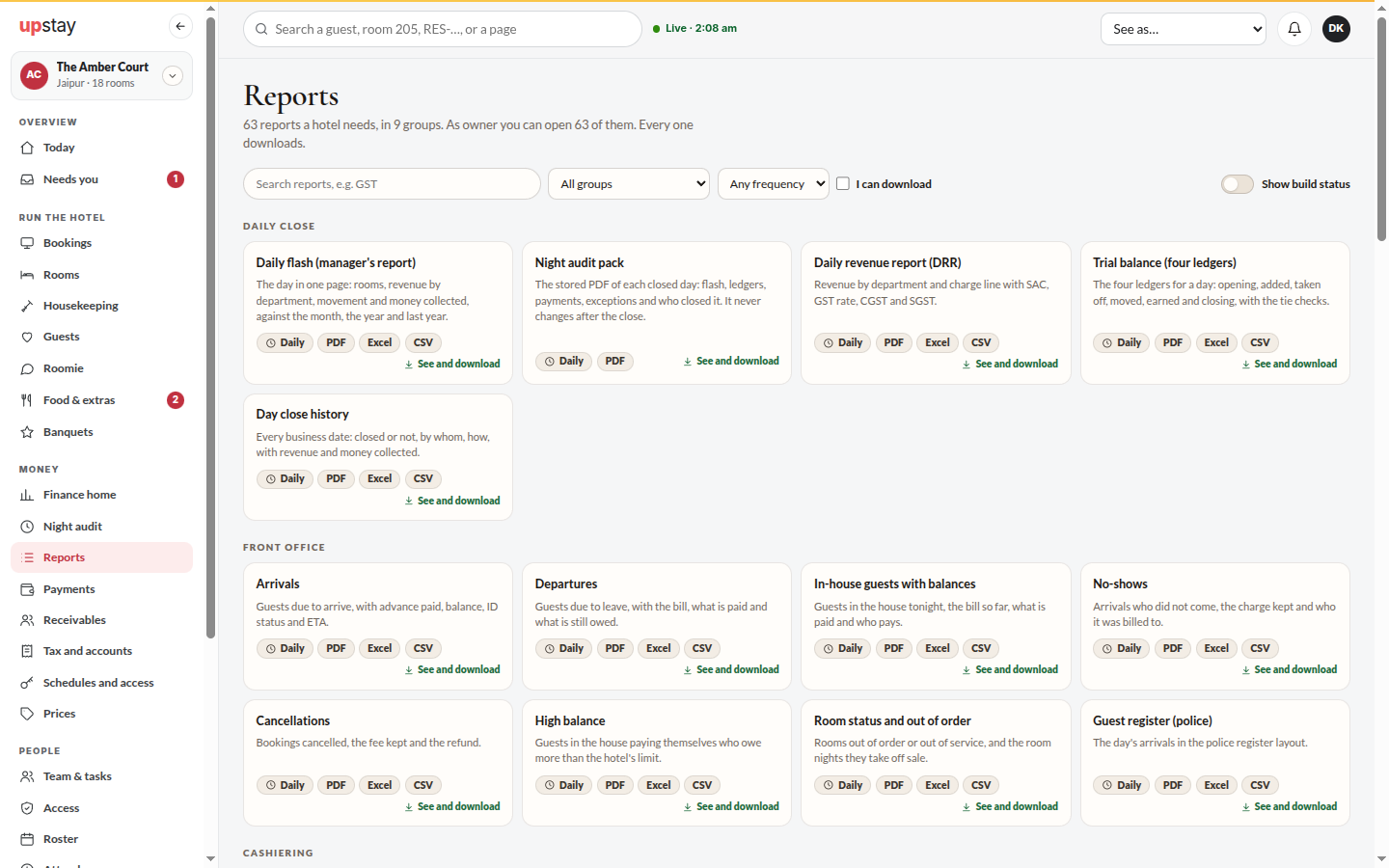
Section titled “What it does”Reports is the library of finance reports, in groups: the daily close, front office, cashiering, revenue, receivables, food and banquets, tax and compliance, accounts, and control. Each report is a card saying what it shows, how often it is used, the files it downloads as, and what your role may do with it. Open any report for any dates, download it as PDF, Excel or CSV (and GST and Tally files where they apply), or have it emailed to you. The owner decides, in Schedules and access, which reports go out by themselves and which role may see or download each one.
Who can use it
Section titled “Who can use it”Everyone sees the reports their role is allowed; the front desk sees the front office lists and their own shift. The owner always sees everything and is the only one who changes schedules and access. Housekeeping and concierge see no finance reports.
Where to find it
Section titled “Where to find it”Sidebar → Money → Reports. Schedules and access: Sidebar → Money → Schedules and access (owner).
How to find and download a report
Section titled “How to find and download a report”- Open Reports. Search with Search reports, e.g. GST, or narrow by All groups, Any frequency or I can download.
- Each card says See and download, See only or Own shifts only. To see the reports your role cannot open, tick Show the … I cannot open.
- Click a card. It opens for its usual dates. Change From and To (or Date for a one-day report), or click Today, This month, Last month or This year.
- Click PDF, Excel or CSV to download it. GST and Tally reports also offer GSTR-1 JSON, Tally XML or ZIP. To get it by email instead, click Email it to me.
- Point at the small i beside a column or row name (or tap it on a phone) to see what it means and, for a number such as ADR or RevPAR, how it is worked out. Click All reports to go back.
How to ask for a report you cannot open
Section titled “How to ask for a report you cannot open”- Tick Show the … I cannot open and click the report’s card. It says Ask the owner to give access.
- Click Ask the owner to give access. The owner is told.
How to have a report sent by itself (owner)
Section titled “How to have a report sent by itself (owner)”- Open Schedules and access → Scheduled reports and click New schedule (or, on a report, click Schedule this report).
- Pick the Report and When: When the day closes, When a shift closes, Every day, Every week or Every month, and the time.
- Pick the File, how to Send by (Email, WhatsApp, In the console) and who to Send to, then click Save.
- In the list, the On switch pauses or resumes a schedule. Use Send now to test it, Edit to change it, or the bin to remove it.
How to decide who sees which report (owner)
Section titled “How to decide who sees which report (owner)”- Open Schedules and access → Who can see what. The owner’s column always says Everything.
- For each report, pick a level for Accountant, Manager and Front desk: See and download, See only, Own shifts only (cashier reports, front desk only) or No access. A changed box is outlined.
- Click Reset to default to undo every change.
Tips & good to know
Section titled “Tips & good to know”- A PDF report is laid out like an accountant’s schedule: your hotel’s letterhead on every page, who prepared it and when, negative amounts in brackets such as (₹2,000.00), a double rule under each final total, the definitions used, and lines for Prepared by, Reviewed by and the authorised signatory.
- A report someone may only see has no working download buttons and says View only. Ask the owner to allow downloads of this report.
- A schedule only sends to people who may download that report. Anyone else on the list is skipped.
- Upstay’s server enforces access, not just the screen: a role without access gets no rows and no file, even from a link.
- Show build status marks each report Ready or Coming later.
- Every download is recorded in the audit log.
- Some reports cover at most 92 days. Pick a longer range and the page says “Pick up to 92 days for this report.” above the table, which keeps showing the last range it opened.
Troubleshooting
Section titled “Troubleshooting”- “View only. Ask the owner to allow downloads of this report.” → Ask the owner to change your level in Who can see what.
- “Add an email address to your profile first.” → Ask a manager to add your email in Employees.
- “No reports are switched on for this hotel.” → Your hotel does not have Finance reports.
- “Pick up to 92 days for this report.” → Pick a shorter range. The table keeps the last range it could open.