Team
What it does
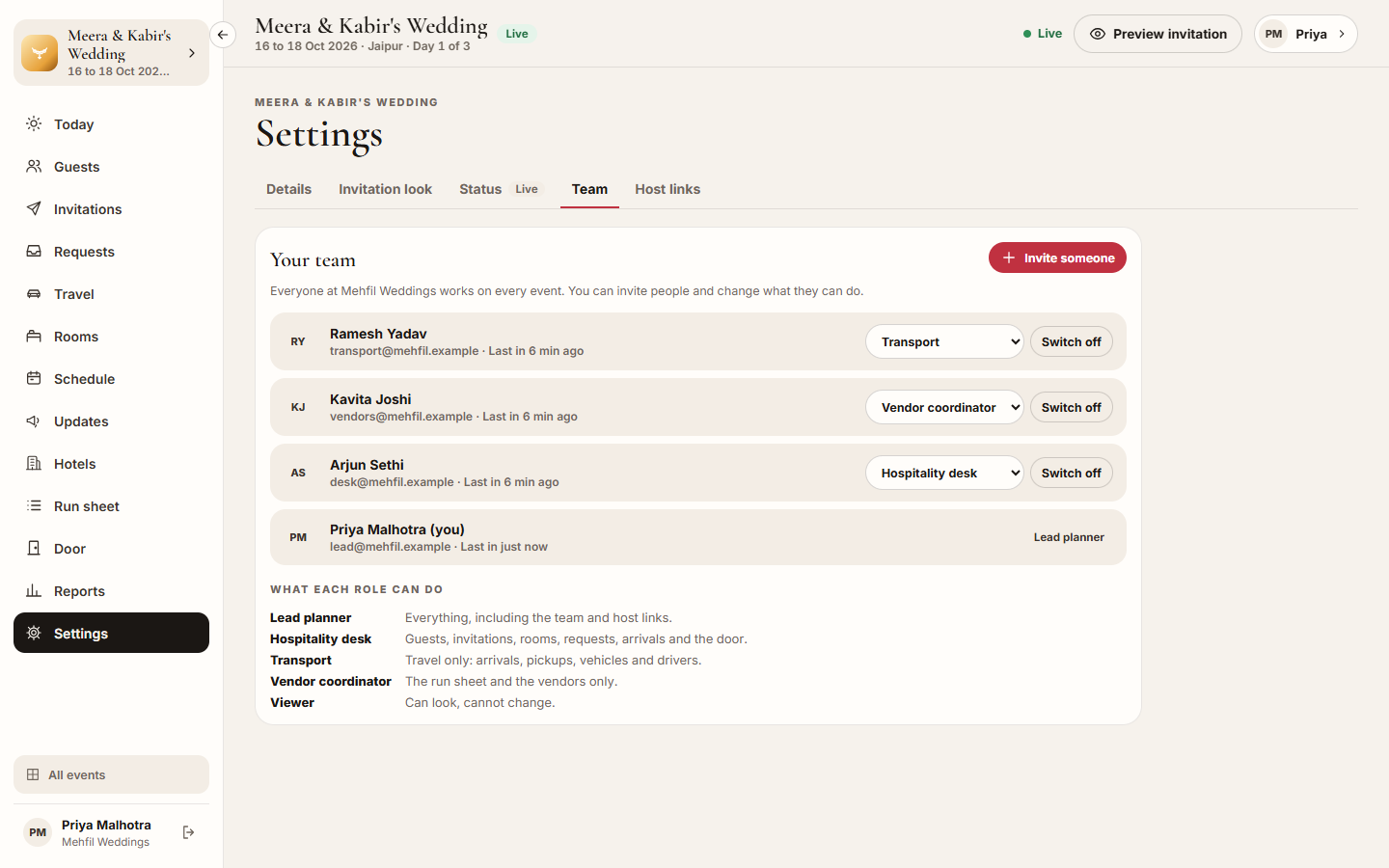
Section titled “What it does”Team lists everyone at your planning company who can sign in to Upstay Events. Everyone on the team works on every event. Each person has one of five roles, listed at the bottom of the tab under What each role can do:
- Lead planner: everything, including the team and host links.
- Hospitality desk: guests, invitations, rooms, requests, arrivals and the door. They also change the schedule, updates, hotels and travel, and read the run sheet and the report.
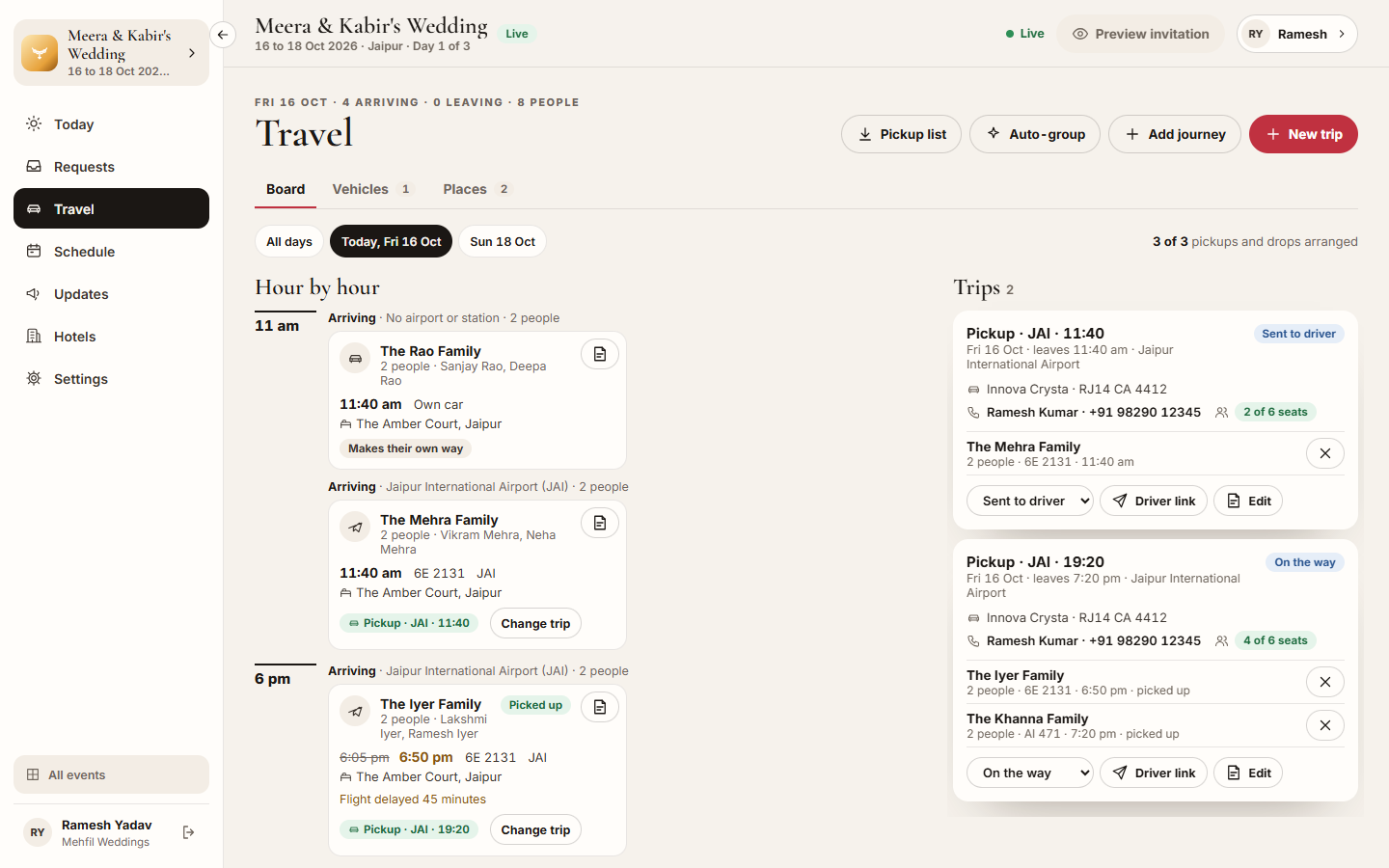
- Transport: travel only: arrivals, pickups, vehicles and drivers. They also work on travel requests and read the schedule, updates and hotels.
- Vendor coordinator: the run sheet and the vendors only. They also read the schedule.
- Viewer: can look, cannot change. A viewer does not see host links.
On a page someone can read but not change, a note at the top says You can look, not change. and names their role, and the buttons that change things are hidden.
Each person sees only the pages their role opens in the event’s sidebar. A Transport team member opens each event on Travel, a Vendor coordinator on the Run sheet, and everyone else on Today.
A lead planner invites people, changes their role, makes a new sign-in link, and switches people off and on.
Who can use it
Section titled “Who can use it”Everyone can see the team. Only a Lead planner can invite, change roles, make links and switch people off.
Where to find it
Section titled “Where to find it”Inside an event: Settings → Team. Or open the menu under your name at the top right and click Team.
How to invite someone
Section titled “How to invite someone”- Click Invite someone.
- Enter their Name and Email. Mobile is optional; with it, they can also sign in with their mobile number.
- Pick What they can do: Lead planner, Hospitality desk, Transport, Vendor coordinator or Viewer. Hospitality desk is picked for you.
- Click Create the invite link.
- Click Copy and send the link to them on WhatsApp or by email. They use it to choose a password.
How to change someone’s role
Section titled “How to change someone’s role”- Find the person on the list.
- Pick a new role in the box beside their name. The change works straight away; they see their new pages the next time they open the console.
How to send someone a new link
Section titled “How to send someone a new link”- Find the person. New link shows for someone who has not set a password or not signed in yet.
- Click New link, then Copy, and send it to them.
How to switch someone off or on
Section titled “How to switch someone off or on”- Click Switch off beside the person, then Switch off again to confirm. They are signed out everywhere and cannot sign in.
- To let them back in, click Switch on.
Tips & good to know
Section titled “Tips & good to know”- An invite link works once, for a few days. Anyone with it can set that person’s password, so send it only to them.
- Each person’s line says where they are: Invited, has not set a password yet, Not signed in yet, Last in a time, or Switched off.
- You cannot change your own role or switch yourself off. Ask another lead planner.
- Give a driver the trip’s driver link, and the hosting family a host link, rather than a place on the team. Neither needs to sign in.
- A lead planner who needs a link of their own can ask Upstay.
Troubleshooting
Section titled “Troubleshooting”- “Someone already uses that email on Upstay Events.” → That email already has an account. Use another email, or find them on the list.
- “You cannot change your own role. Ask another lead.” → Another lead planner has to change it.
- “You cannot switch off your own access.” → Another lead planner has to do it.
- “Your role does not open this part of the event.” or “Your role can view this but not change it.” → The person’s role does not cover that page. A lead planner can change their role.
- Create the invite link stays greyed out → Enter a name of at least two letters and a valid email.