The driver link
What it does
Section titled “What it does”When the planner gives you a trip, you get a WhatsApp message with a link. It opens your trip on your phone. No app and no sign-in.
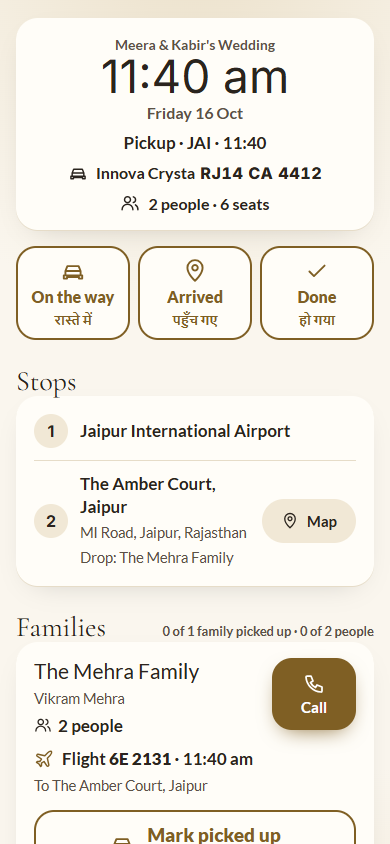
The page shows the time you leave, very large, the day, the trip, your vehicle and how many people you carry. Below it:
- Stops: where you go, in order, with the meet point, the address and a Map button.
- Families (or Guests for a shuttle): each family with the head of the family, how many people, their flight or train and time, the hotel they go to, and a Call button.
You tell the planner where you are with three buttons: On the way, Arrived and Done, each with its Hindi word under it. You mark each family Picked up. The planner, the hotel and the family see it straight away.
Who can use it
Section titled “Who can use it”Drivers the planner sends a trip link to. The page shows only that trip.
Where to find it
Section titled “Where to find it”The link in the planner’s WhatsApp message. After you open it once, it opens on that phone without the link.
How to run your trip
Section titled “How to run your trip”- Open the link from the planner’s message.
- When you set off, tap On the way.
- Go to the first stop. Tap Map for directions.
- Tap Arrived when you reach the meet point.
- Tap Call on a family to ring them.
- When a family is in the car, tap Mark picked up. It changes to Picked up. Tap it again if you made a mistake.
- When everyone is dropped, tap Done.
How to send a new time when a family is late
Section titled “How to send a new time when a family is late”- On the family, tap Late? Change the time.
- Enter the Day, the New time and, optionally, a Note (optional), for example “Flight late”.
- Tap Send new time. The planner and the family see the new time.
Tips & good to know
Section titled “Tips & good to know”- The page updates by itself while it is open.
- Call the desk at the bottom rings the event’s hospitality desk.
- If the page says there are too many people for the car, call the desk.
- Once the trip is Done or cancelled, the buttons stop working.
Troubleshooting
Section titled “Troubleshooting”- “This trip was cancelled. Please call the desk.” → The planner cancelled the trip. Call the desk.
- “This driver link is not valid. Ask the planner for a new one.” → The planner made a new link or removed the trip. Ask them to send the link again.
- “Your trip opens here” → Open the trip link from the planner’s WhatsApp message.
- “No connection. Check your internet and try again.” → Check your internet connection.