Finance home and plan ahead
What it does
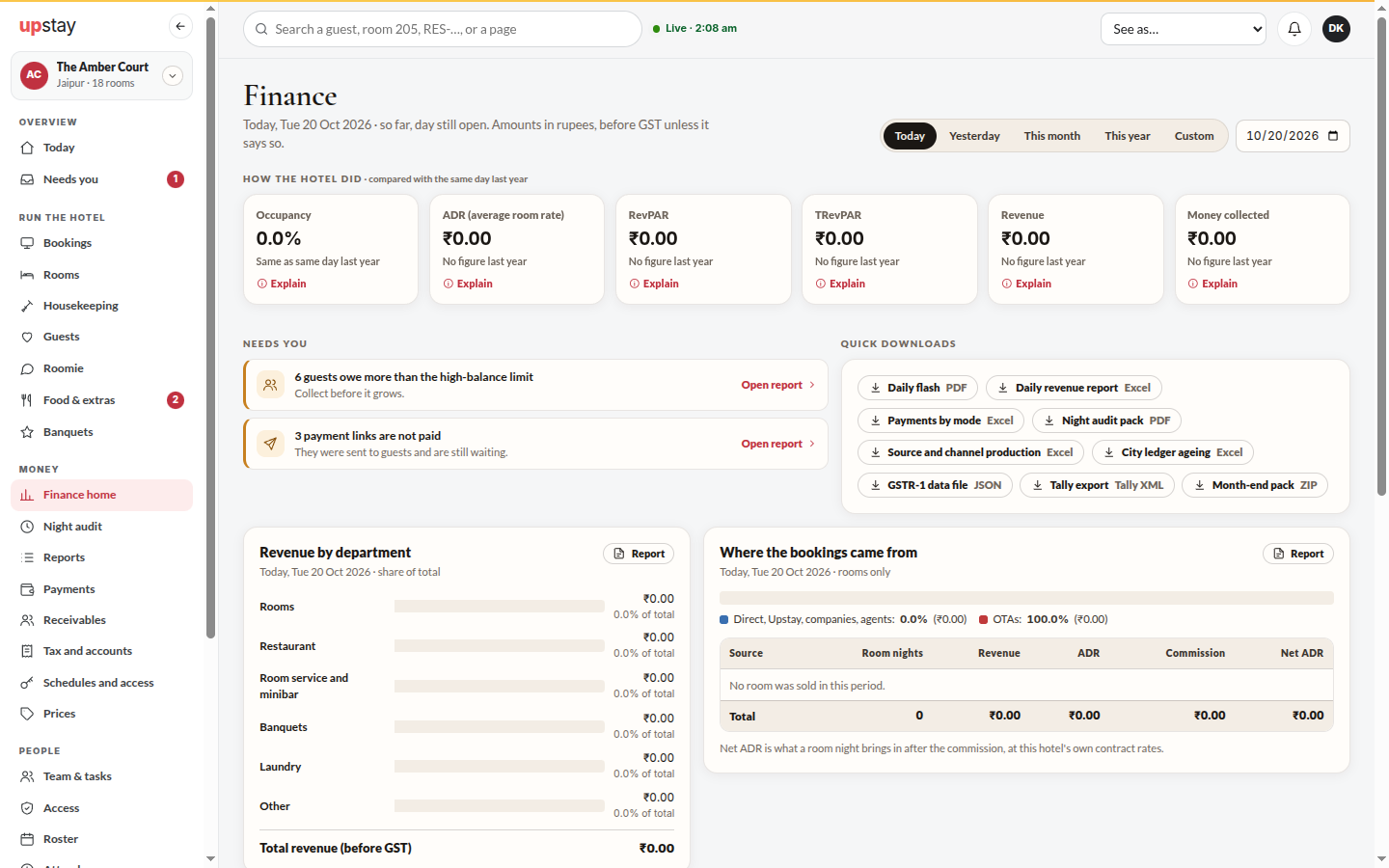
Section titled “What it does”Finance home is the first page of Finance. It shows, for the period you pick, occupancy, the average room rate (ADR), RevPAR, TRevPAR, revenue and money collected against the same dates last year; each card has an Explain that shows how the number is worked out with this period’s own figures. Below that: Needs you, the Quick downloads, Revenue by department, Where the bookings came from (direct against OTAs), Where the money is right now, and the revenue and occupancy of the last 14 days.
The accountant’s home is worded for money and tax: revenue, money collected, GST collected, commission paid, ADR and occupancy, then money collected by mode and the GST on the period’s bills.
Plan ahead adds five reports: Pace and pickup, Forecast, Lead time and length of stay, Budget vs actual and Yearly summary, and a Budgets page where the owner enters the plan for each month.
Who can use it
Section titled “Who can use it”The owner, managers and the accountant see Finance home. Commission and net rates under Where the bookings came from are shown to the owner and the accountant. Only the owner can change budgets; managers and the accountant can read them. Each report follows the access the owner set in Who can see what.
Where to find it
Section titled “Where to find it”Sidebar → Money → Finance home. Budgets are at Tax and accounts → Budgets. The five reports are in Reports.
How to read Finance home
Section titled “How to read Finance home”- Pick Today, Yesterday, This month, This year or Custom (two dates), or pick any single day in the date box.
- Each card shows the number and how it compares with the same dates last year. Click Explain to see what it means and the sum behind it.
- Needs you lists what to look at: days not closed, tonight’s audit not done, a drawer that was short or over, a cashier short three times in 30 days, one person giving far more discounts than the others, guests above the high-balance limit, and payment links not paid. Click Close them, Start or Open report.
- Where the money is shows balances today whatever the period: cash in drawers and safe, UPI and card not in the bank yet, what OTAs and companies owe you, advance deposits you hold, and what Upstay owes you. Click a tile to open its report.
- Point at a bar or a point in the charts to see that day’s figures, or click Show as a table.
How to set budgets (owner)
Section titled “How to set budgets (owner)”- Open Finance → Tax and accounts → Budgets.
- For each month, type Occupancy %, ADR and the revenue you plan for each department, before GST. Leave a box empty for a line you do not plan.
- Click Save on that month’s row. Use Earlier year and Next year to move between financial years.
- Open All reports → Budget vs actual to compare.
How to count the drawer by notes
Section titled “How to count the drawer by notes”- When you close a shift, click Count by notes in Close the shift.
- Type how many ₹500 notes, ₹200 notes, ₹100 notes, ₹50 notes, ₹20 notes, ₹10 notes, and the Coins (₹).
- The counted amount fills itself in. The count by notes is kept with the shift.
Tips & good to know
Section titled “Tips & good to know”- Pace starts from the first day you close: the books are photographed at each close, so earlier days cannot be shown.
- The forecast is an estimate: what is on the books plus what usually comes in that close to the night, never more than the rooms you can sell.
- GOPPAR in the yearly summary counts only the costs Upstay records (payroll, commission and paid-outs). It is not your profit.
- A monthly budget is taken in proportion to the days of the month in the dates you pick.
Troubleshooting
Section titled “Troubleshooting”- “Occupancy is a share: 0.72 for 72%.” → Type the percent in the Occupancy % box on the Budgets page; it is converted for you.