Wi-Fi & room connectivity
What it does
Section titled “What it does”Wi-Fi networks is the list the guest app’s Wi-Fi screen shows: each network’s name and password, and the floor it covers. A guest sees the networks for their own floor plus any that cover all floors, each with a copy button. Wi-Fi gateway and IoT nodes shows your hotel’s gateway, sets the premium network and its bandwidth, and links rooms to their controllers so the guest’s Room Controls reach the right room.
Who can use it
Section titled “Who can use it”Admins.
Where to find it
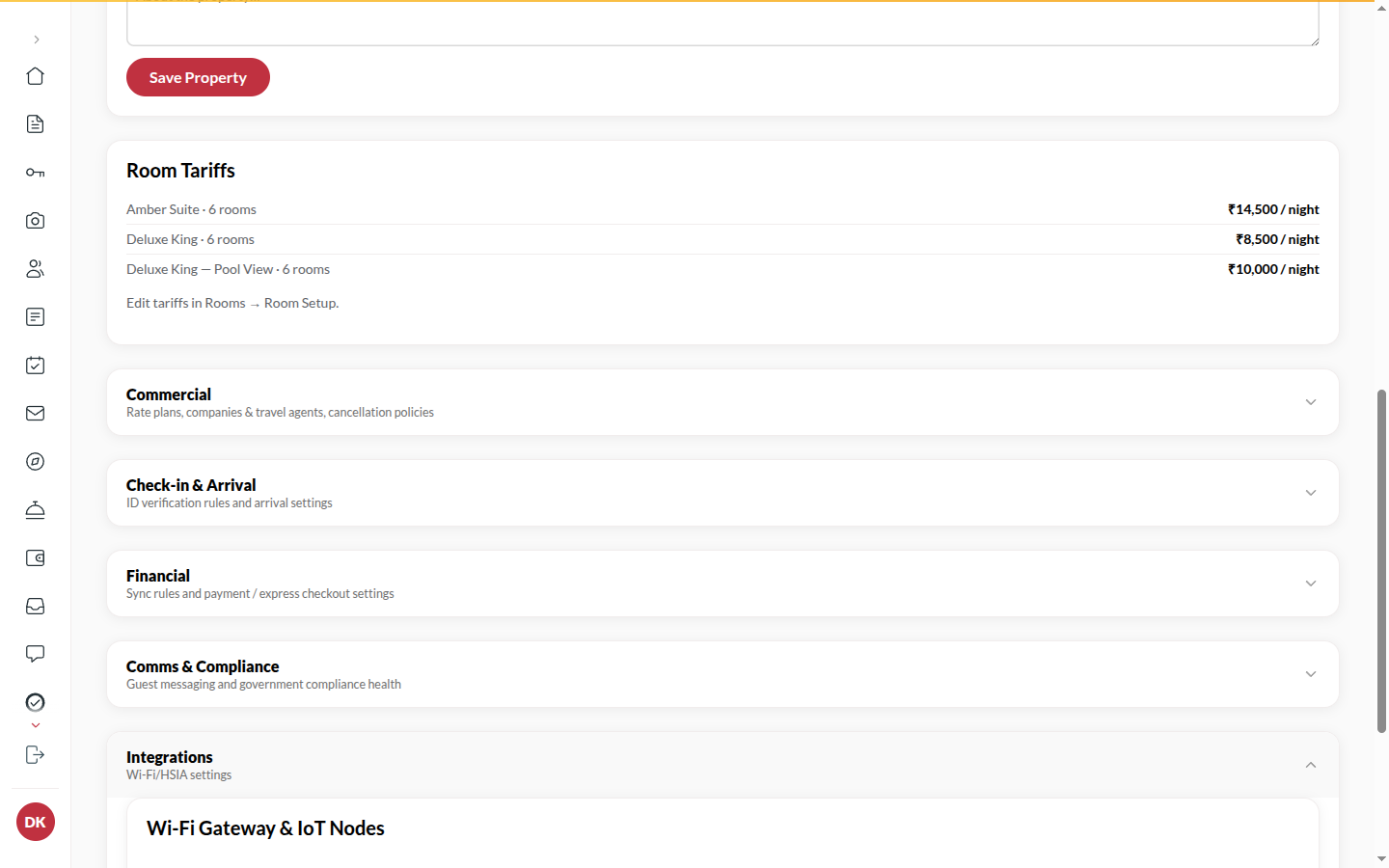
Section titled “Where to find it”Back office → Property → under Integrations: Wi-Fi networks and Wi-Fi gateway and IoT nodes.
How to set the Wi-Fi guests see
Section titled “How to set the Wi-Fi guests see”- Open Wi-Fi networks and click Add network.
- Enter the Network name and Password, and the Floor (blank = all).
- Add one row per network. Remove one with its remove button.
- Click Save networks.
How to set the premium network and room controllers
Section titled “How to set the premium network and room controllers”- Open Wi-Fi gateway and IoT nodes. HSIA gateway shows your gateway; Upstay sets it.
- Enter the Premium SSID and Bandwidth tier (Mbps), and click Save settings.
- Click Map default IoT nodes to all rooms to link every room to its controller. It then shows Mapped.
Tips & good to know
Section titled “Tips & good to know”- With no networks, guests see an empty Wi-Fi page.
- A change reaches every current guest’s Wi-Fi screen at once.
- Room Controls only work when your hotel’s controllers are connected to Upstay; otherwise the guest app says so.
Troubleshooting
Section titled “Troubleshooting”- Guests see no Wi-Fi → No network is listed for their floor, and none covers all floors.
- Room Controls do nothing → No controller is mapped to that room, or the hardware is not connected.