Cities
What it does
Section titled “What it does”Marketplace cities holds the cities guests see on upstay.in: name and state, a Tagline, a Mood for the marketplace filter, a Description, a cover photo, whether it is Featured on the marketplace front, and its order. Each city also has its Landmarks and Neighbourhoods. A curated city shows only once it has at least one listed hotel; an uncurated city with hotels still lists, just without a cover.
Who can use it
Section titled “Who can use it”Upstay operators who can see the Hotels area.
Where to find it
Section titled “Where to find it”Marketplace cities under Growth in the rail. Pick a city to open its Overview, Landmarks and Neighbourhoods tabs.
How to add a city
Section titled “How to add a city”- Click Add a city.
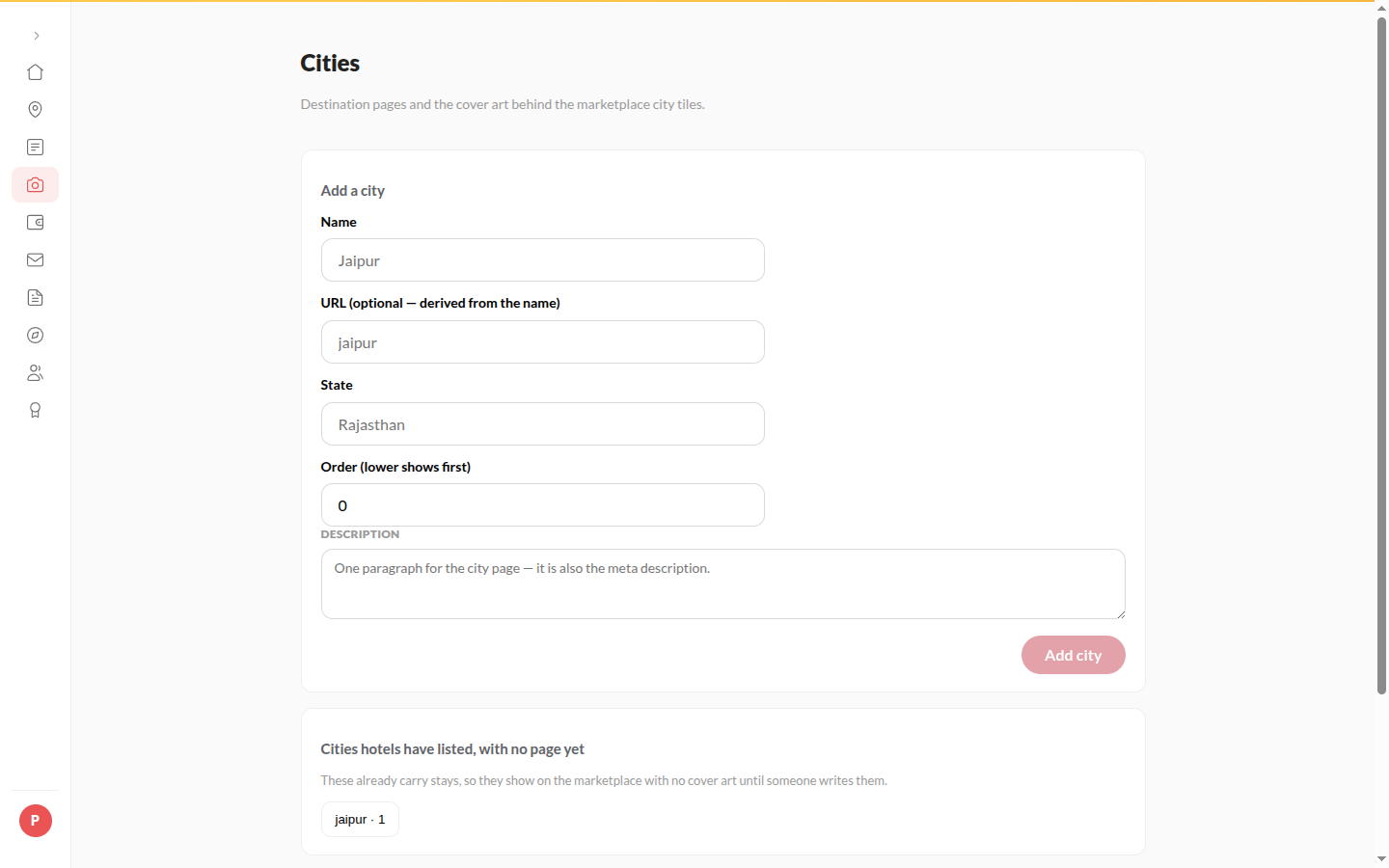
- Enter Name, State, and if you want URL (optional, derived from the name) and Tagline (shown beside the state on search), such as The Pink City.
- Pick Mood (marketplace filter), write the Description (one paragraph for the city page; it is also the meta description) and set Order (lower shows first).
- Click Add city.
- On the city’s Overview, click Add a cover and upload the photo.
How to edit, feature or delete a city
Section titled “How to edit, feature or delete a city”- Pick the city and click Edit. Change the fields and click Save changes.
- Click Hidden: feature it to put it on the marketplace front, or Featured: take off the marketplace front to take it off.
- Click Replace the cover to change the photo.
- Click Delete city and confirm. The page and its cover image go with it.
Tips & good to know
Section titled “Tips & good to know”- Matching is by name - “Jaipur” and “jaipur ” on hotels are one city.
- Prepare a city before its first hotel signs; it appears the moment a hotel is listed there. Until then the page says no listed hotels means the city is hidden on the marketplace.
- Landmarks and neighbourhoods are edited on their own tabs, and can be imported from a list.
Troubleshooting
Section titled “Troubleshooting”- “That city already exists.” → Edit the existing one.
- “That URL is already taken.” → Change the URL, or leave it blank to derive it from the name.
- “Upload failed” → Try the cover photo again.