Emails, templates, announcements & activity
What it does
Section titled “What it does”Email shows every email Upstay sent (Delivery log), the sending Mailbox and its connection, and a read-only Inbox. Templates (Email templates) lets you edit the words of every email Upstay sends, for all hotels or for one. Announcements puts a banner on hotel dashboards, for the hotels and roles you pick. App feedback collects the ratings guests and staff sent from the app. Activity is the trail of everything anyone did, on every hotel and here, including sensitive reads.
Who can use it
Section titled “Who can use it”Upstay operators. Email, Templates, Announcements and App feedback need the Guests & messages area; Activity needs the People area.
Where to find it
Section titled “Where to find it”Email, Templates, Announcements and App feedback under Guests & messages; Activity under People.
How to edit an email template
Section titled “How to edit an email template”- Open Templates and pick the email.
- Under Applies to, keep Platform default, all hotels or pick one hotel.
- Edit Subject and the text. Use Insert a value to add the hotel’s or guest’s details.
- Click Save changes. Send a test to me emails you a copy; Reset to default removes a customised copy.
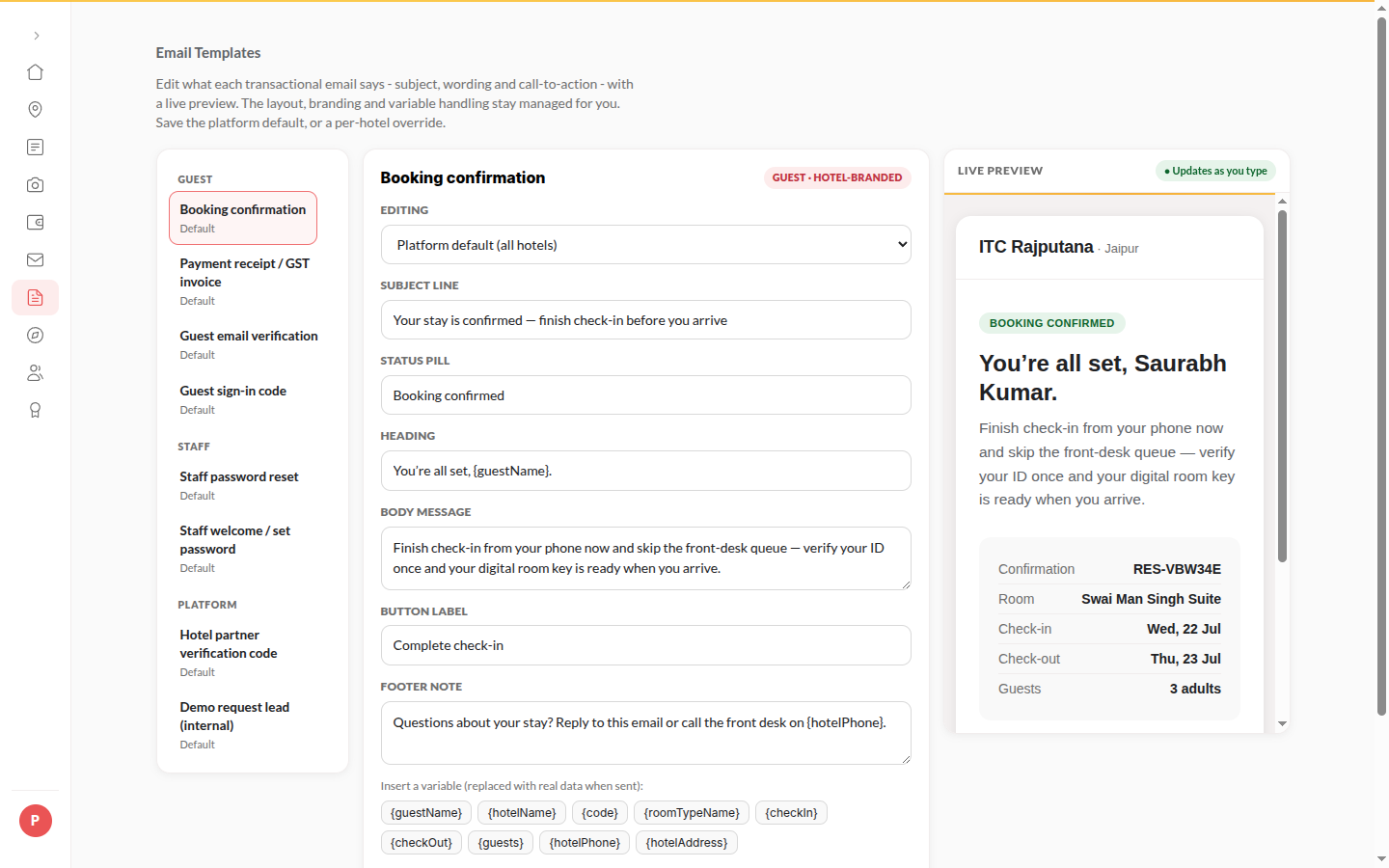
How to check the sending mailbox
Section titled “How to check the sending mailbox”- Open Email → Mailbox.
- Under Connection, paste the token if needed, set Sends from, and click Save. Click Test connection to check it.
- Switch Sending enabled off to stop sending from this mailbox.
- Under Incoming mail hook, click Register so bounces are seen. Send a test, Replace secret, Pause deliveries and Resume deliveries manage it.
How to read the inbox
Section titled “How to read the inbox”- Open Email → Inbox.
- Pick a folder, or search the inbox, sender or subject. Use Back and Next to page.
- Open a message. Reading a message is recorded in Activity. Nothing here can delete, move or answer mail.
How to post an announcement
Section titled “How to post an announcement”- Open Announcements.
- Pick a type: Scheduled maintenance, Service disruption, All clear or What’s new.
- Write the Headline and Message; for maintenance, fill When.
- Pick how it Stays: Shows again at each sign-in, Can be closed for good or Cannot be closed. Add a Button label and Button link if you want one, and Show from / Show until.
- Under Which hotels, tick hotels (none ticked means every hotel). Under Who sees it, tick Owners, Managers, Front desk, Housekeeping or Concierge (none ticked means everyone signed in at those hotels).
- Check Preview on a hotel’s dashboard and click Post it.
To end a disruption, click Post all clear on it. You can also Take down, Put back up or Delete (then Delete for good) an announcement.
How to find something in Activity
Section titled “How to find something in Activity”- Open Activity.
- Search action, person, booking code or hotel.
- Narrow it by who (Operators, Hotel staff, Guests, System), time (24 h, 7 days, 30 days, All), hotel, and topic (Money, Hotel changes, Sign-ins). Click Sensitive reads only to see reads of bank numbers, ID numbers, conversations and the inbox.
- Click Download CSV. When Confirm it is you opens, enter your password (and a code if you use two-step sign-in).
Tips & good to know
Section titled “Tips & good to know”- App feedback can be read for 7 days, 30 days or 90 days, with low ratings first.
- Reading the body of an email that carried a code or link is itself recorded in Activity.
- An announcement with Can be closed for good shows how many people closed it.
Troubleshooting
Section titled “Troubleshooting”- “Not posted” → Check the headline and message, then try again.
- “No, bounces are not seen” → The incoming mail hook is not registered. Click Register.