Check-in & Arrival settings
What it does
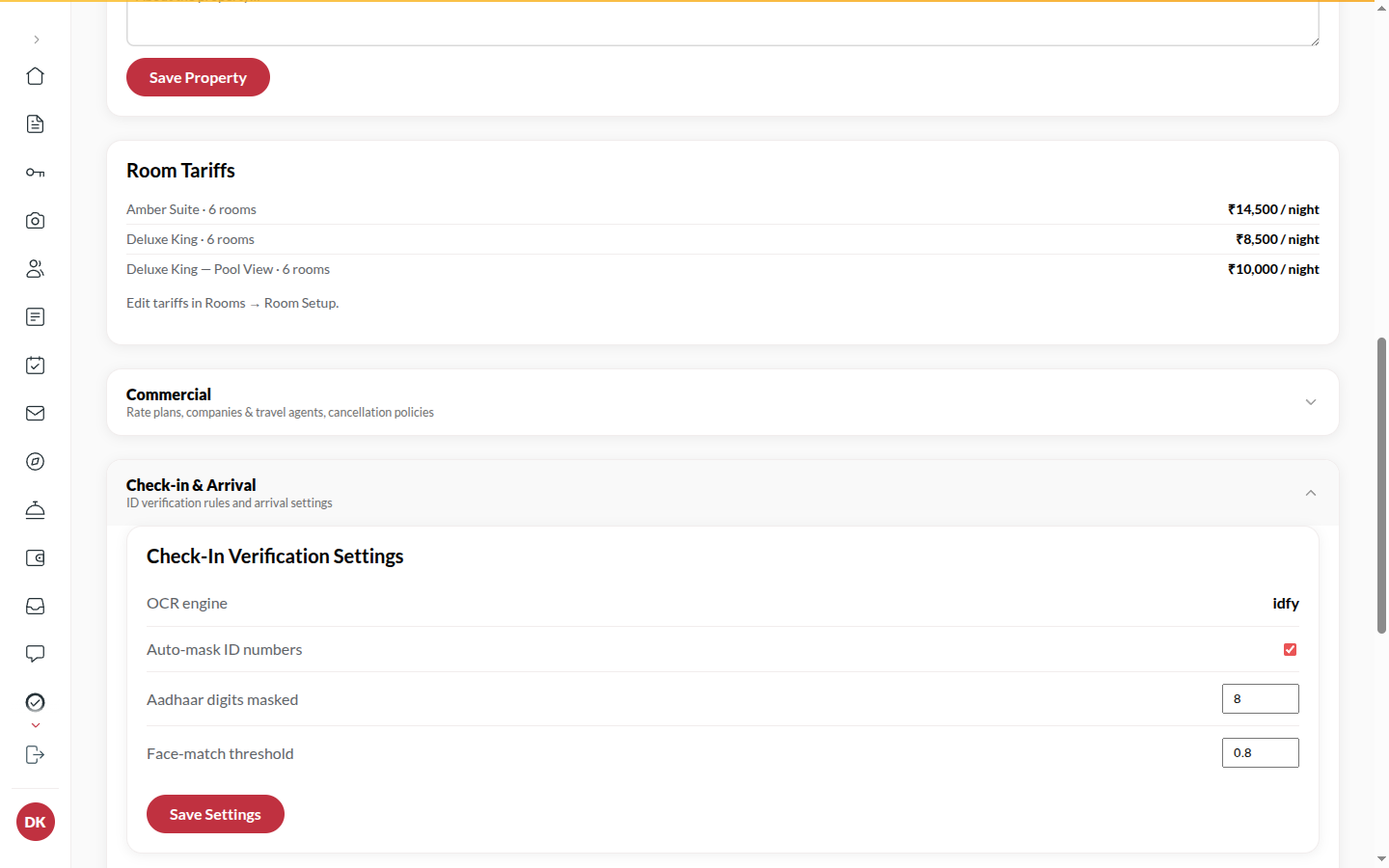
Section titled “What it does”Two sections shape arrival. Check-in verification shows how a guest’s ID is read and sets how ID numbers are masked and how strict the face match is. Express desk and door locks sets how the arrival pass is scanned at the desk and whether digital keys are issued.
Who can use it
Section titled “Who can use it”Admins.
Where to find it
Section titled “Where to find it”Back office → Property → under Check-in and arrival: Check-in verification and Express desk and door locks.
How to set ID masking and face match
Section titled “How to set ID masking and face match”- Open Check-in verification. OCR engine shows the engine that reads your guests’ ID photos; Upstay sets it.
- Leave Auto-mask ID numbers on so ID numbers are stored and shown masked.
- Set Aadhaar digits masked (0 to 12).
- Set the Face-match threshold (0 to 1; higher is stricter).
- Click Save changes.
How to set the desk scanner and keys
Section titled “How to set the desk scanner and keys”- Open Express desk and door locks.
- Pick Scanner input mode: HID scanner (keyboard wedge) (a handheld scanner types the code) or Terminal camera.
- Lock system shows your key provider; Upstay sets it. Turn Digital keys enabled on or off.
- Click Save changes.
Tips & good to know
Section titled “Tips & good to know”- A card read by OCR keeps the full original response for audit; guests only ever see the fields on the form.
- A room key always needs a verified ID for every guest on the booking, whatever these settings say.
- Each section saves on its own.
Troubleshooting
Section titled “Troubleshooting”- OCR never fills anything → Ask Upstay which engine your hotel is on; the desk can still type the fields in Verification.
- “Someone else changed these settings while this page was open. Your edit was not saved - the latest values are shown here. Re-apply and save again.” → Another Admin saved first. Redo your change and save.