Comms & Compliance
What it does
Section titled “What it does”Messaging workflow times the three messages every stay gets: the pre-arrival check-in link, the mid-stay pulse check, and the thank-you after checkout, plus the ratings that raise a recovery alert or invite an external review. By default the messages land in the desk’s Outbox for a person to send; when WhatsApp auto-send is enabled for your hotel, approved templates go out automatically. Government compliance filing prepares the guest register the state portal requires (eVisitor for every guest, Form C for foreign guests) as files you upload to the portal, then record the acknowledgment number.
Who can use it
Section titled “Who can use it”Admins configure the workflow. Front Desk works the Outbox. Managers and above prepare and record compliance filings.
Where to find it
Section titled “Where to find it”Back office → Property → under Messages and compliance: Messaging workflow and Government compliance filing. The Outbox is on Today → Desk boards → Outbox. Managers also see filings on their dashboard.
How to set the messaging workflow
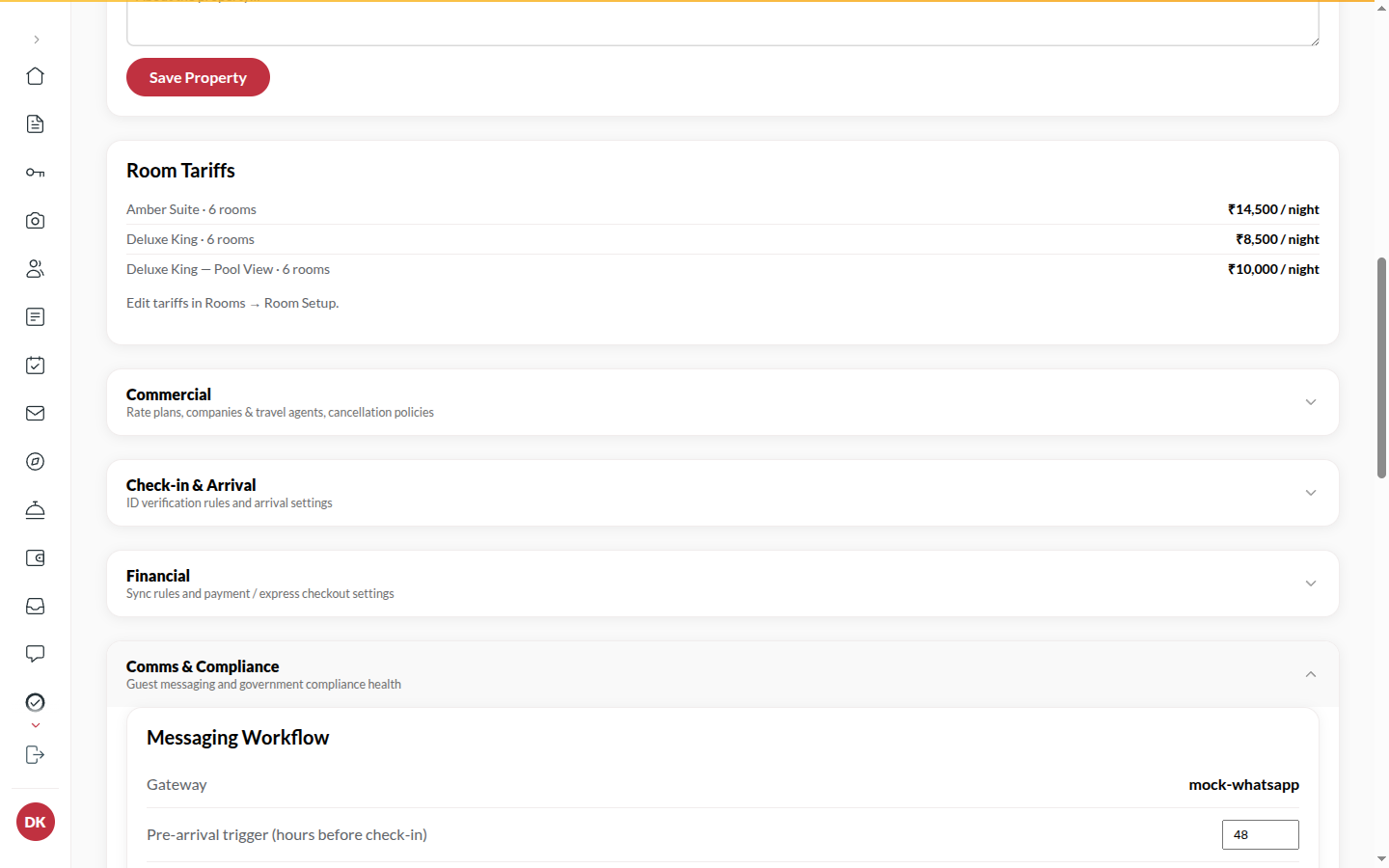
Section titled “How to set the messaging workflow”- Open Messaging workflow. Gateway shows how your messages are sent.
- Set Pre-arrival trigger (hours before check-in), Pulse check (hours after check-in) and Thank-you (hours after checkout).
- Set Recovery alert at rating of (or lower) and External reviews at rating of (or higher).
- Edit the message words under Templates if needed.
- Click Save workflow.
How to send from the Outbox
Section titled “How to send from the Outbox”- Open Today → Desk boards → Outbox.
- Click Copy message, paste it into your WhatsApp or SMS app, and send.
- Click Mark as sent. It moves to Sent messages.
How to file the guest register
Section titled “How to file the guest register”- Open Government compliance filing. The counts show Ready to file, Awaiting details, Exported and Filed.
- Click Generate eVisitor · Rajasthan Police file or Generate Form C · e-FRRO file.
- Under Generated batches, click Download. The file carries full ID numbers; every download is written to the Audit log with your name.
- Upload it on the portal yourself, enter the Ack number on the batch and click Mark filed. The batch shows Filed.
- If a guest’s filing failed, Filings says why; click Retry after fixing it.
Tips & good to know
Section titled “Tips & good to know”- Nothing sends on its own unless WhatsApp auto-send is enabled for your hotel. A message a person has not copied is not yet sent.
- When auto-send is on, a message that fails to deliver is retried for an hour and then left marked failed so you can send it by hand.
- A guest whose ID is not verified is left out of the file; verify the card and generate again.
- Compliance portals shows which portals your hotel files to; Upstay sets them.
Troubleshooting
Section titled “Troubleshooting”- A guest is missing from the file → Their ID is not verified; see Verification.
- “This feature is not turned on for your hotel.” → Messaging or compliance is switched off for your hotel; contact Upstay.
- The Outbox keeps a message after you sent it → Click Mark as sent; the system cannot see your WhatsApp.
Related features
Section titled “Related features”- Dashboard (Outbox)
- Verification
- Audit Log
- My Account (guest)