Today
What it does
Section titled “What it does”Today is the first page of every event. While the event is new it shows a checklist of four steps, each ticking itself as you go: Add the schedule, Add guests, Add hotels, and Make it live and invite.
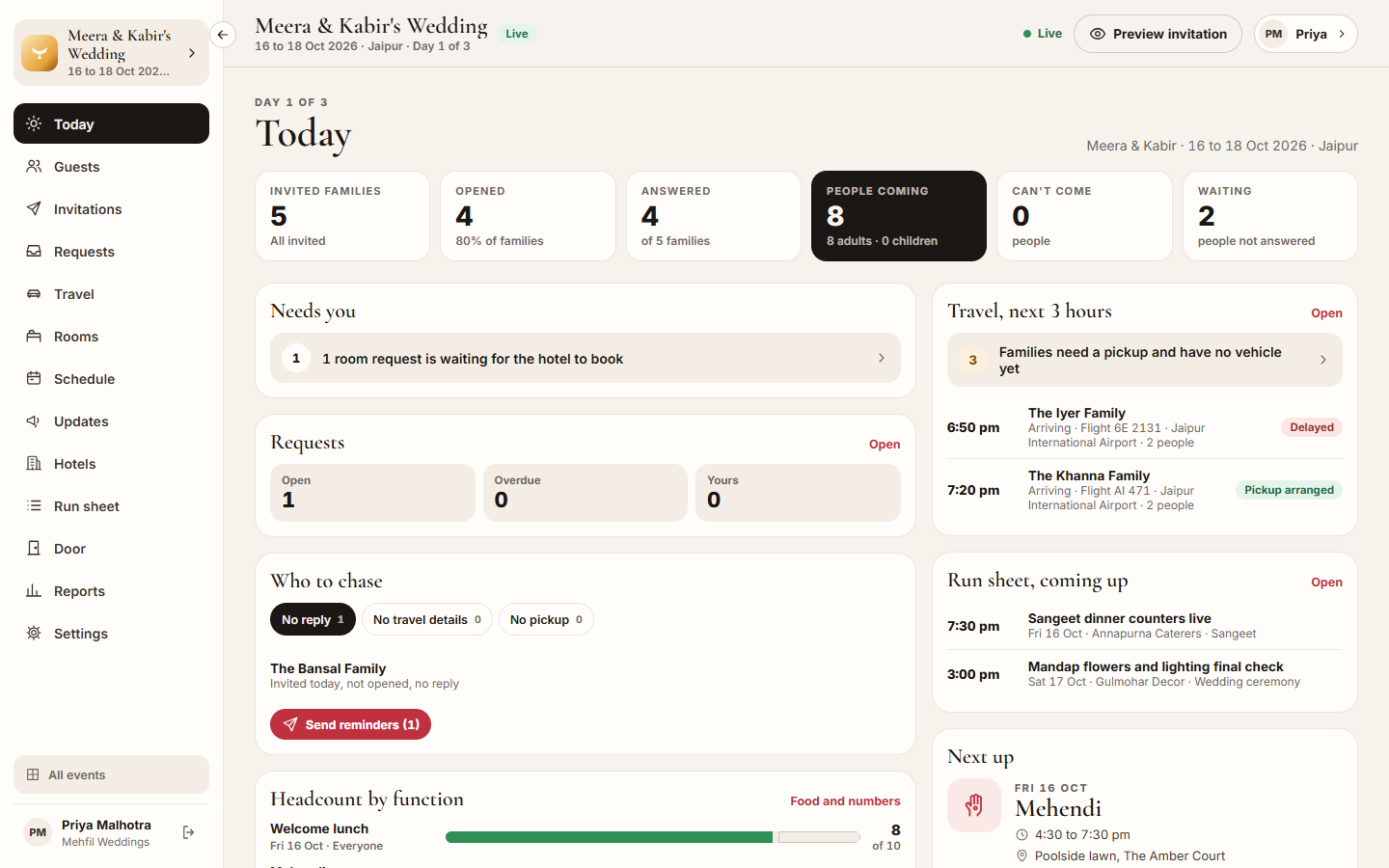
Then it shows the numbers you check first (Invited families, Opened, Answered, People coming, Can’t come, Waiting) and:
- Needs you: what to do now, for example families not invited yet, families that have not answered in 3 days, families with no mobile number, coming families with no hotel, a hotel that has not accepted, or room requests waiting for the hotel to book.
- Requests: Open, Overdue and Yours. Click one to open those requests.
- Who to chase: families with No reply, No travel details, or No pickup for an arrival in the next two days, with a button to message them.
- Headcount by function: Yes, Maybe, No and Not answered for each function.
- Arrivals by day: how many families and people arrive each day.
- Travel, next 3 hours: who arrives or leaves soon, with Delayed or Pickup arranged, and lines for delayed families and families who need a pickup and have no vehicle yet.
- Run sheet, coming up: the next lines on the run sheet, with the vendor and who owns them.
- Next up: the next function, with its time, venue, dress code and how many are coming.
- Rooms: rooms the hotels hold that nobody is booked into yet, and blocks whose cut-off is within 7 days (Cut-off soon).
- Hotels: each hotel, its families, bookings and check-ins.
- What’s happening: answers from guests, drivers and hotels, and changes by your team, as they happen.
Who can use it
Section titled “Who can use it”Everyone on the planning team. Each person sees the sections their role opens: for example Transport sees travel, requests and hotels but not the guest numbers, and a Vendor coordinator sees the run sheet and the schedule.
Where to find it
Section titled “Where to find it”Today in the event’s sidebar. An event opens here, except for Transport (who open on Travel) and Vendor coordinator (who open on the Run sheet).
How to work from Today
Section titled “How to work from Today”- Open the event. Today opens first.
- If the checklist is showing, click the next step to go to its page.
- Under Needs you, click a line to open the page where you deal with it.
- Click a number at the top, for example Waiting, to see those families on Guests.
- Click Open on Requests, Travel, next 3 hours, Run sheet, coming up or Rooms to go to that page.
How to chase families
Section titled “How to chase families”- Under Who to chase, pick No reply, No travel details or No pickup. Each family shows why it is on the list, for example “Invited today, not opened, no reply”.
- Click Send reminders on No reply, or Ask for travel details on No travel details.
- Tick the families to message. Families with a mobile number are ticked for you; Choose all and Clear change the choice. A family with no mobile number shows No mobile number: call them and cannot be ticked.
- Click Send (for example Send 3 reminders).
- If Upstay is not sending WhatsApp for you, send each one from your own WhatsApp: click Open WhatsApp, press send there, then click Mark as sent. Skip for now leaves a family for later.
- Click Done.
For No pickup, click Arrange pickups in Travel and put the families on a trip.
No travel details lists families who said yes or maybe and have not told you how they are coming. Families marked local are left out.
How to switch on automatic reminders
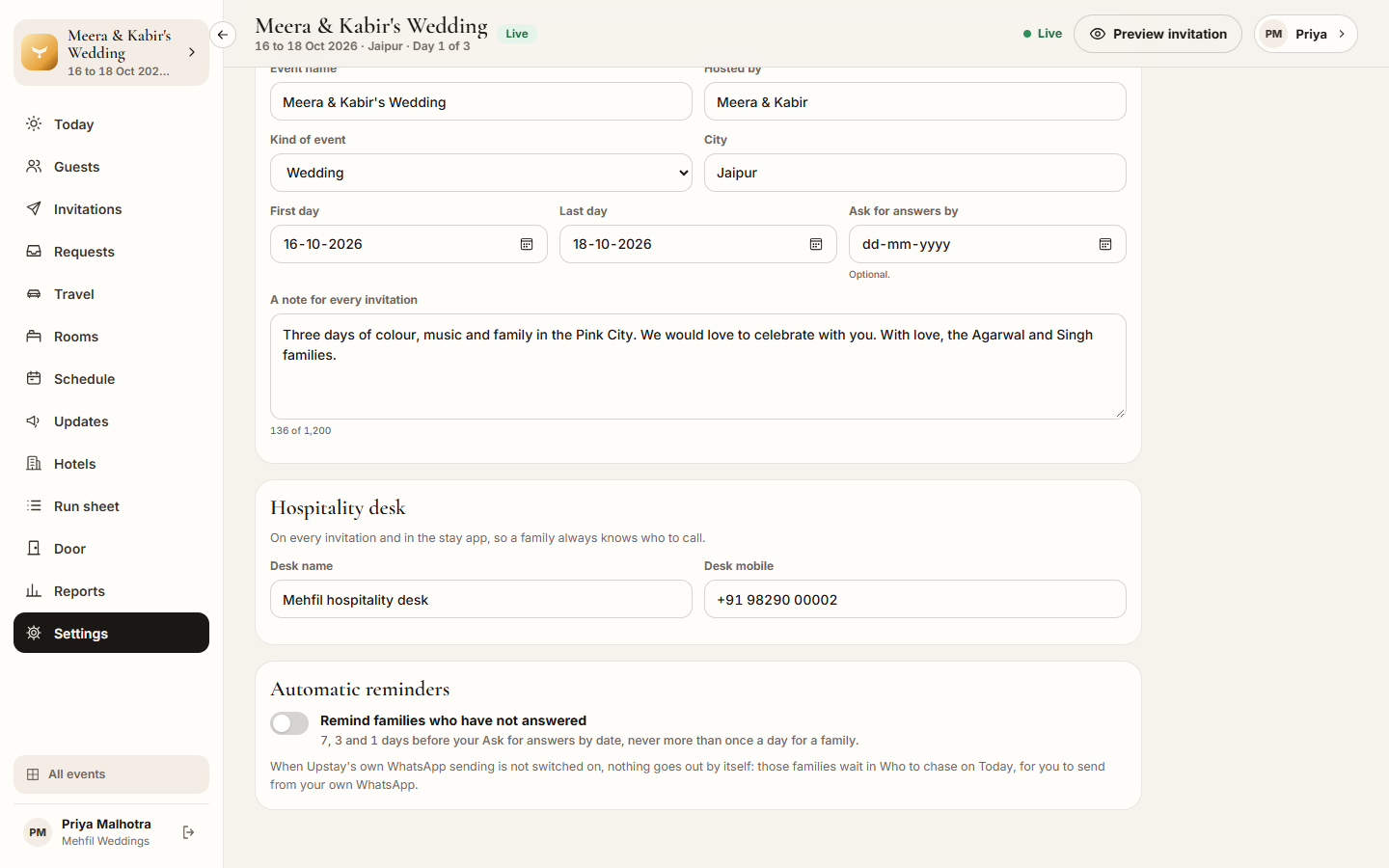
Section titled “How to switch on automatic reminders”- Open Settings → Details.
- Under Automatic reminders, switch on Remind families who have not answered. It saves at once.
- Check that Ask for answers by is set in the event’s details: reminders are timed from that date.
Families who have not answered are reminded 7, 3 and 1 days before your Ask for answers by date, never more than once a day for a family. When Upstay’s own WhatsApp sending is not switched on, nothing goes out by itself: those families wait in Who to chase on Today, for you to send from your own WhatsApp.
Tips & good to know
Section titled “Tips & good to know”- Everything on Today updates by itself. The Live dot at the top shows the console is receiving changes; it reads Reconnecting when the connection drops.
- Food and numbers beside Headcount by function opens Invitations, where the food counts are.
- Arrivals use the travel each family gave, or the dates you placed them at a hotel.
- Automatic reminders go out only while the event is live, and only to families with a mobile number.
- The event name at the top of the sidebar switches between your events; All events takes you back to Your events.
Troubleshooting
Section titled “Troubleshooting”- “Nothing needs you right now.” → All clear. New answers appear here as they come in.
- “The event is a draft. Make it live to send invitations.” → Click it to open Settings → Status.
- “Make the event live before invitations go out.” → Chase messages go out only while the event is live.
- “Set Ask for answers by.” → Automatic reminders need that date. Add it on the Details tab and save.
- “This number cannot open WhatsApp.” → Copy the message and send it another way, then mark it as sent.
- The dot says Reconnecting → Check your internet connection. The console catches up when it reconnects.