Notifications
What it does
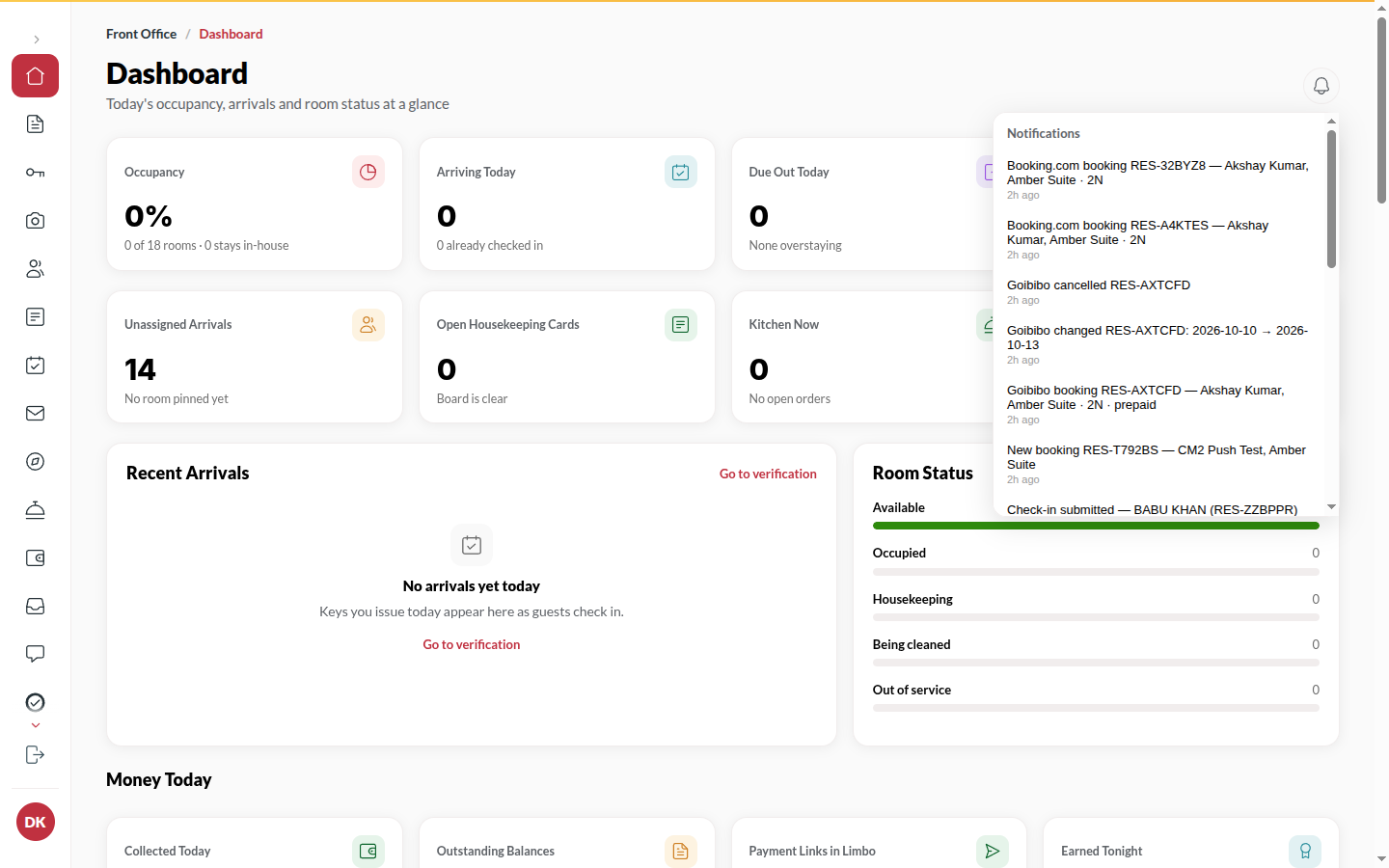
Section titled “What it does”The bell at the top right collects things that happened and need someone: a new booking, a request-to-book, a check-in submitted, an order, a guest request, a complaint, a checkout requested, an upsell to approve, a payment settled or failed, an OTA booking, a compliance filing due. Each one is a link to the screen where you act on it. New ones also pop up as a toast.
Who can use it
Section titled “Who can use it”Everyone. Each kind goes to the roles that can act on it - complaints, failed payments and compliance reminders go to Managers and above; the rest to every console user. The unread count is yours alone.
Where to find it
Section titled “Where to find it”The bell in the top bar of every page. A badge shows how many you have not seen.
How to act on a notification
Section titled “How to act on a notification”- Click the bell. Opening it marks everything as seen and clears the badge.
- Click a notification: it opens the booking, order or board it is about.
- Click Clear all to empty the list. Undo brings it back for a few seconds.
Tips & good to know
Section titled “Tips & good to know”- Toasts disappear on their own; the bell keeps the item until you clear it.
- Each rail item also shows a count of what is waiting there, so you can see where the work is without opening the bell.
- Notifications older than 30 days are removed.
- An OTA booking that Upstay could not file (unmapped room, no availability, a change to an in-house stay) arrives as a needs attention notification with what to do.
Troubleshooting
Section titled “Troubleshooting”- The bell shows a count but the list is empty → You have no rights to the module that raised it; a Manager will see it.
- A notification’s link says the module is not enabled → That feature is switched off for your hotel; ask Upstay.