Run sheet
What it does
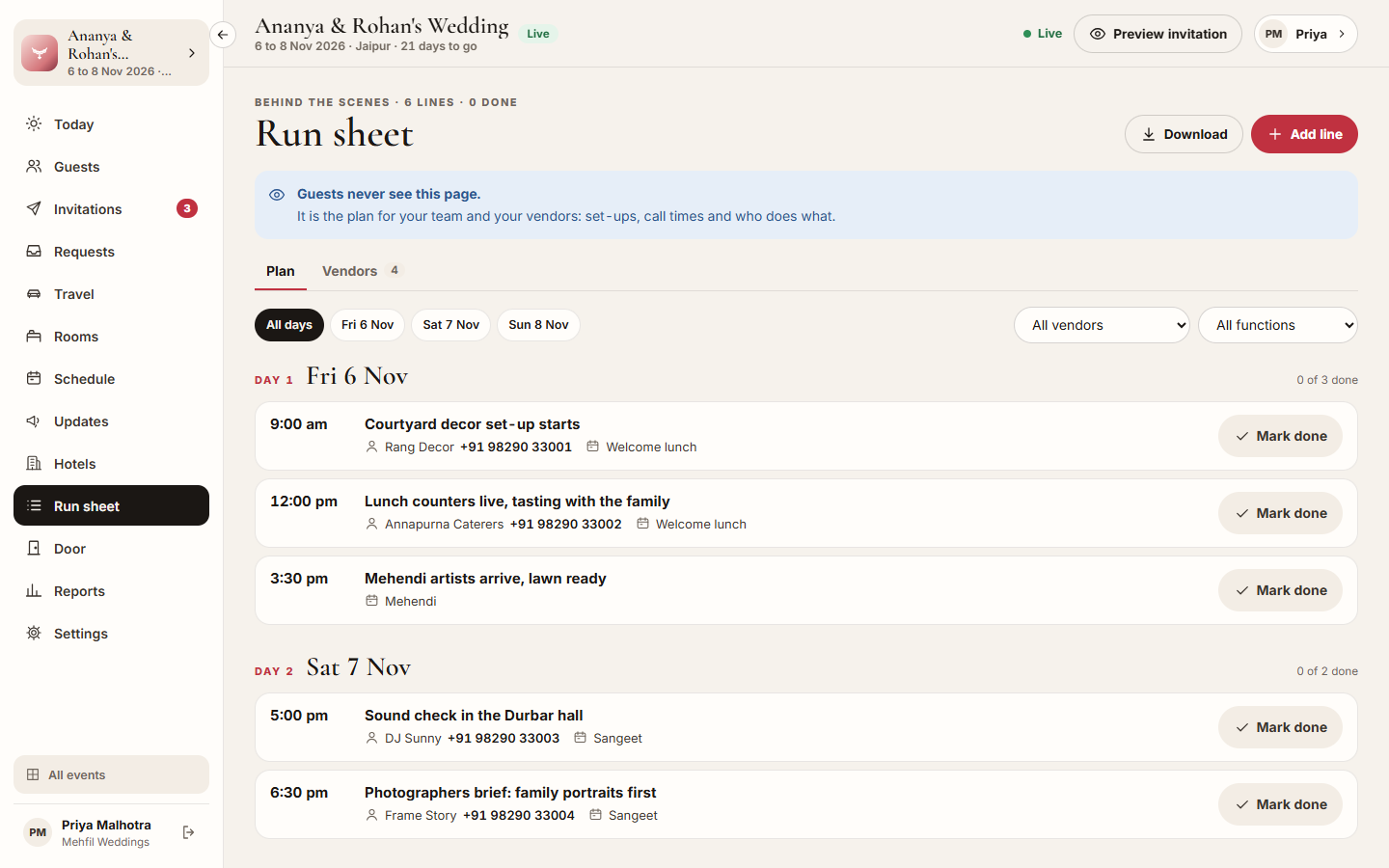
Section titled “What it does”The Run sheet is the plan your guests never see: each set-up, call time and handover, by day, with the vendor, the place, the function and who on your team owns it. On the day, tick each line with Mark done; a line happening now shows Now.
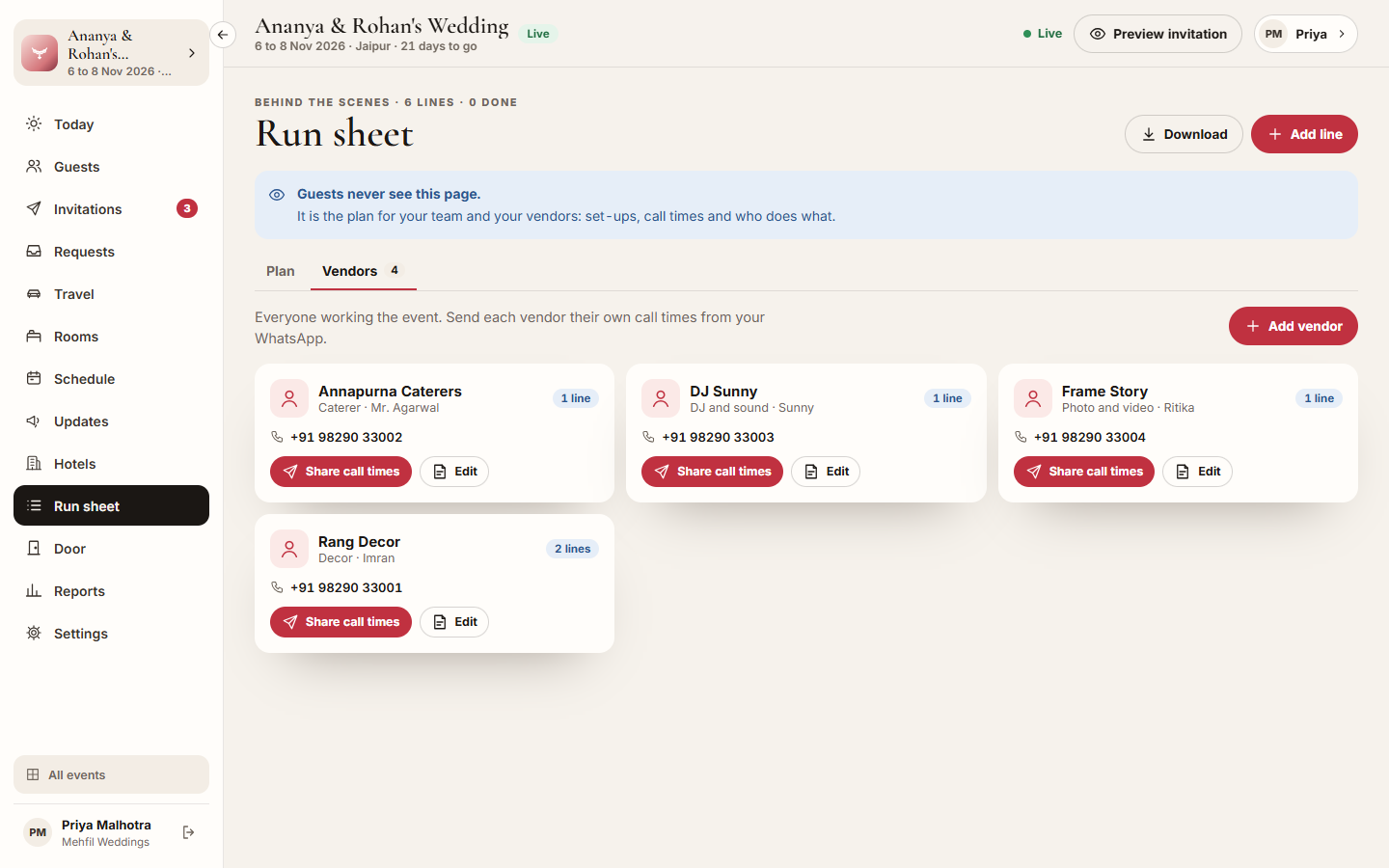
The Vendors tab lists everyone working the event: the decorator, caterer, DJ, photographer and the rest, with their phone numbers. Share call times gives each vendor a message with only their own lines, in order, ready to send from your WhatsApp.
Who can use it
Section titled “Who can use it”- Lead planner and Vendor coordinator change the run sheet and the vendors.
- Hospitality desk and Viewer can read it, download it and share a vendor’s call times.
- Transport does not see the run sheet.
A Vendor coordinator opens each event straight on the run sheet.
Where to find it
Section titled “Where to find it”Run sheet in the event’s sidebar (Run on a phone). Today shows the next lines under Run sheet, coming up.
How to add a line
Section titled “How to add a line”- Click Add line.
- Type What happens, for example “Mandap flowers in place”.
- Pick the Day, the time it Starts, and optionally when it Ends.
- Optionally fill Where, the Vendor, For the function and Who on the team owns it, and a Detail (what to bring, who to call).
- Click Add.
To change a line, click its title, change it and click Save. To remove it, click its title, then Remove.
How to add a vendor
Section titled “How to add a vendor”- Open the Vendors tab and click Add vendor.
- Enter the Name, pick What they do, and add the Contact person, Phone and Email.
- Click Add vendor.
- Give the vendor lines on the run sheet by picking them as the line’s Vendor.
How to send a vendor their call times
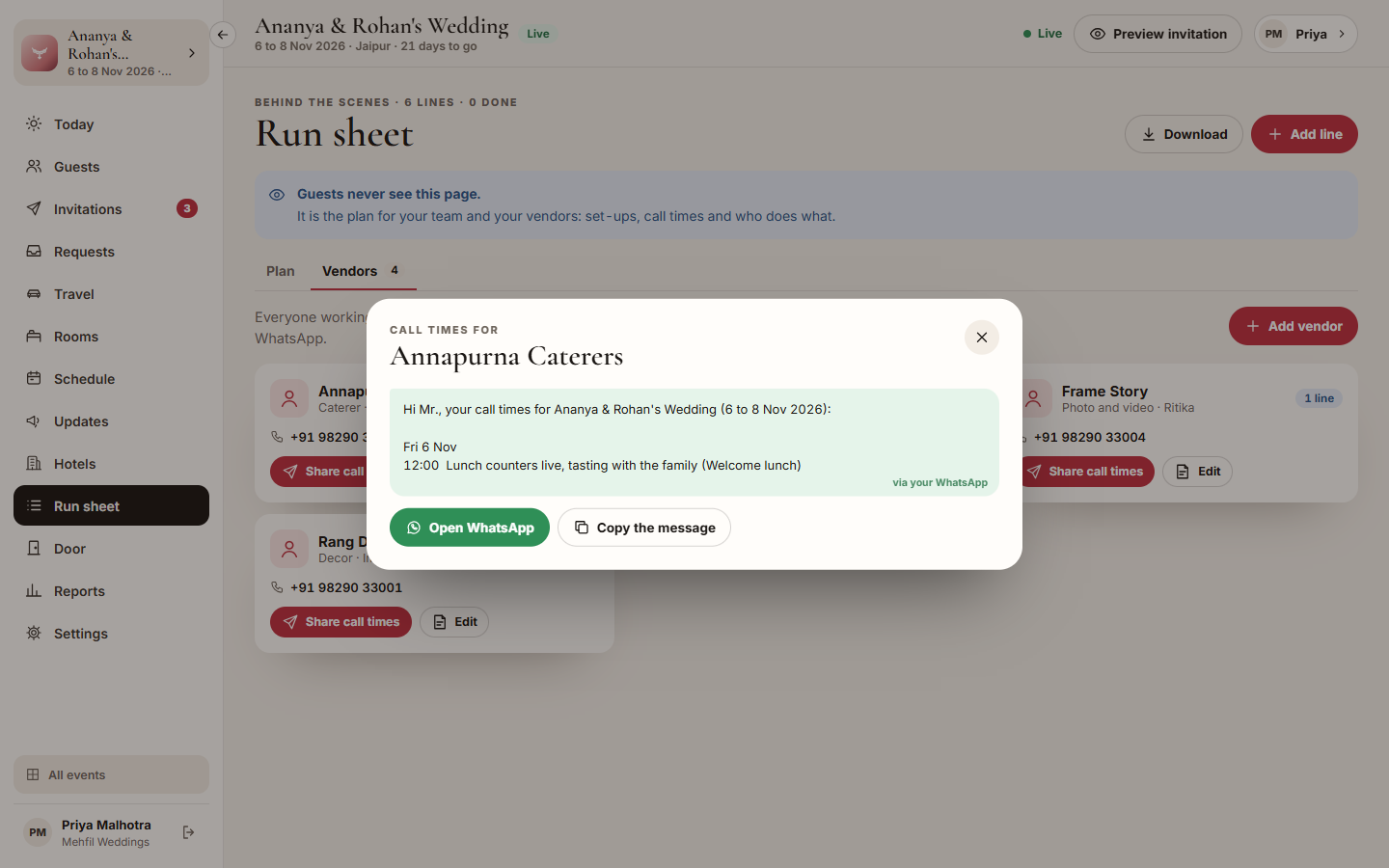
Section titled “How to send a vendor their call times”- On the Vendors tab, click Share call times on the vendor.
- Read the message: each of their lines by day, with the time, what happens, where and for which function.
- Click Open WhatsApp to send it to the vendor’s number, or Copy the message to send it another way.
How to download the run sheet
Section titled “How to download the run sheet”- Pick a day, or All days.
- Click Download. A spreadsheet downloads with each line’s day, times, what, where, function, vendor and phone, owner, status and detail.
Tips & good to know
Section titled “Tips & good to know”- Filter by day, by vendor (All vendors, No vendor) and by function.
- Times on the screen are India time. The vendor’s message and the spreadsheet show 24-hour times, for example 14:30.
- A line can be To do, Done or Skipped. Skipped lines are left out of the vendor’s message.
- Removing a vendor keeps their lines on the run sheet, with no vendor.
Troubleshooting
Section titled “Troubleshooting”- “This cannot open WhatsApp.” → The vendor has no phone number we can use. Add it with Edit, or copy the message.
- ‘Say what happens, for example “Stage decor set up”.’ → Type what happens before you add the line.
- “Choose a day and a start time.” → Pick both.
- “Please check the email: Invalid email.” → Fix the vendor’s email, or leave it empty.
- “Nothing matches these filters” → Click Clear filters.