Schedule
What it does
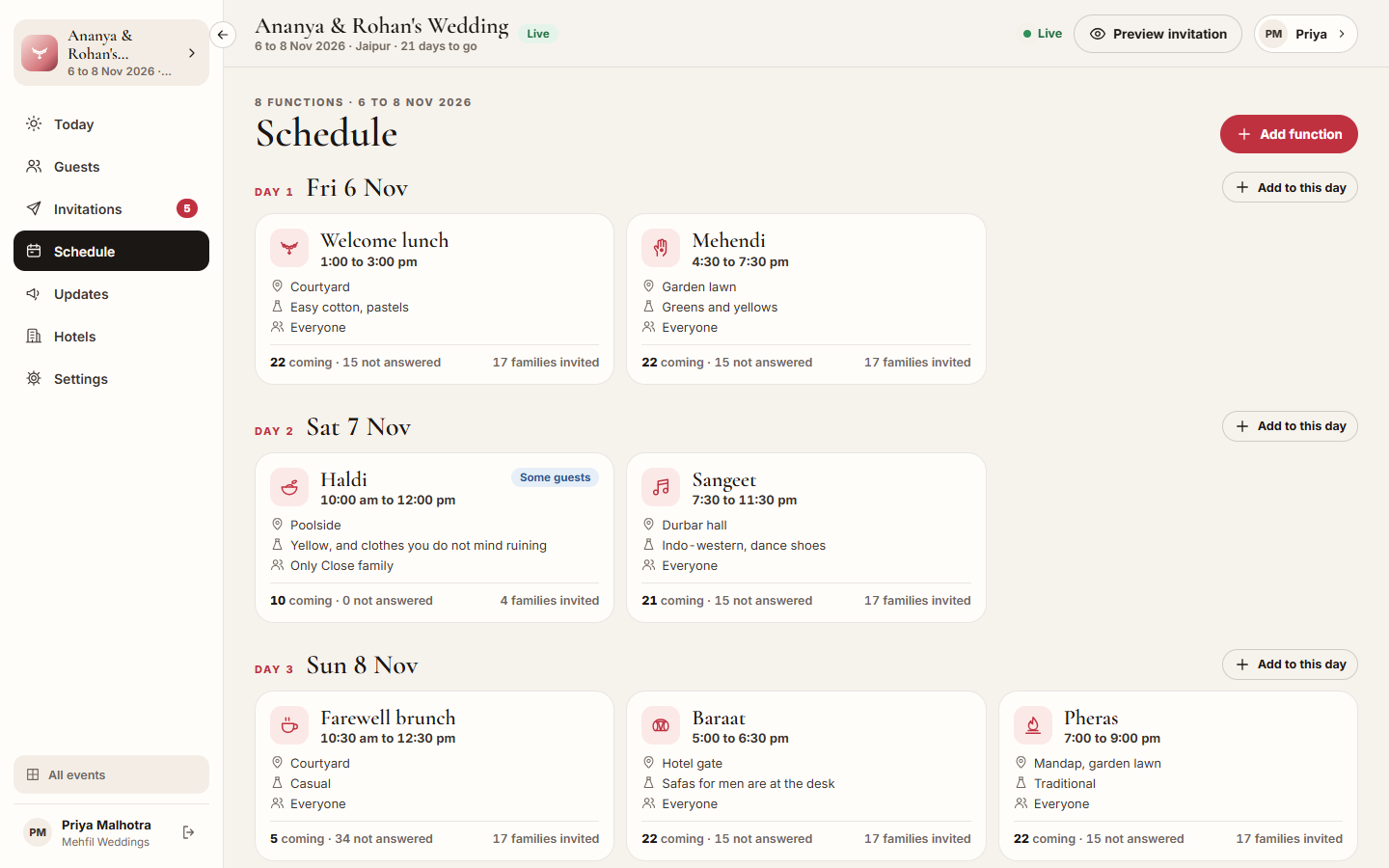
Section titled “What it does”Schedule holds the event’s functions, day by day: the welcome lunch, the mehendi, the sangeet, the wedding. Guests answer for each function separately. A function can be for Everyone or Only some tags, so the haldi can be for close family while the sangeet is for all. A family sees, and answers, only the functions it is invited to.
Each function card shows how many people are coming, how many have not answered, and how many families are invited.
Who can use it
Section titled “Who can use it”Lead planner and Desk add and change functions. A Viewer can read the schedule.
Where to find it
Section titled “Where to find it”Schedule in the event’s sidebar (under More on a phone).
How to add a function
Section titled “How to add a function”- Click Add function, or Add the first function under a day.
- Under What kind, pick a kind, for example Haldi, Sangeet or Wedding. The name fills in for you; change it in Name if you like.
- Pick the Day, the Starts time and, if you want, the Ends time.
- Enter the Venue and Address. Optionally add a Dress code, a Map link (a Google Maps link) and Notes for guests, for example when the buses leave.
- Under Who is invited, keep Everyone, or pick Only some tags and type the tags.
- Click Add function.
How to change or remove a function
Section titled “How to change or remove a function”- Click the function’s card.
- Change what you need and click Save.
- To remove it, click Remove, then Remove function.
Tips & good to know
Section titled “Tips & good to know”- Every time on this page is India time. An end time past midnight is fine.
- A function on a day outside the event’s dates shows under Outside the event dates.
- Tags come from the families on Guests. A function set to some tags reaches a family as soon as it has one of them.
- Removing a function also removes every answer given for it. This cannot be undone.
- Guests see a Directions link for a function with a Map link or an Address. With no map link, it searches the address on Google Maps.
Troubleshooting
Section titled “Troubleshooting”- “Give the function a name.” → Type a name of at least two letters.
- “Choose a day and a start time.” → Pick a Day and a Starts time.
- “The map link should start with https://” → Paste the full link from Google Maps.
- “Choose at least one tag, or make it for everyone.” → Add a tag, or switch back to Everyone.
- “It has to end after it starts.” → Check the Starts and Ends times.