Signing in
What it does
Section titled “What it does”The hotel console is where hotel staff work: bookings, rooms, guests, money and settings. You sign in with the email or mobile number your hotel’s Admin gave you, and a password. What you can see afterwards depends on your role: Front Desk, Manager, Admin, Housekeeping or Concierge.
Who can use it
Section titled “Who can use it”Anyone your hotel has added as staff with console access. Housekeeping and Concierge staff sign in to their own dashboard only. F&B service staff can be on the team list but do not sign in.
Where to find it
Section titled “Where to find it”Your hotel’s console address (for example hotel.upstay.in) → the Hotel console sign-in screen.
How to sign in
Section titled “How to sign in”- Open your hotel’s console address.
- Enter your Email or mobile number.
- Enter your Password.
- Click Sign In.
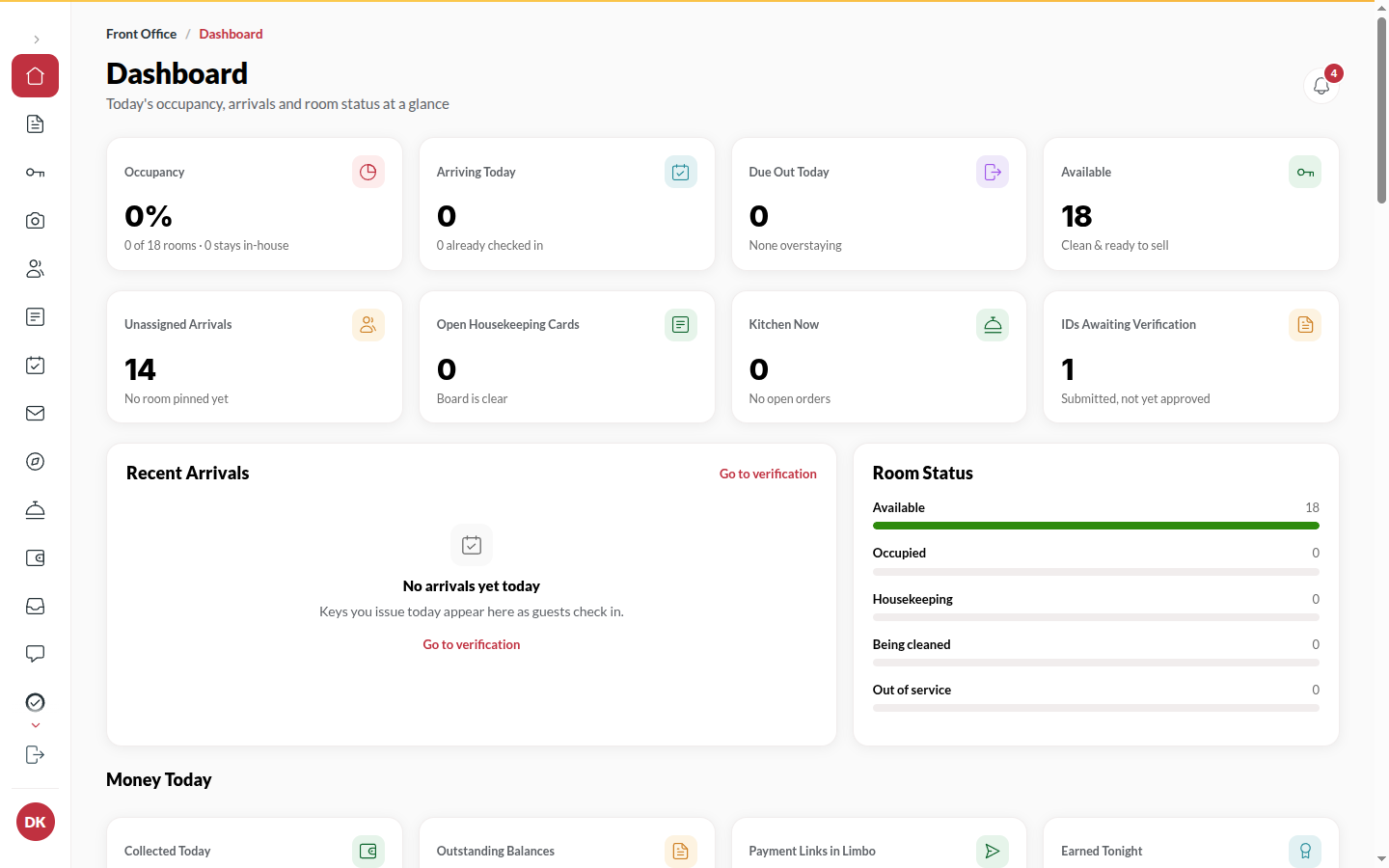
How to reset a forgotten password
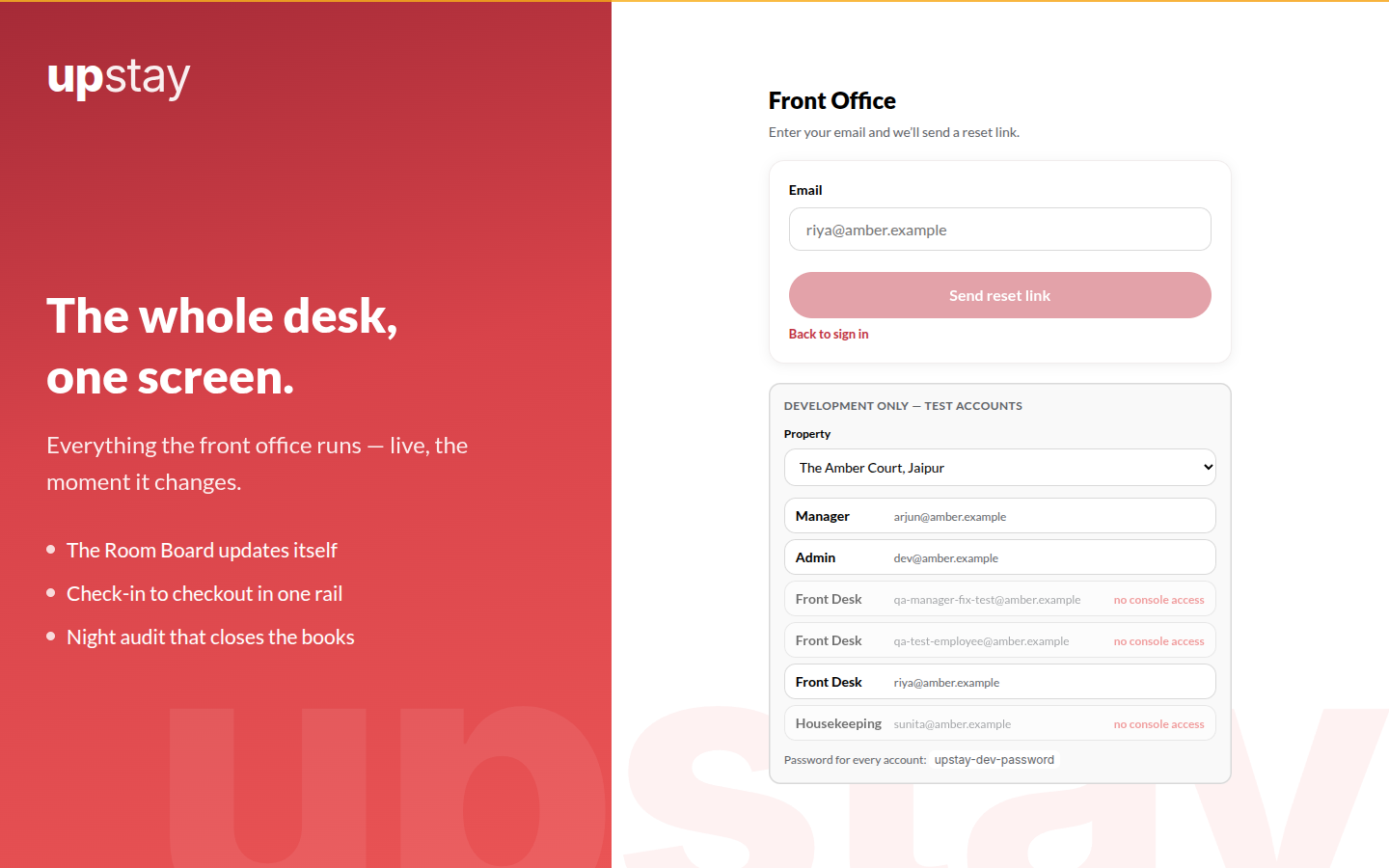
Section titled “How to reset a forgotten password”- On the sign-in screen, click Forgot password?.
- Enter your Email and click Send reset link.
- Open the email and click the reset link.
- Enter a new password and confirm it.
- Sign in with the new password.
How to set your password after an invite
Section titled “How to set your password after an invite”- Open the invite link emailed to you (it works once, for 7 days).
- On Set Your Password, enter a New password and Confirm password, then click Set Password.
- Sign in. If you were given a temporary password instead, the console asks you to change it before you can do anything else.
How to switch between your hotels
Section titled “How to switch between your hotels”If you work at more than one hotel, you sign in once with your email or mobile and your password. Click the hotel name at the top of the sidebar to see your hotels and your role at each, then pick one to open it. Each hotel opens in its own console with only that hotel’s bookings, rooms and staff. Next time you sign in, Upstay opens the hotel you used last.
Tips & good to know
Section titled “Tips & good to know”- The sign-in screen always says the same thing when it refuses - it never tells you whether the address exists. Check both the address and the password.
- Ten failed attempts in a minute lock the address for a short while.
- Your session is tied to the hotel you belong to. If you are moved to another hotel, you are signed out and sign in again.
- A hotel that Upstay has suspended signs everyone out immediately.
Troubleshooting
Section titled “Troubleshooting”- “Invalid email/mobile or password.” → Both fields are checked together. Try Forgot password? if you are unsure.
- “Too many attempts. Please wait a minute and try again.” → Too many attempts. Wait a minute and try again.
- “This link is invalid or has expired. Ask for a new one.” → Reset and invite links are single-use and time-limited. Ask a Manager to send you a new link (Back office → Employees → Send a reset link) or use Forgot password? again.
- “Choose a password different from the current one” → When changing a password, pick a new one.