Services
What it does
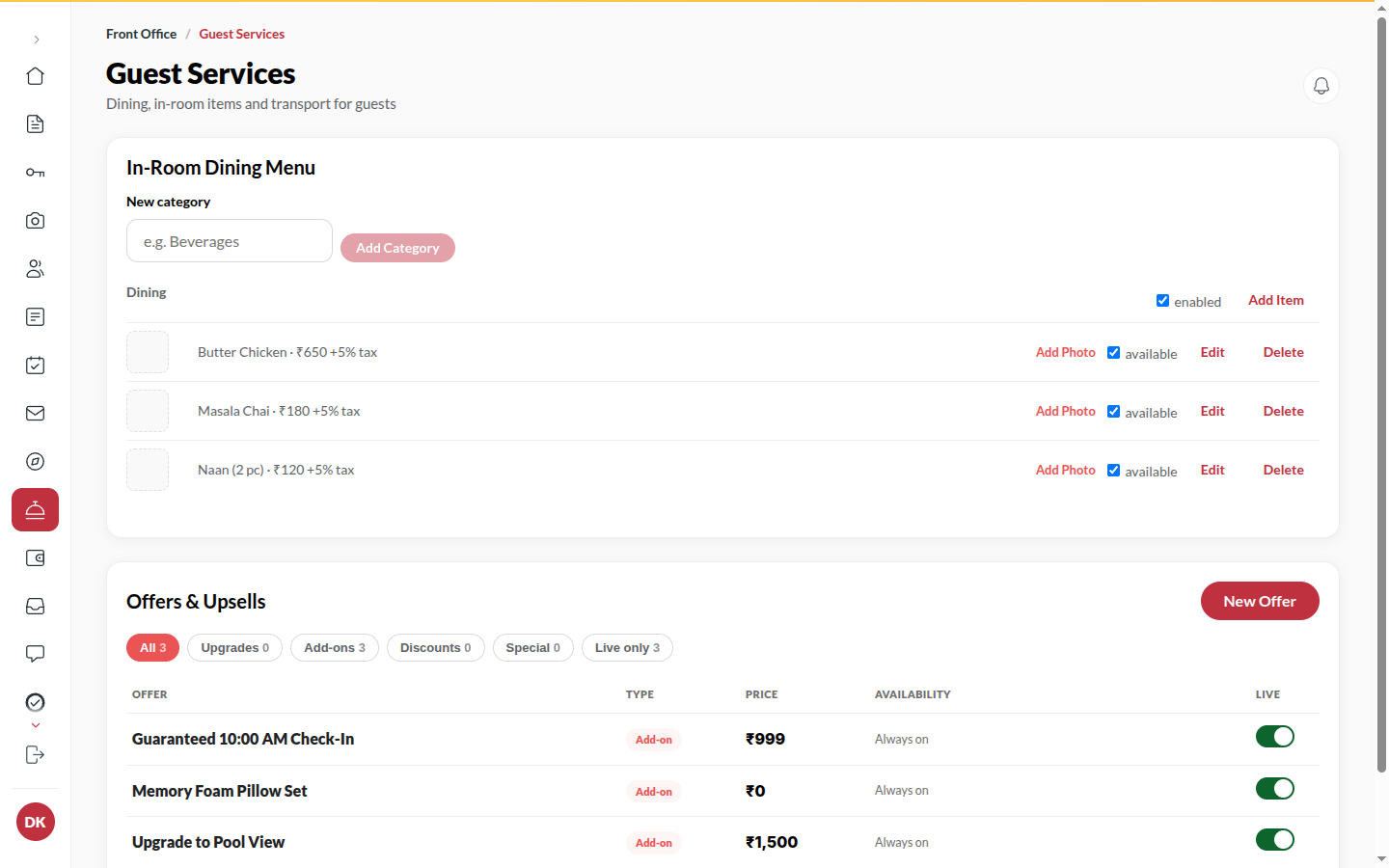
Section titled “What it does”Services is in-room dining. The desk and Managers see the kitchen board, where every order moves through New → Accepted → Cooking → Ready to go → Delivered (or Unavailable when the kitchen cannot make it), beside Menu today, where a dish can be marked sold out. The Admin sees the In-room dining menu (categories, dishes, prices, tax, photos) and the offers guests can add to their stay. A delivered order is charged to the guest’s bill once, at the price the guest saw.
Who can use it
Section titled “Who can use it”Front Desk and Managers work the board and take orders. Admins edit the menu and offers.
Where to find it
Section titled “Where to find it”Services in the rail. Kitchen now on Today shows the count of open orders.
How to work an order
Section titled “How to work an order”- New orders appear under New (Nobody has looked at these yet).
- Click Accept: the guest sees Order received.
- Click Start when it goes on the stove (Cooking).
- Click Ready when it is plated (Ready to go: On the pass, waiting for a runner).
- Click Delivered when it reaches the room. The charge posts to the bill now.
- If the kitchen cannot make it, click Unavailable and pick a reason such as Sold out, Kitchen closed or An ingredient ran out. The guest is told and nothing is charged.
How to take an order for a room
Section titled “How to take an order for a room”- Click Take an order.
- Pick the Room (only rooms with a checked-in guest are listed).
- Add dishes from the Menu with the plus and minus buttons.
- Click Send to the kitchen. The order lands under New like one from the guest app.
How to mark a dish sold out for today
Section titled “How to mark a dish sold out for today”- Under Menu today, switch the dish off. Sold out hides it from the guest app.
- Switch it back on when it is available again.
How to add a menu item (Admin)
Section titled “How to add a menu item (Admin)”- Under In-room dining menu, type a New category (e.g. Beverages) and click Add category if it does not exist.
- Click Add item in the category.
- Enter Item name, Description, Price (₹), Tax % and Diet (Veg or Non-veg).
- Add a photo (JPG, PNG or WebP).
- Click Add item. Rename changes a category’s name; guests see it at once.
Tips & good to know
Section titled “Tips & good to know”- Orders move forward only. A plated dish cannot go back to Preparing - that is what keeps the bill honest.
- Cancelling a Delivered order does not delete the charge; it posts a matching credit beside it.
- Renaming or repricing an item never changes past orders or bills - they keep what was sold.
- An item that has ever been ordered cannot be deleted; it is retired instead.
Troubleshooting
Section titled “Troubleshooting”- “An order that is Prepared can’t be marked Preparing.” → Orders only move forward.
- “Some items are unavailable” (guest sees this) → An item was switched off between browsing and ordering; the guest removes it and orders again.
- “Room service is available once you are checked in” (guest sees this) → Dining opens at check-in.
- “Category has items - delete or move them first” → Empty a category before deleting it.