Signing in to the planner console
What it does
Section titled “What it does”Upstay Events is the console a wedding or event planner uses to run every guest of an event: the guest list, invitations and answers, updates, and the hotels the families stay at. Upstay opens the account for your planning company and sends your lead planner a welcome link. Everyone on your team gets their own link, chooses a password, and signs in with their email or mobile number.
The console also installs like an app, on a phone or a computer, so it opens full screen from your home screen or desktop.
Who can use it
Section titled “Who can use it”Everyone on a planning company’s team: Lead planner, Desk and Viewer. Accounts are opened by Upstay during the pilot; there is no sign-up page.
Where to find it
Section titled “Where to find it”- The first time: the welcome link you were sent on WhatsApp or by email.
- After that: the planner console’s sign-in page, at events.upstay.in.
How to set your password with the welcome link
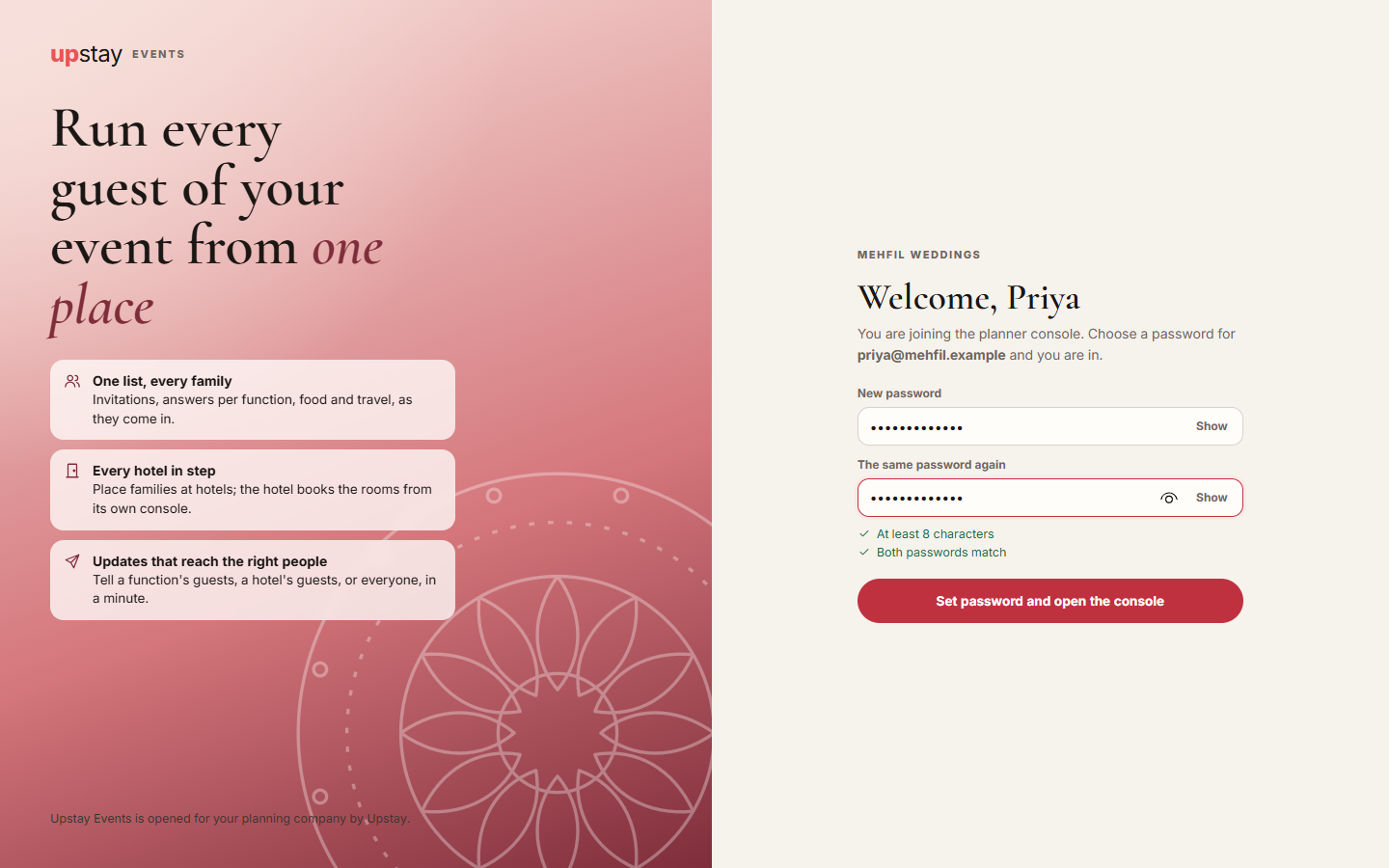
Section titled “How to set your password with the welcome link”- Open the welcome link. The page greets you by name and shows your company.
- Type a password in New password.
- Type it again in The same password again. Both rules under the boxes turn green: At least 8 characters and Both passwords match.
- Click Set password and open the console. You land on Your events, already signed in.
How to sign in
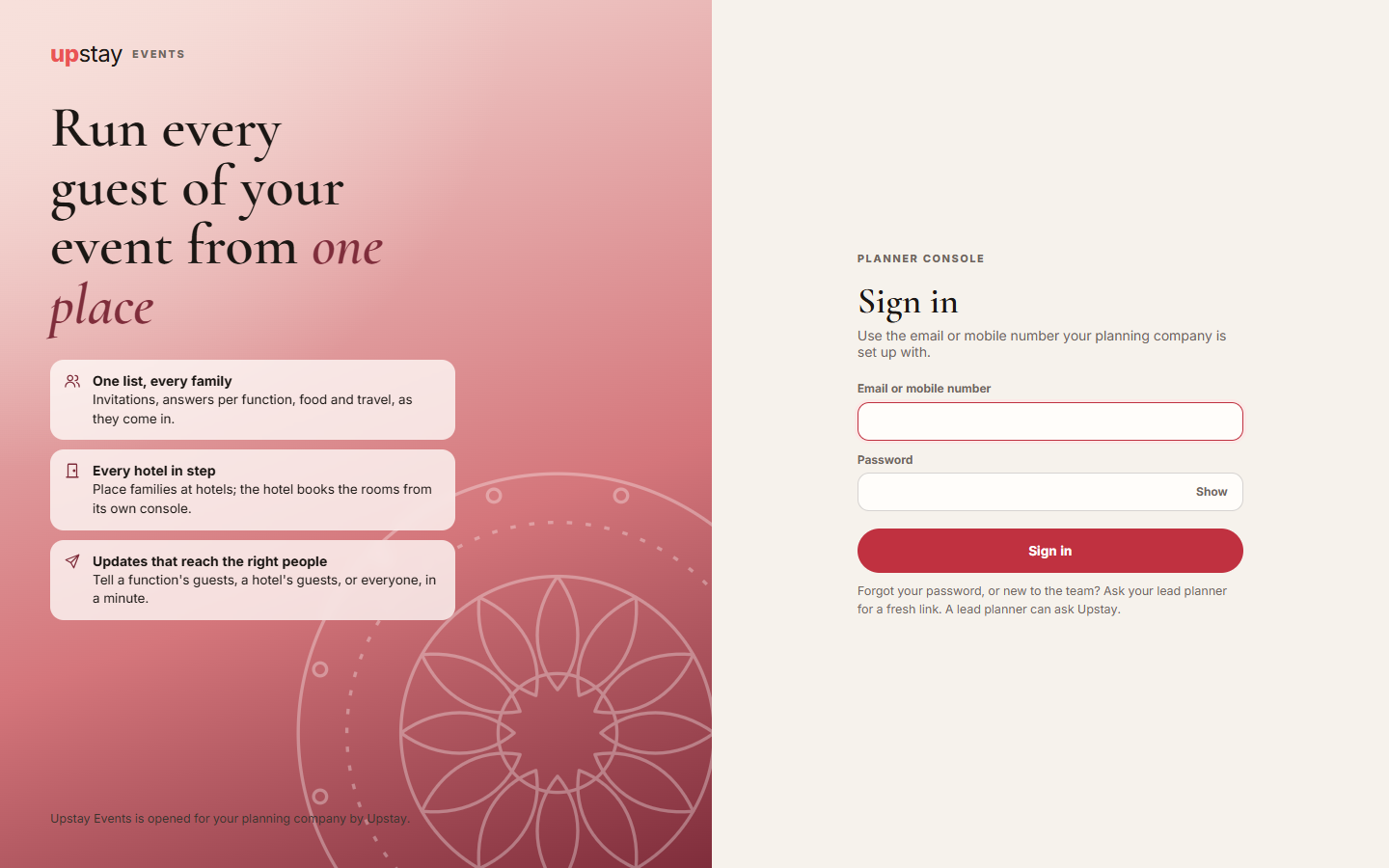
Section titled “How to sign in”- Open the planner console’s sign-in page.
- Type your email or mobile number in Email or mobile number.
- Type your password in Password. Click Show to see what you typed.
- Click Sign in.
How to install the app on a phone or computer
Section titled “How to install the app on a phone or computer”- Sign in on the device you want the app on.
- On a computer or an Android phone, click Install Upstay Events at the top of Your events, or open your name at the top right and click Install the app. On a phone, it is also under More at the bottom.
- Confirm in the box your browser shows.
- On an iPhone or iPad, tap Share in the browser, then Add to Home Screen. The console shows this hint once, as Keep Upstay Events on your home screen, until you close it.
Tips & good to know
Section titled “Tips & good to know”- Signing in with a mobile number works only when a mobile number is on your account. Your lead planner adds it when they invite you.
- A welcome link works once and expires after seven days. If yours has expired, ask for a new one.
- There is no “forgot password” page. Ask your lead planner for a fresh link from Team; a lead planner can ask Upstay.
- When you are offline, a strip at the top says so. Changes do not save until you are back online.
- Sign out is in the menu under your name, and at the bottom of the sidebar.
Troubleshooting
Section titled “Troubleshooting”- “Those details do not match an account. Check them and try again.” → Check the email or mobile number and the password. If you never set a password, use your welcome link first.
- “Too many attempts. Try again in a few minutes.” → Wait a few minutes, then try again carefully.
- “This planner account is paused. Contact Upstay.” → Upstay has paused your company’s account. Your lead planner should contact Upstay.
- “This link has expired” → The welcome link was used already or is more than seven days old. Click Go to sign in if you have a password, or ask your lead planner for a new link.
- “Enter your email or mobile number, and your password.” → One of the two boxes is empty.
- The install button does not appear → Your browser does not offer installing, or the app is already installed. On an iPhone use Share, then Add to Home Screen.