New event
What it does
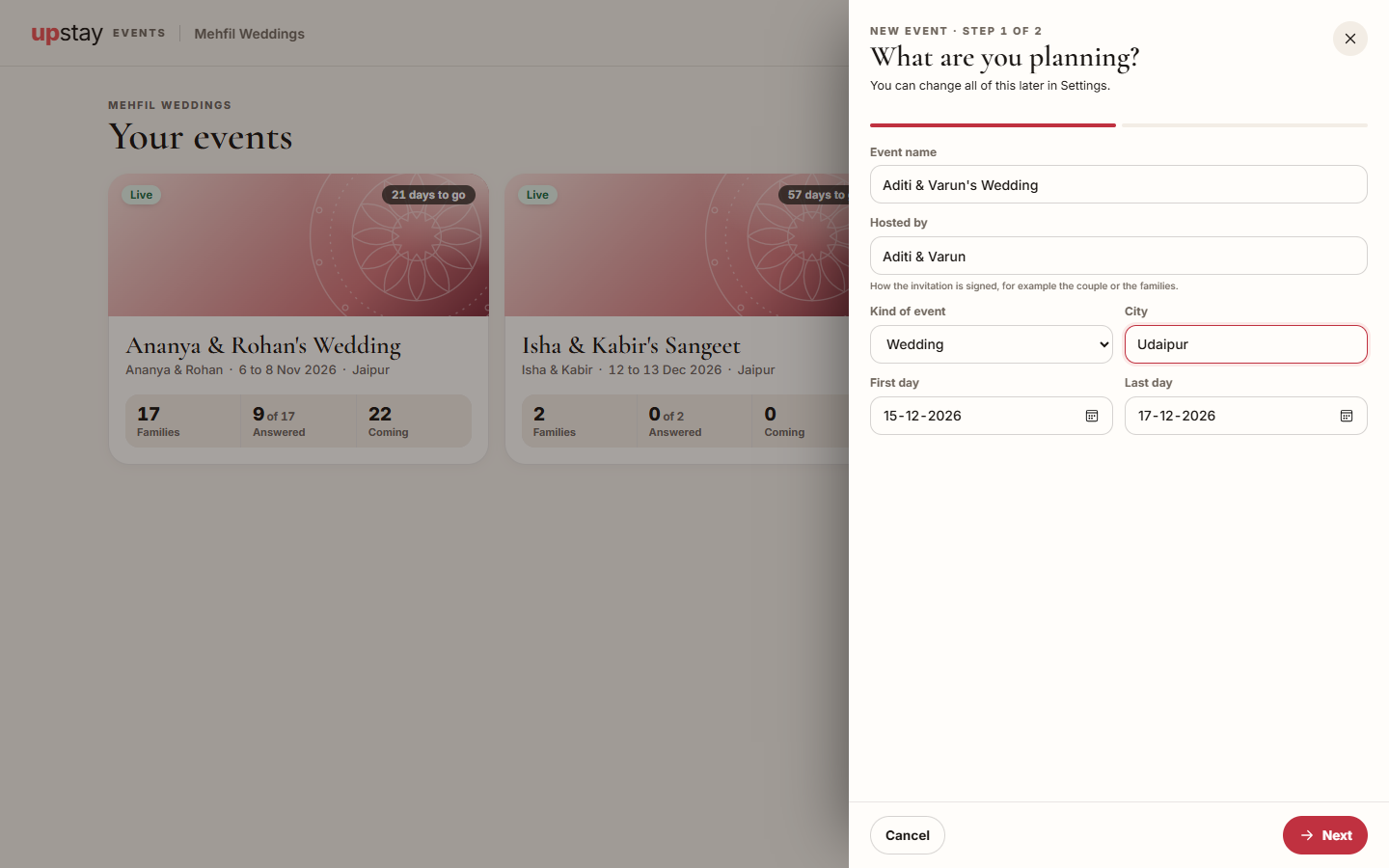
Section titled “What it does”New event creates an event in two short steps: what you are planning, and how guests reach you. A new event starts as a Draft: only your team can see it, and nothing reaches a guest. You build the schedule, the guest list and the hotels, then make the event Live so families can open their invitations.
Everything you enter can be changed later in the event’s Settings: Details, Invitation look, Status and Team.
Who can use it
Section titled “Who can use it”Lead planner and Desk. A Viewer can open every event but cannot create or change one.
Where to find it
Section titled “Where to find it”- Your events → New event (or Create your first event when you have none).
- Inside an event: the event name at the top of the sidebar → New event.
- An event’s own settings: Settings in the sidebar (under More on a phone).
How to create an event
Section titled “How to create an event”- Click New event.
- Enter Event name, for example “Ananya & Rohan’s Wedding”.
- Enter Hosted by: how the invitation is signed, for example the couple or the families.
- Pick Kind of event: Wedding, Corporate, Celebration or Other.
- Enter the City, the First day and the Last day.
- Click Next.
- Check Hospitality desk name and enter Desk mobile: the number families can call or WhatsApp.
- Optionally pick Ask for answers by (reminders mention this date) and write A note for every invitation.
- Pick the invitation’s colours under The invitation’s colours.
- Click Create the event. The event opens on Today.
How to change the event’s details
Section titled “How to change the event’s details”- Open Settings → Details.
- Change anything under The event or Hospitality desk.
- Click Save details.
How to change the invitation’s look
Section titled “How to change the invitation’s look”- Open Settings → Invitation look.
- Under Colours, pick one of the six colour themes. Every family’s invitation changes at once.
- Under Cover photo, click Upload a photo (or Change photo) and choose a photo of the couple, the venue or the invitation card. Wide photos look best.
- To go back to colours only, click Remove photo.
How to make the event live
Section titled “How to make the event live”- Open Settings → Status.
- Click Make it live.
- Confirm with Make it live.
Once it is live, families can open their invitation links and answer, and you can send invitations and updates. From Status you can also End the event when it is over, go Back to draft, or Make it live again.
Tips & good to know
Section titled “Tips & good to know”- The event needs at least one function on the Schedule before it can go live: guests answer per function.
- Back to draft closes every invitation link until you make the event live again.
- An Ended event still opens for families, but nothing new is sent and replies are closed.
- The hospitality desk name and mobile appear on every invitation and in the stay app, so a family always knows who to call.
- A cover photo must be under 10 MB.
Troubleshooting
Section titled “Troubleshooting”- “Add at least one function to the schedule before you make the event live.” → Add a function on the Schedule page, then try again.
- “The last day cannot be before the first day.” → Fix First day and Last day.
- Next does nothing and a red line names what is missing → Fill in what it lists, for example Give the event a name, Say who is hosting or Add the city.
- “That photo is too large” → Choose a photo under 10 MB.