Reservations
What it does
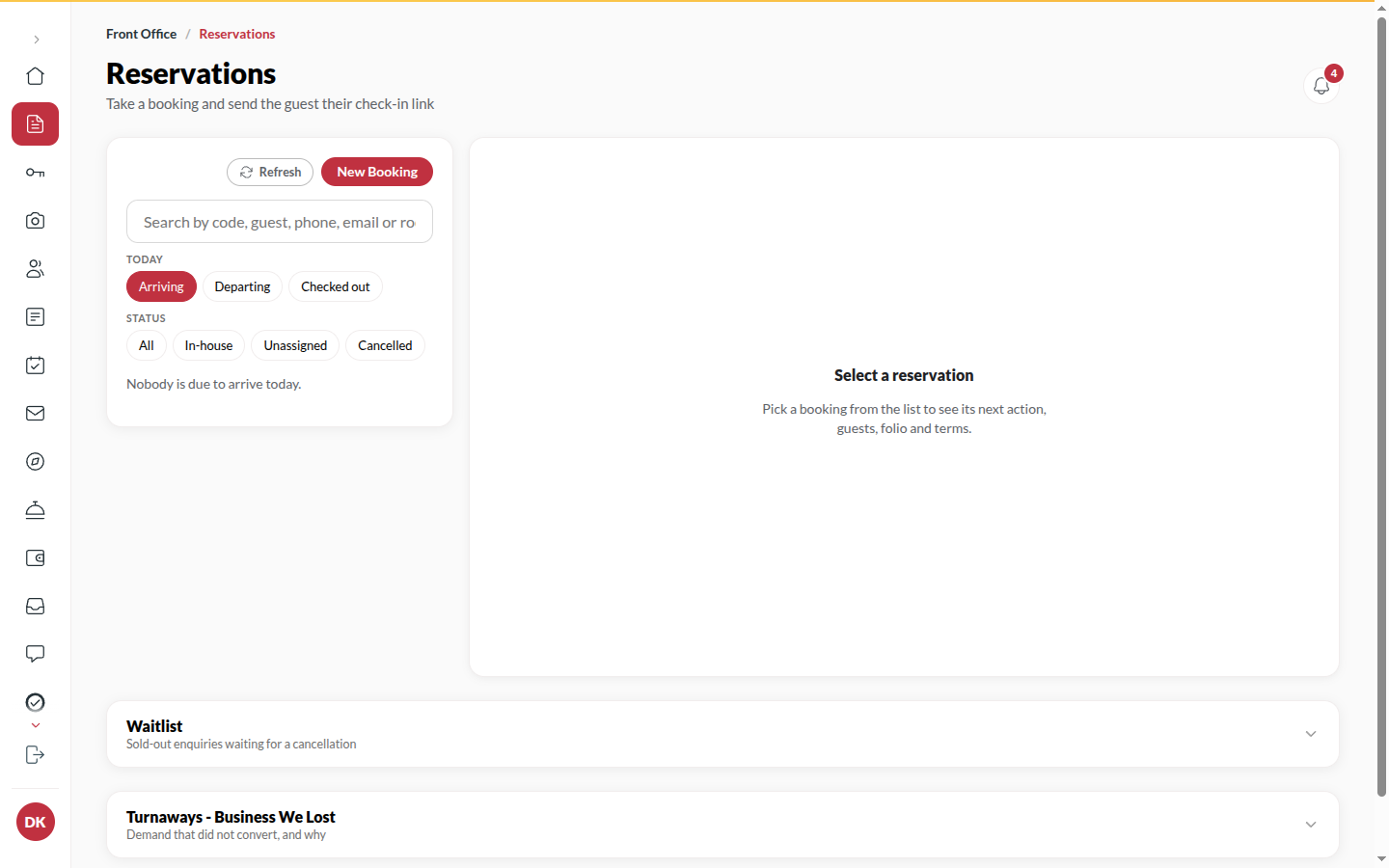
Section titled “What it does”Bookings is every booking your hotel holds: taken at the desk, on your own site, on upstay.in or from an OTA. Click any booking to open its guest file on the right. From the guest file you do everything: assign or move the room, check the guest in and out, review IDs, take payment, message the guest and see what happened.
Who can use it
Section titled “Who can use it”Front Desk, Managers and Admins. Overriding a booking’s status is for Managers.
Where to find it
Section titled “Where to find it”Bookings in the rail. A guest file also opens from Today, Rooms, Inbox and search.
How to find a booking
Section titled “How to find a booking”- Pick a view: All active, Arrivals, In-house, Due out, Overstay, Unassigned, Checked out today, Cancelled or All. Each shows its count.
- Or type in Name, code, room, phone or email.
- Narrow with Any status, Any source, the Unpaid and OTA quick filters, or dates: choose by Arrival, by Departure or by Booked, then From and To.
- Switch between List, Tiles and Calendar if you prefer.
- Click a booking to open its guest file. Clear filters resets everything.
How to take a booking
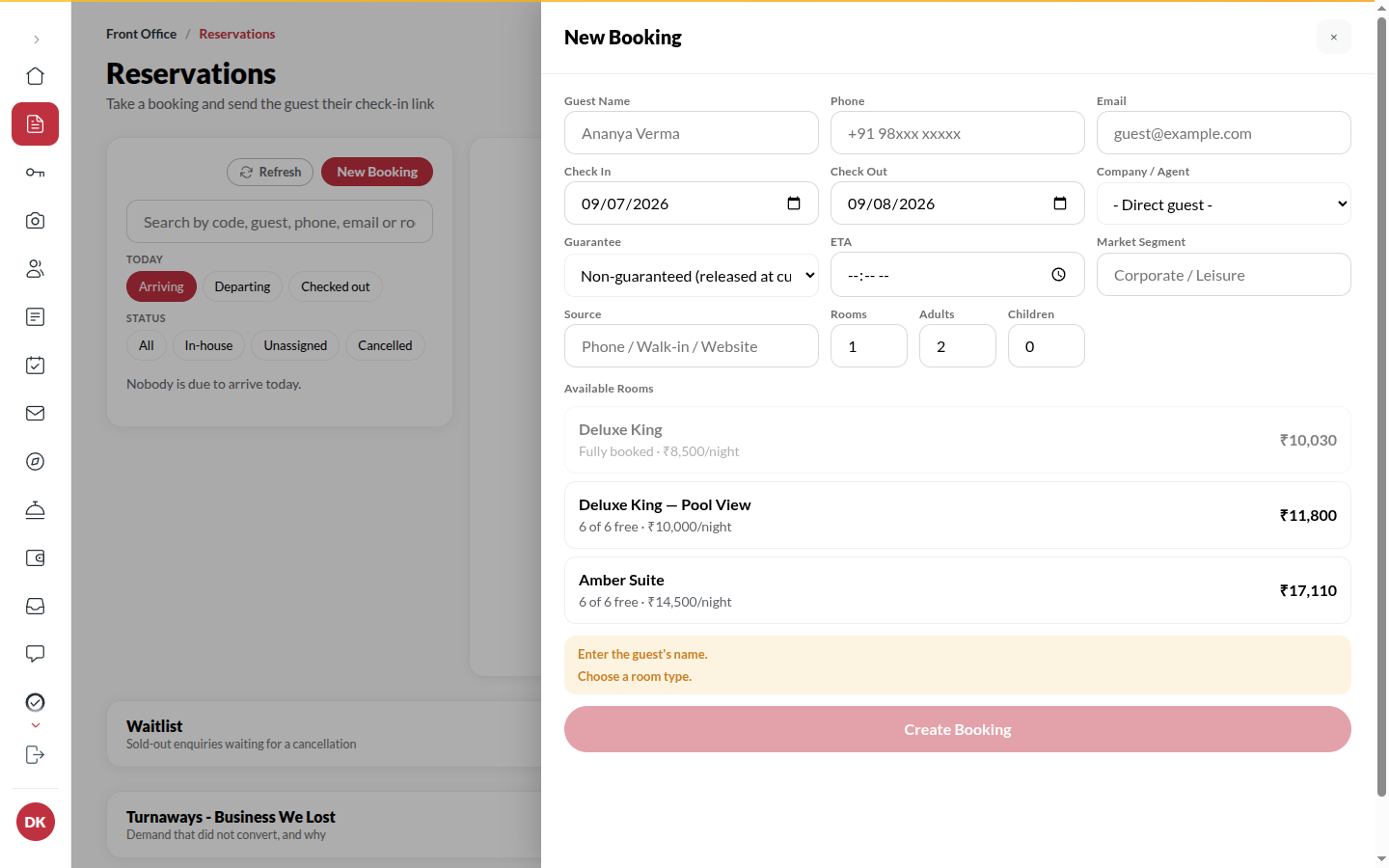
Section titled “How to take a booking”- Click New booking (or Walk-in in the top bar for a guest at the desk).
- Under When, choose Tonight · at the desk or A later date · by phone, then set Arriving on, the nights and the guests.
- Pick the Room type. Each type shows what is free; a type that is full says Fully booked.
- Optionally pick a Rate plan, a Company or agent, the Guarantee, an ETA, the Market segment and Source of business, and tick any Requests.
- Under The guest, enter Full name, as on the ID and Mobile (every booking needs one, walk-ins included) and, if you have them, Email, Nationality, Home address, Vehicle number and the company’s GSTIN for a business stay.
- Leave Send the booking confirmation by WhatsApp and SMS ticked to send it at once (it adds ”, and email it” when you gave an email). Untick it and Upstay still sends the confirmation automatically a little later.
- Click Book & go to check-in (tonight) or Book for the date. The booking is created with its code.
How to send or copy the guest app link
Section titled “How to send or copy the guest app link”The guest app link opens the guest’s stay on their phone: check-in before arrival, then the room key, the bill, dining and requests. It is there for every booking, whatever its status, and for every role that can open a guest file.
- Open the guest file and click Guest app link in the top row.
- Click Copy link to paste it anywhere yourself, or Send by WhatsApp & SMS to send it from Upstay. Before arrival the message asks the guest to check in online; once they are in house it is just the link.
- Before arrival the guest file also shows Send link on the check-in card. It sends the same message.
If the booking has no mobile number, only Copy link works: the dialog says No mobile number on file, so it cannot be sent. Copy it instead, or add the number. Click Add a mobile to fix it. If messaging is switched off for your hotel, the dialog says so and you can still copy the link.
How to resend the booking confirmation
Section titled “How to resend the booking confirmation”- Open the guest file and open the … menu.
- Click Send booking confirmation. It goes by WhatsApp and SMS.
How to message the guest
Section titled “How to message the guest”- Open the guest file and click Message.
- Under Where, choose In the guest app or WhatsApp & SMS.
- Type the message and click Send. Every message shows under the Messages tab.
How to change a booking
Section titled “How to change a booking”- Open the guest file and choose Amend stay from the … menu.
- Change Check-in, Check-out, Room type, Adults, Children, ETA, ETD or Guarantee.
- Click Save amendment. Changing the room type re-prices the stay at the current published rate.
Other actions in the same menu: Assign room / Change room, Move to another room, Late checkout (add a charge), Extend by a night, Edit guest details and Add a charge or discount.
How to check a guest in
Section titled “How to check a guest in”- Open the guest file and click Check in.
- Every guest’s ID must be verified. If one is not, click Open the IDs.
- Pick a clean room. Only clean rooms can be chosen.
- Collect a payment now or leave it for checkout, then choose the key: Key card or Digital key to the phone.
- Click Check in.
How to check a guest out
Section titled “How to check a guest out”- Open the guest file and look at the Bill.
- Collect what is due with Take payment. See Folio & payments.
- Click Check out. Every assigned room goes to housekeeping.
How to cancel a booking or mark a no-show
Section titled “How to cancel a booking or mark a no-show”- Open the guest file and scroll to Danger zone.
- Click Cancel booking or No-show.
- Pick a reason, for example Guest asked to cancel or Didn’t arrive, no word, and confirm with Cancel the booking or Mark no-show.
- The dialog says whether the cancellation fee in the booking’s terms applies. Money already paid is refunded from the bill.
How to undo or reinstate
Section titled “How to undo or reinstate”- Undo check-in and Undo check-out (in Danger zone) reverse a status set by mistake. The console refuses when it cannot undo safely, for example after nights have been earned.
- Reinstate puts a cancelled or no-show booking back. Availability is checked again.
How to mark a stay complimentary or house use
Section titled “How to mark a stay complimentary or house use”- Open the booking and click More → Complimentary or house use (managers and the owner).
- Choose Complimentary (given to a guest) or House use (the hotel uses the room), write Why and click Save. Choose Charged as normal to undo it.
- The nights still count as rooms sold, at no revenue, and the Complimentary and house use report shows why. To waive what is already on the bill, add a discount on the Bill.
How to leave a note or a locator
Section titled “How to leave a note or a locator”- Under Staff only, type in Add a note for the team and click Add. Notes are never shown to the guest.
- Click Add a locator to note where the guest is (for example “At the spa”) and when they are back.
Tips & good to know
Section titled “Tips & good to know”- Availability is counted per room type. The console refuses to sell a room type twice for the same nights.
- A booking from an OTA shows its channel and the OTA’s own booking id. Marking an OTA booking as a no-show tells the channel.
- Cancelling an OTA booking here does not cancel it on the OTA. Cancel it on the OTA’s extranet too.
- The Activity tab lists everything that happened on the stay, and Changes to the booking lists each amendment.
- A Manager can Override status (with a reason). It sets the label only: no bill, room or key changes.
Troubleshooting
Section titled “Troubleshooting”- “Check-in can’t be in the past - pick today or later.” → Pick today or later.
- “Enter the guest’s mobile number, so they can be reached.” or “Enter a 10-digit mobile number, or one with a country code.” → The booking button stays off until the guest has a valid mobile. A booking cannot be saved without one, and a mobile can be corrected later but not removed.
- “Sent to the manager” → What you tried is above your limit (for example a price below the room type’s floor). A Manager approves or declines it under Decisions.
- “Add the guest’s mobile” (a bell alert) → An OTA booking arrived without a mobile number. It is the one kind of booking allowed in without one. Open the guest file and add it; messages to the guest wait until you do.
- “Check-out must be after check-in” → At least one night.
- “Someone just booked that room - please try again” → Two desks booked at once; try again.
- “The guest is in-house - check them out instead” → An in-house stay cannot be cancelled.
- “Only a cancelled or no-show stay can be reinstated” → Reinstate applies only to those two.
- Check in is blocked → An ID is not verified or no clean room is free. The dialog says which.