Invitations
What it does
Section titled “What it does”Invitations shows where every family stands, in four stages that never overlap: Not sent, Sent (the link has not been opened), Opened (opened, not answered) and Answered. From here you send invitations and reminders, see the families to chase, and read the Headcount for the caterer: for each function, how many said Coming, Maybe and No, how many have Not answered, the children, and the food choices.
Each family gets its own link. They open it, see the plan for each day, and answer for everyone in the family. Until Upstay’s own WhatsApp sending is switched on for events, you send each message from your own WhatsApp: families see your number, the one they already know.
Who can use it
Section titled “Who can use it”Lead planner and Desk send invitations and reminders. A Viewer can read the page and download the list.
Where to find it
Section titled “Where to find it”Invitations in the event’s sidebar (Invites on a phone). A number on it counts the families not invited yet.
How to send invitations
Section titled “How to send invitations”- Make sure the event is Live (Settings → Status → Make it live).
- Click Send invitations (or Invite 12 families, with your number).
- Check the families ticked: every family not invited yet that has a mobile number. Use Choose all or Clear to change it.
- Click Send (for example Send 12 invitations).
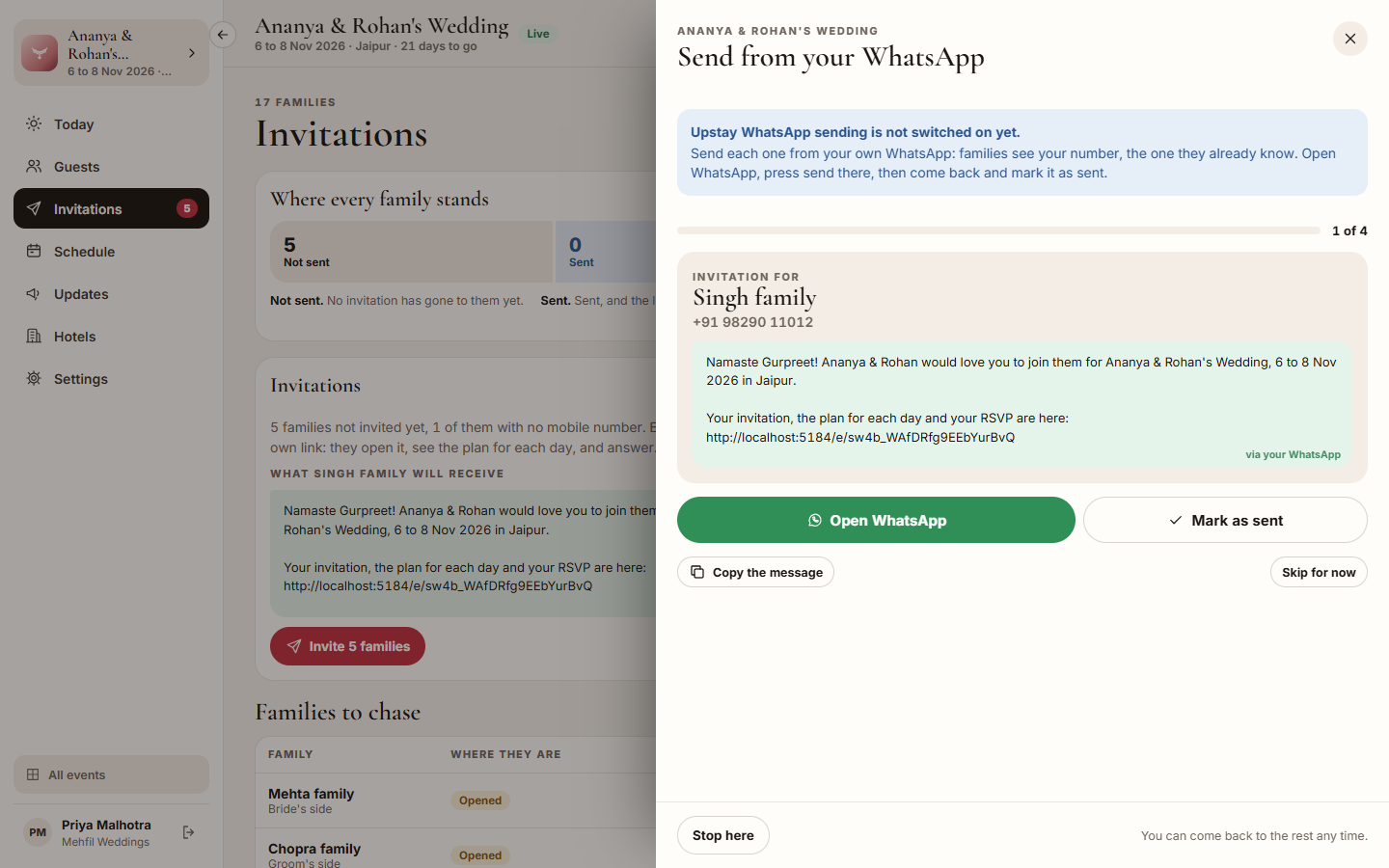
- If Send from your WhatsApp opens, work through the families one at a time:
- Click Open WhatsApp. WhatsApp opens with the family’s number and the message filled in.
- Press send in WhatsApp, then come back.
- Click Mark as sent. The next family appears.
- When you reach the end, the summary shows how many went out. Click Done.
How to send reminders
Section titled “How to send reminders”- Click Send reminders, or Remind beside a family under Families to chase.
- The families who have not answered for 3 days or more are ticked. Add or remove families.
- Click Send, then work through Open WhatsApp and Mark as sent as above.
A reminder is a short nudge with the same link. If you set Ask for answers by, the reminder mentions that date.
How to see who to chase
Section titled “How to see who to chase”- Scroll to Families to chase: families sent or opened with no answer for 3 days or more.
- Each row shows where they are, when they were invited, their last reminder and their mobile.
- Click Remind to send one family a reminder.
How to get the numbers for the caterer
Section titled “How to get the numbers for the caterer”- Scroll to Headcount for the caterer.
- Read the row for each function: Coming, Maybe, No, Not answered, Children, and Veg, Non-veg, Jain, Vegan and Not said.
- Click Download guest list for every person and their answers.
Tips & good to know
Section titled “Tips & good to know”- Nothing counts as sent until you click Mark as sent. If you stop partway (Stop here), the rest stay Not sent and you can come back to them any time.
- Skip for now moves to the next family without marking this one as sent.
- Copy the message copies the words, for sending another way.
- A family with no mobile number is left out. Add a number on Guests, or copy their link and share it another way.
- A family’s status moves to Opened when they open the link, and to Answered when they reply.
- Food counts include everyone who said Yes or Maybe.
Troubleshooting
Section titled “Troubleshooting”- “Make the event live before invitations go out.” → Click Make it live in the message, or open Settings → Status.
- “Upstay WhatsApp sending is not switched on yet.” → This is the normal way during the pilot: send from your own WhatsApp with Open WhatsApp and Mark as sent.
- “WhatsApp sending is paused by Upstay” or “The WhatsApp template for this message is not approved yet” → Send from your own WhatsApp for now.
- “This number cannot open WhatsApp.” → Click Copy the message, send it another way, then click Mark as sent.
- A family is listed under “No mobile number” in the summary → Add their mobile on Guests, then send again.