Travel
What it does
Section titled “What it does”Travel shows how every family arrives and leaves, and the trips that bring them in.
- A journey is one family’s flight, train or road trip, arriving or leaving. Families add their own on the invitation; you can add or change them too.
- A trip is one vehicle’s run: a Pickup from the airport or station to the hotel, a Drop from the hotel to the airport or station, or a Shuttle from the hotel to a function.
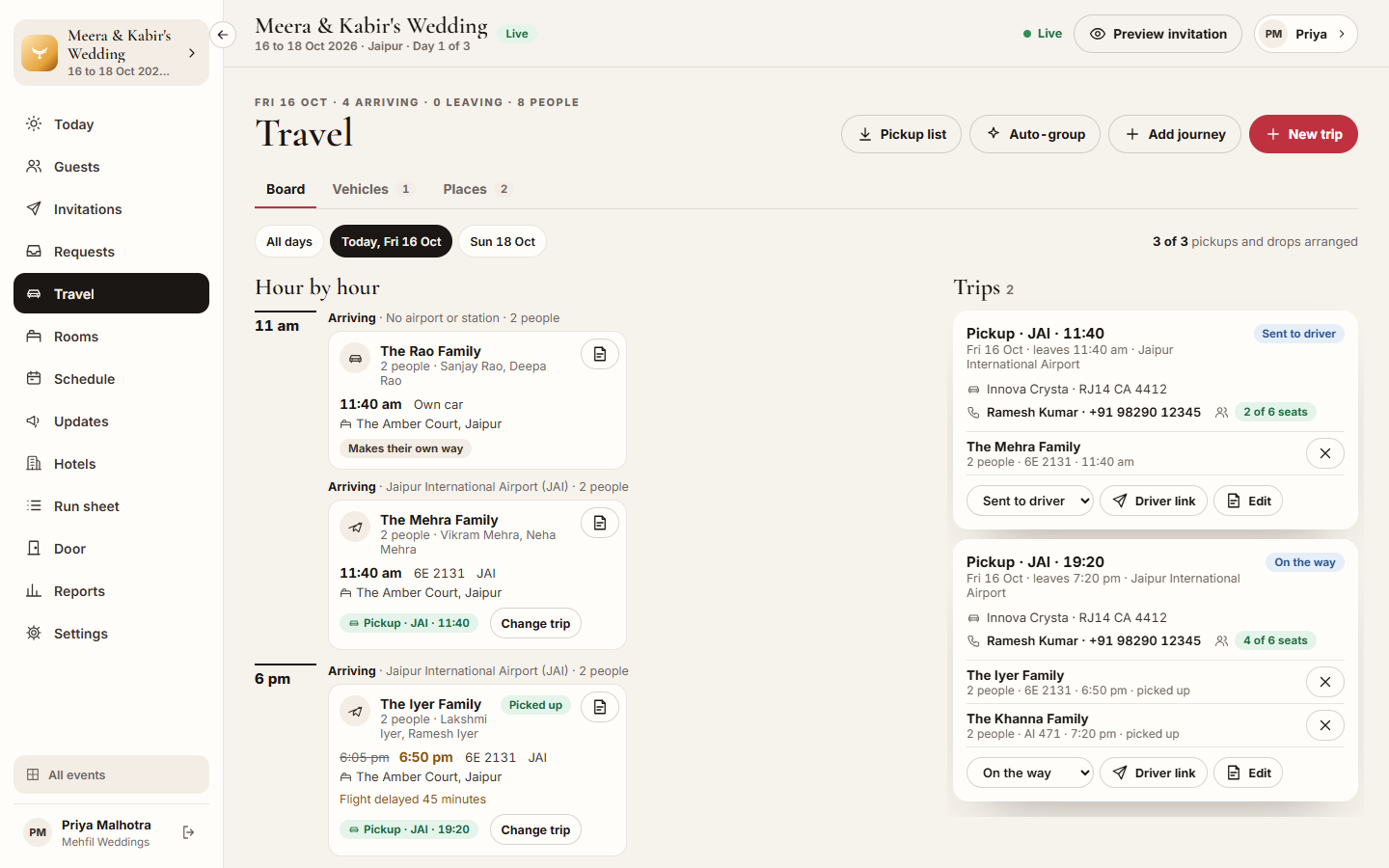
- The Board tab lays the journeys out Hour by hour beside the Trips, with Needs you now at the top: delays, families arriving with no pickup, trips over their seats, and trips about to leave with no vehicle or no driver phone.
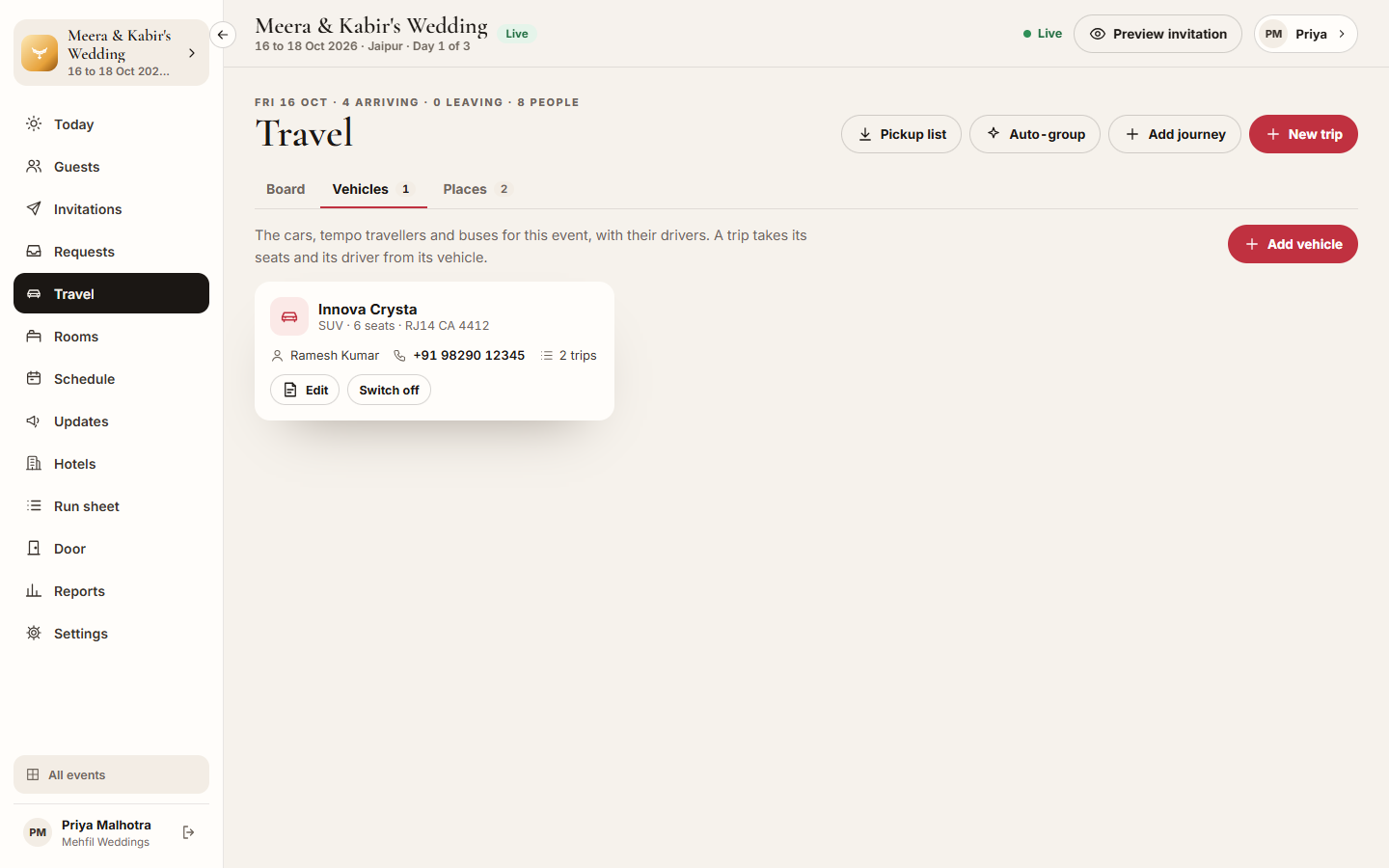
- Vehicles lists the cars, tempo travellers and buses you hired, with their drivers. Places lists the airports and stations families land at.
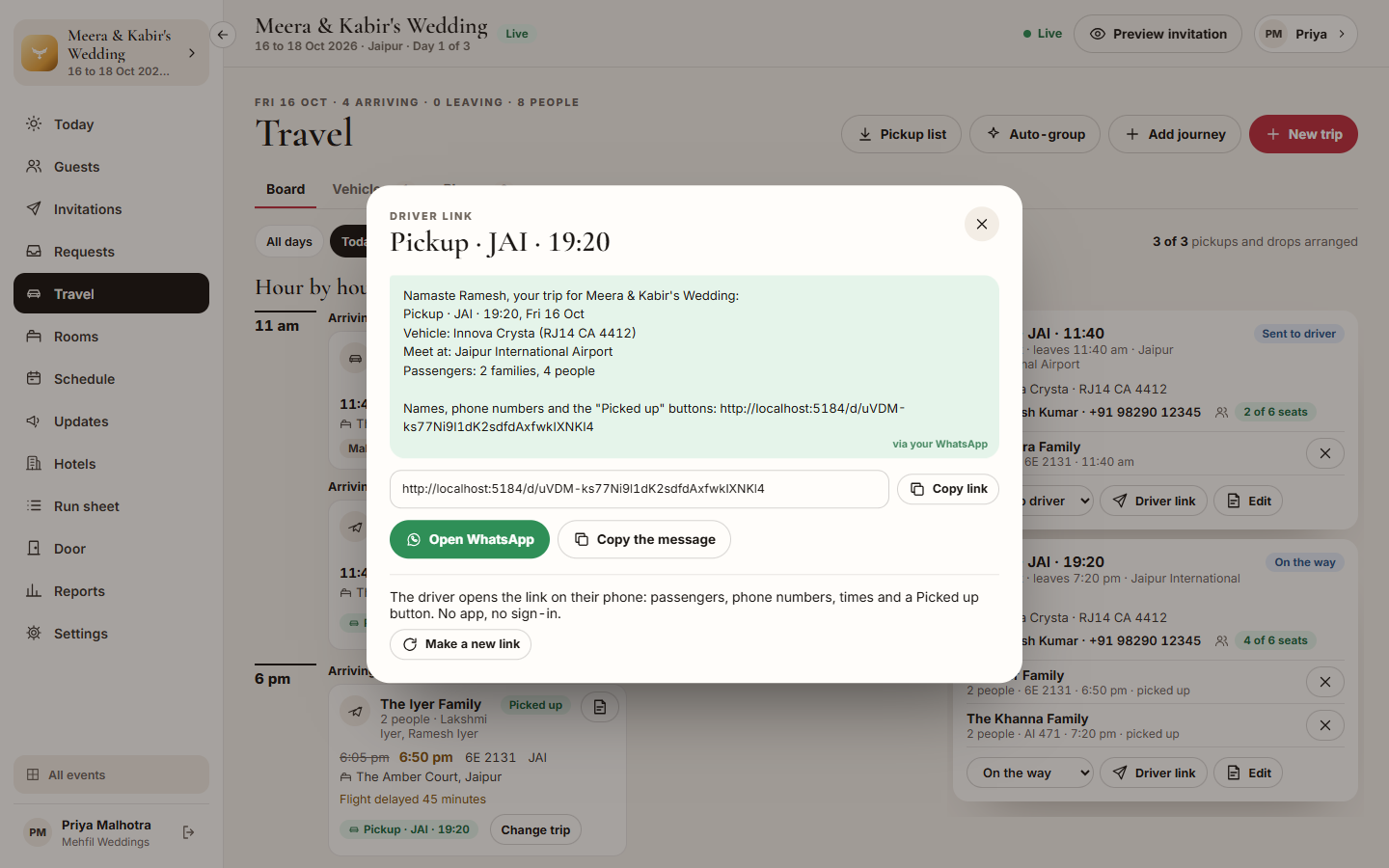
Each trip has a driver link: the driver opens it on their phone to see the passengers, phone numbers and times, and to mark each family picked up. No app and no sign-in.
Who can use it
Section titled “Who can use it”- Lead planner, Hospitality desk and Transport plan journeys, trips and vehicles.
- Viewer sees everything but cannot change it.
- Vendor coordinator does not see Travel.
A Transport team member opens each event straight on Travel.
Where to find it
Section titled “Where to find it”Travel in the event’s sidebar.
How to read the board
Section titled “How to read the board”- Open Travel. The Board tab opens on today, or the next busy day.
- Pick a day, or All days, above the board. The line beside the days says how many pickups and drops are arranged and how many journeys are delayed.
- Under Hour by hour, each journey shows the family, the people, the time, the flight or train, the airport or station and the hotel. A delayed journey shows the old time struck through and the new time.
- Its footer says which trip it is on, or No pickup yet, No drop yet or Makes their own way.
- Work down Needs you now first. Each line has a button that takes you to the fix.
How to add or change a journey
Section titled “How to add or change a journey”- Click Add journey, pick the family under Which family? and click Next. To change one, click the journey’s edit button.
- Pick Arriving or Leaving, and How: Flight, Train, By road or Local.
- Enter the Flight number or Train number, the Airport or station, the day and the time.
- Under Who travels, tick the people on this journey. Nobody ticked counts the whole family who is coming.
- Keep Needs a pickup (or Needs a drop) on if you are sending a car. It is on by itself for a flight or a train.
- Click Add journey or Save.
How to report a delay
Section titled “How to report a delay”- Open the journey.
- Switch on Delayed.
- Enter Now on, the New time and, optionally, Why (for example “Fog in Delhi”).
- Click Save. The board, the trip and the driver’s page show the new time.
Families report their own delays from the invitation, and drivers from the driver link. You see each one on the board and in Needs you now.
How to plan trips
Section titled “How to plan trips”- Click New trip.
- Pick What kind: Pickup, Drop or Shuttle.
- Set the Day and Leaves at.
- For a pickup or drop, pick the airport or station (Pick up at or Drop at). For a shuttle, pick For the function, and type the hotel’s name under From so only families staying there see it.
- Pick the Vehicle. The driver and the seats come from the vehicle.
- Click Plan trip.
- Put families on it: drag an arriving journey onto a pickup (a leaving one onto a drop), or click Add to trip on the journey and pick the trip.
A trip card counts the people against the seats and shows Over the seats when there are too many. Change its status from the box on the card: Planned, Sent to driver, On the way, Arrived, Done or Cancelled.
How to group arrivals into trips automatically
Section titled “How to group arrivals into trips automatically”- Click Auto-group.
- Pick Arrivals into pickups or Departures into drops, the Airport or station (or All of them), and Group journeys within (for example 1 hour).
- Click Group them. Journeys that need a car and have no trip yet are grouped by place and time, one trip per group, with no vehicle yet.
- Give each new trip a vehicle, then send the driver link.
How to send the driver their link
Section titled “How to send the driver their link”- On the trip, click Driver link.
- Click Open WhatsApp to send the ready-made message to the driver’s phone, or Copy the message or Copy link.
- If the link has gone to the wrong person, click Make a new link. The old link stops working at once.
How to add vehicles and places
Section titled “How to add vehicles and places”- Open the Vehicles tab and click Add vehicle. Enter the Name, Kind, Seats for guests, Number plate, Driver’s name and Driver’s phone, then click Add vehicle.
- Switch off a vehicle you no longer have with Switch off. Its past trips stay.
- Open the Places tab and click Add place. Enter the Name, Kind, Code (optional) and Where to meet, which families and drivers read on their pickup. Click Add.
How to download the pickup list
Section titled “How to download the pickup list”- Pick a day, or All days.
- Click Pickup list. A spreadsheet downloads with each journey’s time, family, phone, flight or train, place, meet point, delay, trip, vehicle, driver and hotel.
Tips & good to know
Section titled “Tips & good to know”- The first time you open Travel, the city’s airport and railway station are added for you. Change or remove them under Places.
- A journey a family added on the invitation needs a pickup by default when it is a flight or a train.
- Setting a trip to Done marks its picked-up families done. Setting it to Cancelled takes off every family not yet picked up, so they need a trip again.
- Sent to driver is a label you set yourself. Sending the driver link does not change the status.
- Times are India time.
Troubleshooting
Section titled “Troubleshooting”- “Take this journey off its trip before changing its direction.” → Click Change trip on the journey, then Take off this trip.
- “A pickup carries arriving families; one of these is leaving.” → Put leaving families on a drop.
- “Take the families off this trip before changing what kind of trip it is.” → Remove the families first, or plan a new trip.
- “Say when they now arrive, or switch off Delayed.” → Enter the new day and time.
- “This cannot open WhatsApp.” → The vehicle has no driver’s phone, or the trip has no vehicle. Add it under Vehicles, or copy the message and send it another way.
- Auto-group says “Nothing to group.” → Every journey that needs a pickup already has a trip, or has no time or no airport or station yet.