Hotels, features & marketplace
What it does
Section titled “What it does”The operator console is Upstay’s own console. All hotels is a table of every property on Upstay, with counts at the top and filters above the rows. Click a hotel to open its hotel file: how it is doing and what needs you, without signing in as the hotel. The file’s tabs are Overview, Bookings, Money, Guest app, Features, Listing, Channel manager, Settlement, Staff and Activity.
Who can use it
Section titled “Who can use it”Upstay operators who can see the Hotels area.
Where to find it
Section titled “Where to find it”The admin. console → All hotels, under Hotels in the rail. The rail lists every page with its badge. It scrolls, and the round arrow button at its top collapses it to icons (Collapse sidebar) or opens it again (Expand sidebar); your browser remembers which.
How to find a hotel
Section titled “How to find a hotel”- The four boxes at the top count Live (listed and taking bookings), Not listed yet, Suspended and Test.
- Pick a list: Live, Not listed, Suspended, Test or All.
- Type in Search by name, city, owner, phone or slug.
- Narrow it with a city chip (or All cities) and the chips Pulse below 50, No sign-in 3+ days, On channel manager and Direct payout.
- Order it with Needs attention, Revenue or Newest. Use Previous and Next when the list has more than one page.
- Use the up and down arrow keys to move through the rows, and press Enter (or click Open) to open the hotel file.
Each row shows Status, Pulse, Rooms, Sold tonight, Booked, 30 days, Last staff sign-in, Settlement (Upstay collects or Direct payout) and Features on. Download CSV saves the rows you are looking at.
How to read a hotel file
Section titled “How to read a hotel file”- Open the hotel. A badge beside the name says Live, Not listed, Suspended or Test; a test hotel also carries a note saying it is hidden from guests and left out of platform totals.
- Overview shows Bookings, 7 days, Bookings, 30 days, Sold tonight, Earned this month and Last staff sign-in, then Upstay Pulse, Needs attention, the Setup checklist (each missing item has Fix), Bookings by source, Guest journey and the latest Activity (All opens the full tab).
- Bookings shows the newest bookings, what is in the house now, bookings from the OTAs and booking requests.
- Guest app shows how far guests got: arrivals, opened the guest app, checked in online, ordered or asked for something, and Roomie conversations.
- Money and Settlement open the hotel’s settlement and payouts. Activity shows the latest 10 changes.
Use Open the hotel’s site and Message the owner at the top of the file when you need them.
How to add a hotel
Section titled “How to add a hotel”- On All hotels, click Add a hotel.
- Enter Hotel name and, if you have it, Address (optional).
- Click Create hotel. The hotel starts not listed; give it an address and photos on its Listing tab, then switch it on.
How to add the hotel’s first admin
Section titled “How to add the hotel’s first admin”- Open the hotel file → Staff.
- Click Add the first admin (or Add an admin).
- Enter Name, Email and First password (8 or more characters), then click Add admin.
- Hand over the password yourself, not by email. They are asked to change it on first sign-in.
On Staff you can also pick a person and click Manage to Reset password, Sign out everywhere, or Disable / Enable them, or click Sign everyone out for the whole hotel.
How to switch a hotel’s features
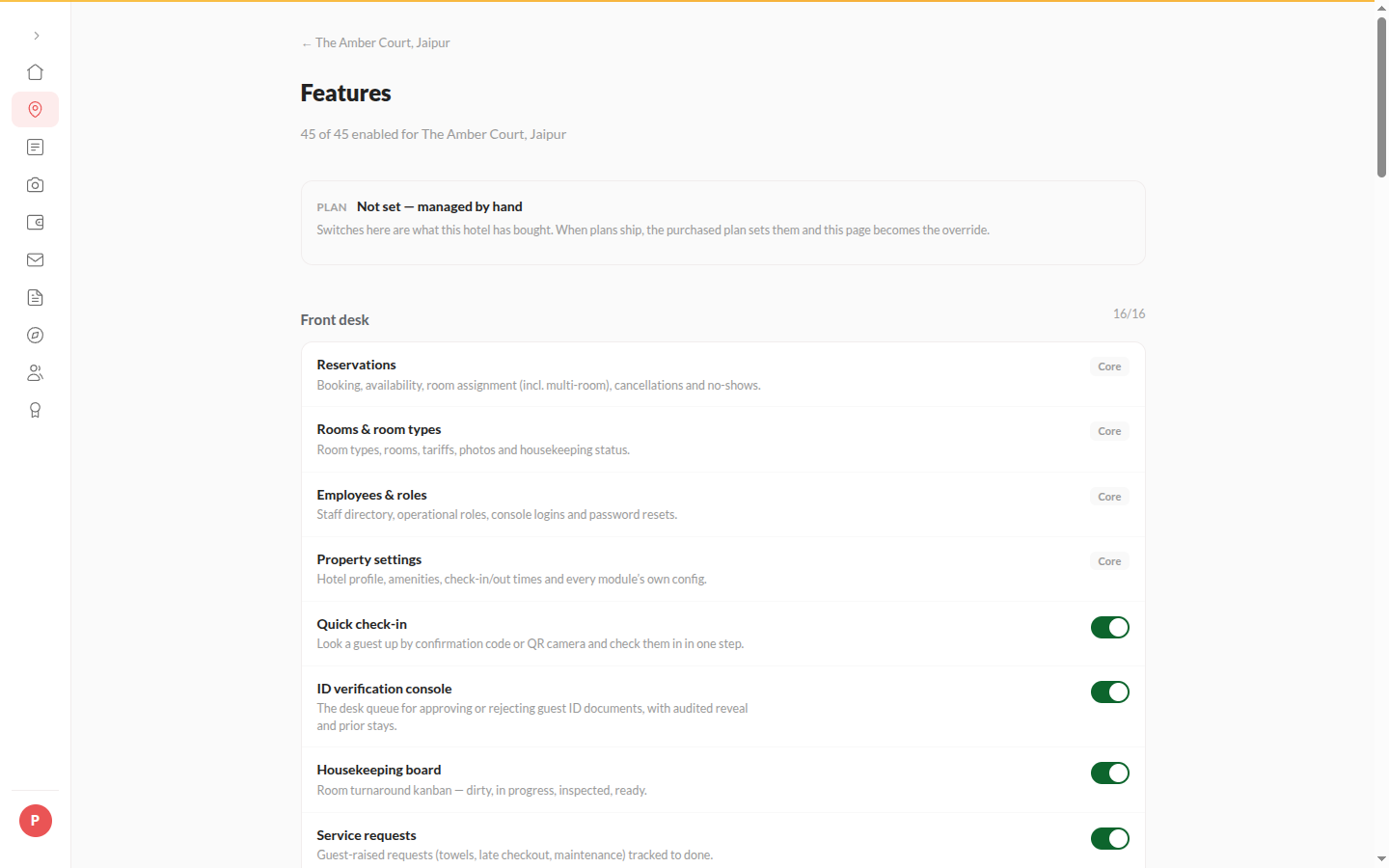
Section titled “How to switch a hotel’s features”- Open the hotel file → Features.
- To start from a plan, under Start from a plan click Essentials, Growth or Everything. The switches change; nothing is saved yet.
- Switch any feature on or off. Use Search features and All, Off only or Changed to find one.
- Click Save changes. Features marked as part of the product are always on.
How to edit the listing
Section titled “How to edit the listing”- Open the hotel file → Listing.
- Set Own address (the hotel’s
.upstay.inaddress), pick City from the suggestions, choose Category and set Commission (%). - Click Save.
- Turn Listed on Upstay on to show the hotel on upstay.in, in city search and on its own site. Off hides it and keeps the address. The switch is unavailable until the hotel has an address.
How to edit a hotel’s name, address or stars
Section titled “How to edit a hotel’s name, address or stars”- In the hotel file, click Edit name and stars.
- Change Hotel name, Address or Star rating.
- Click Save details.
How to suspend or reactivate a hotel
Section titled “How to suspend or reactivate a hotel”- In the hotel file, click Suspend.
- Type Reason (shown on All hotels), 5 characters or more, and click Suspend hotel.
- Its staff are signed out, guests can no longer book it and its website says it is not taking bookings.
- Click Reactivate to undo.
How to mark a test hotel
Section titled “How to mark a test hotel”Click Mark as test in the hotel file. A test hotel moves to the Test list, is hidden from guests, the marketplace and search, and is left out of platform totals, payments and payouts. Click Not a test to undo.
Tips & good to know
Section titled “Tips & good to know”- Everything is on by default for a new hotel; switching a feature off is the exception.
- Changing Own address breaks old links to the hotel’s site.
- Commission applies to bookings made on Upstay only; it accrues into Payouts.
- Test hotels are not scored, so they have no Pulse.
Troubleshooting
Section titled “Troubleshooting”- “That subdomain is already taken.” / ""x” is a reserved subdomain.” → Pick another address.
- “No hotel matches these filters.” → Clear the search or the chips.
- What guests see while a hotel is suspended → Its website stays up, with a banner saying it is not taking bookings on Upstay right now; every booking button is gone. It is not shown in marketplace search.
- A hotel is missing from the marketplace → Listed on Upstay is off on its Listing tab.