Rooms setup
What it does
Section titled “What it does”Bookings are for a room type (Deluxe King, Suite); guests are put in a room of that type. Setup is where you create the types - base tariff, how many adults and children, size, beds, view, features, photos - and add the rooms with their numbers and floors. Everything else (availability, the Room Board, your public site) is built on this.
Who can use it
Section titled “Who can use it”Managers and above.
Where to find it
Section titled “Where to find it”Back office → Rooms and rates, or Room setup on the Rooms page. Each room type has the tabs Details, Photos, Rooms and Rates.
How to add a room type
Section titled “How to add a room type”- Click New room type.
- Enter the Type name, Base tariff (₹/night), Max adults and Max children.
- Optionally Size (sq. ft.), Beds, View, a Description and the Type amenities every room of this type starts with.
- Click Create type. Later changes are saved with Save changes; Discard drops them.
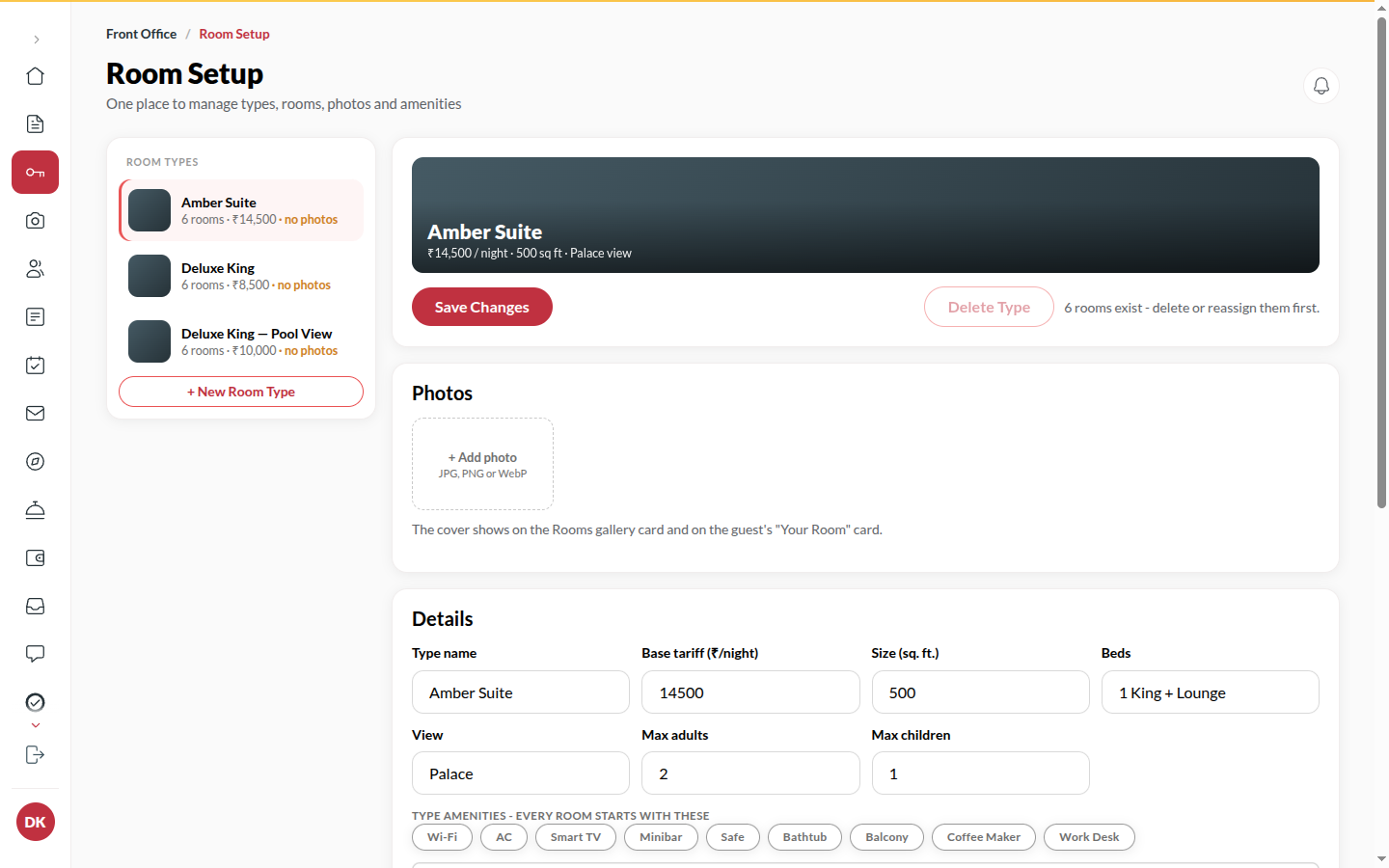
How to add rooms to a type
Section titled “How to add rooms to a type”- Open the type’s Rooms tab and click Add rooms.
- Choose Add a range (enter How many rooms to add, the First room number and the Floor) or Add one (enter the Room number, e.g.
101or12A). - Check the Preview - tap a room to leave it out. Rooms that already exist are skipped.
- Click Add room. Each room appears with its number.
How to add photos
Section titled “How to add photos”- Open the type’s Photos tab and add a photo (JPG, PNG or WebP).
- Click Set as cover on the one that should front the type. The cover shows on the Rooms gallery card and on the guest’s “Your Room” card.
How to give one room extra features
Section titled “How to give one room extra features”- In the Rooms tab, open a room’s amenities.
- Tap a type amenity to remove it for this room, or add a feature Only in this room.
- Click Save amenities. Reset to type defaults undoes it.
How to delete a room or a room type
Section titled “How to delete a room or a room type”- Click Delete on the room (or Delete type).
- Pick a reason, for example Added by mistake, Renumbered, Created by mistake or No longer offered.
- Confirm with Delete room or Delete type. It cannot be undone.
Tips & good to know
Section titled “Tips & good to know”- The base tariff is per night; the rate calendar overrides it on specific dates (Rates tab).
- Occupied rooms and rooms assigned to a live stay cannot be deleted. A room type with bookings, rooms or rate plans cannot be deleted either.
- A room’s number is unique in the hotel. Housekeeping status is managed on the Rooms page, not here.
Troubleshooting
Section titled “Troubleshooting”- “Room 101 already exists” → Numbers must be unique; pick another.
- “A guest is in Room 101. Check them out first.” → An occupied room cannot be changed or removed.
- “Room 101 is assigned to RES-XXXX. Move that stay to another room first.” → Reassign the arrival, then edit the room.
- “N room(s) / N booking(s) / N rate plan(s) …” on delete → The type is in use; the message says by what.