Payments
What it does
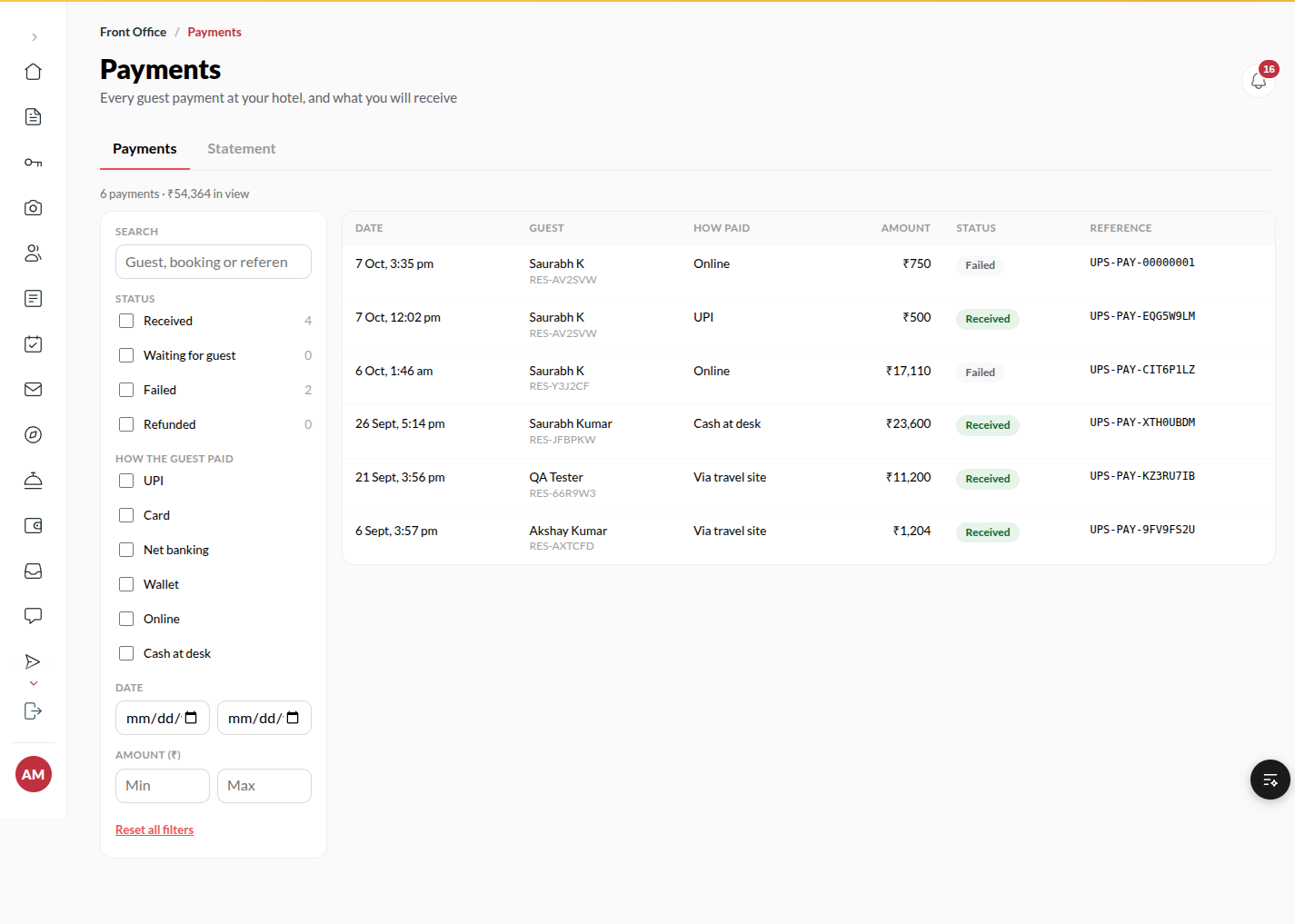
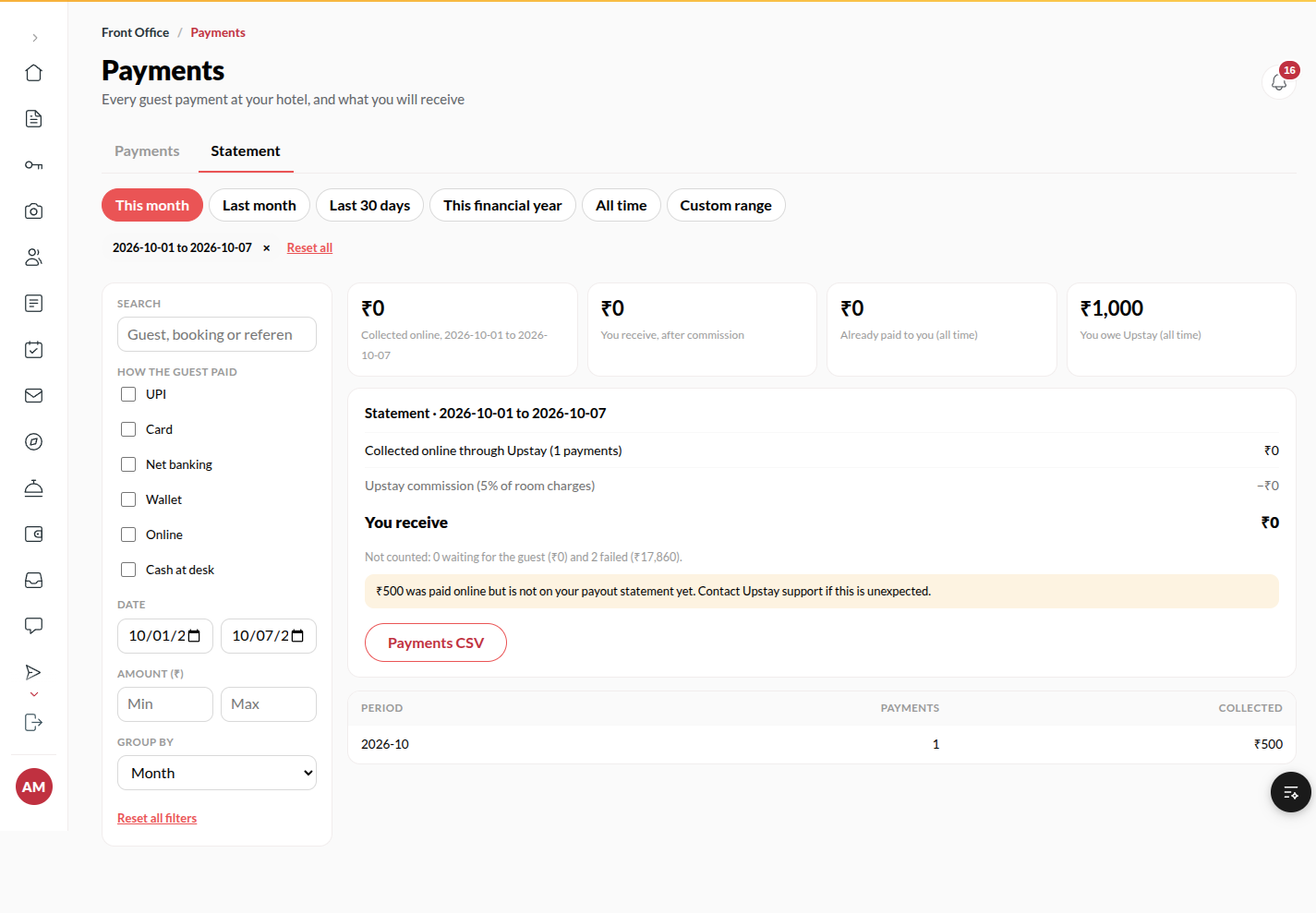
Section titled “What it does”Payments lists every payment taken for your hotel’s bookings, whether the guest paid online, in cash at the desk or through a travel site. You can narrow the list by status, how the guest paid, date and amount. The Statement tab adds up what Upstay collected online for you, takes off the commission, and shows what you receive. You can download the list as a spreadsheet.
Who can use it
Section titled “Who can use it”Managers and above, when Payments & statement is switched on for your hotel.
Where to find it
Section titled “Where to find it”Back office → Payments.
How to find a payment
Section titled “How to find a payment”- Open Payments, then the Payments tab.
- Type a guest name, booking code or payment reference in Search.
- Tick the Status and How the guest paid boxes you want, and set a Date or Amount (₹) range.
- Click a small × on a filter chip above the list to remove one filter, or Reset all filters to start again.
- Click a payment to open it: the guest, the booking, how they paid, the reference, and a sentence saying what it means. For money paid online it says whether it is on your payout statement yet.
How to read your statement
Section titled “How to read your statement”- Open the Statement tab.
- Choose a period: This month, Last month, Last 30 days, This financial year, All time or Custom range.
- Use Group by to see the totals by day, week, month or how the guest paid.
- Read the lines: what was collected online through Upstay, Upstay’s commission, and You receive.
- Click Payments CSV to download the payments behind the statement. The file follows the same filters.
How to change the account you are paid into
Section titled “How to change the account you are paid into”The Payout account box at the top of the Statement tab (and on Finance → Payout account) shows the bank account Upstay pays you into, as its last 4 digits. The account you gave when you listed your hotel is already there.
- Click Change Payout Account (or Add Payout Account if none is on file).
- Type the account number twice, the IFSC and, if you like, the bank name.
- Click Upload Cheque and add a photo or PDF of a cancelled cheque for the new account.
- Click Send to Upstay.
The box then says Change waiting for Upstay to check. Upstay compares the cheque with the numbers. Until they approve it, payouts keep going to the account already on file. Changed your mind? Click Withdraw. If Upstay does not approve it, the box says Your last change was not approved with their reason; fix it and send it again.
Managers and the owner can do this when Payout bank account is switched on for your hotel.
Tips & good to know
Section titled “Tips & good to know”- The statement counts only money Upstay collected online. Cash and money a travel site collects are shown as taken by you directly and are not part of your payout.
- Money you sent back to a guest (a refund) reads Refunded and shows for its size. On the statement, a refund that went back through Upstay is listed under Refunds in this period (a cash refund at the desk is not, because that money never passed through Upstay). You receive is the sum on your payout ledger; a refund reaches it when Upstay posts the correction to your ledger.
- A payment that is Waiting for guest or Failed is not counted. The statement tells you how many there are and how much they add up to.
- A reference starting with UPS-PAY- is how Upstay support finds one payment. Quote it when you write to them.
- If the statement says money was paid online but is not on your payout statement yet, contact Upstay support.
- Nothing on this page changes a payment. To refund a guest, a Manager uses Refund on the guest’s bill; see Folio & payments.
Troubleshooting
Section titled “Troubleshooting”-
A guest says they paid but the payment shows Waiting for guest → After 30 minutes the payment is marked as stuck and its reference is listed at the top. Contact Upstay support and quote the reference.
-
The download did not start → The page says “The download failed. Try again.” Click Payments CSV again.
-
You cannot see Payments in Back office → Only Managers and above can open it, and only when your hotel has it switched on. Ask your Upstay contact.
-
“A change is already waiting for Upstay to check. Withdraw it first to send a different one.” → Only one change can wait at a time. Click Withdraw, then send the new one.
-
“The two account numbers do not match.” → Type the account number again in both boxes.
-
“Check the IFSC: 4 letters, a 0, then 6 letters or digits.” → The IFSC is printed on the cheque, for example HDFC0001234.